Browse all guides
User Management
Follow the numbered steps. Click any picture to see it bigger.
Invite Users
ATTENTION
Please check if an email address is set for your account before inviting users. When there is no email set for your account, you can NOT invite users.
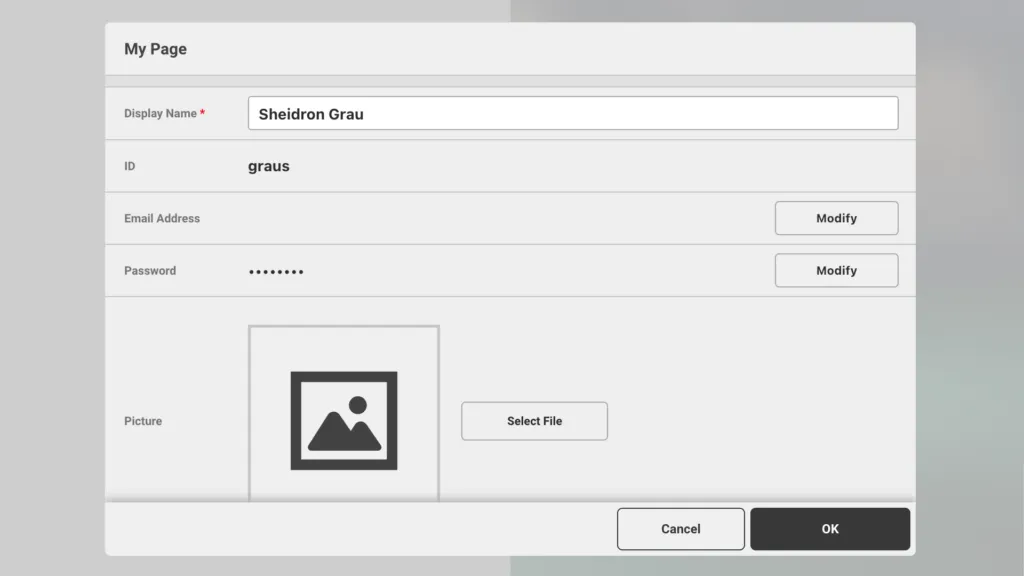
Click on the menu, the “…” on the top right corner of the page. Then click on your profile, and click on modify next to your email address.
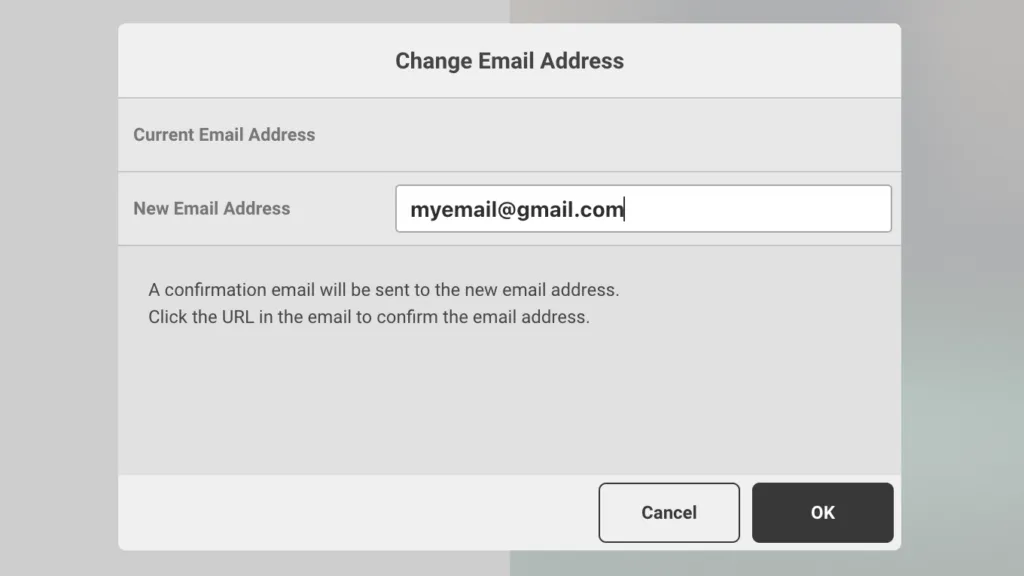
Enter your email address and click ok
You will be sent a confirmation email shortly after this action. Please check your email inbox to confirm your address
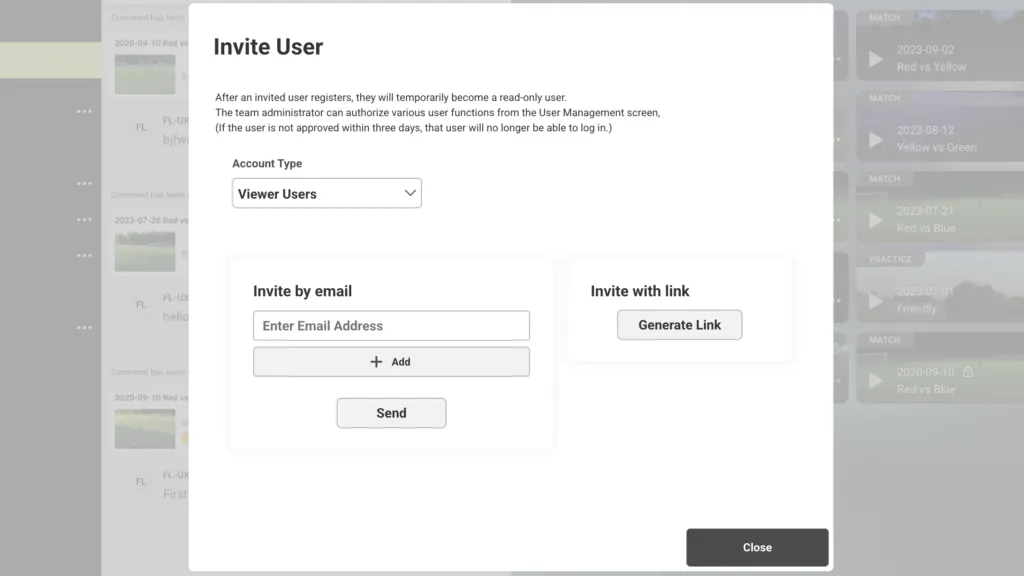
You can invite users in two ways.
Option 1. Invite via email
Click on the menu, the “…” on the top right corner of the page. Then click on Invite new user to FL-UX.
Specify the account type and enter the email address
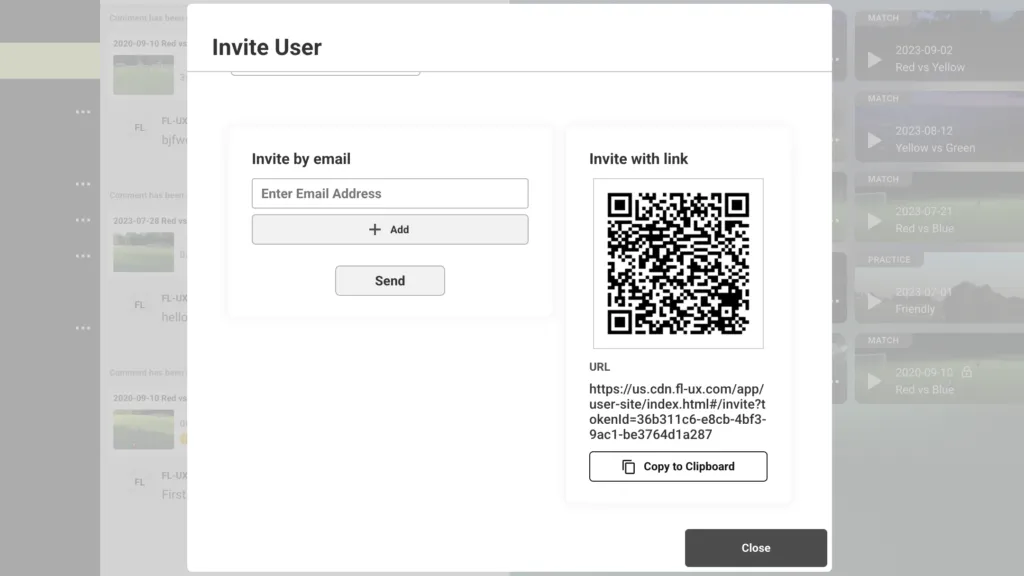
Option 2. Invite via link
Click on Generate Link and copy the link to share. This is a useful method when you are inviting a large number of users at once
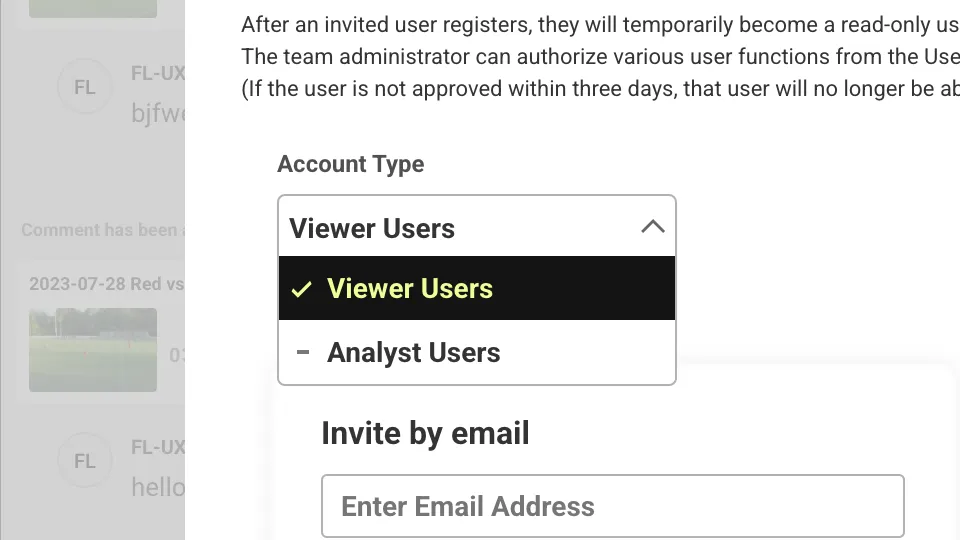
Attention
Make sure to set the account type correctly before sending out the invite
For security reasons, both invite methods expire after 3 days: the person you invite must accept, and an admin must approve them, within that time.
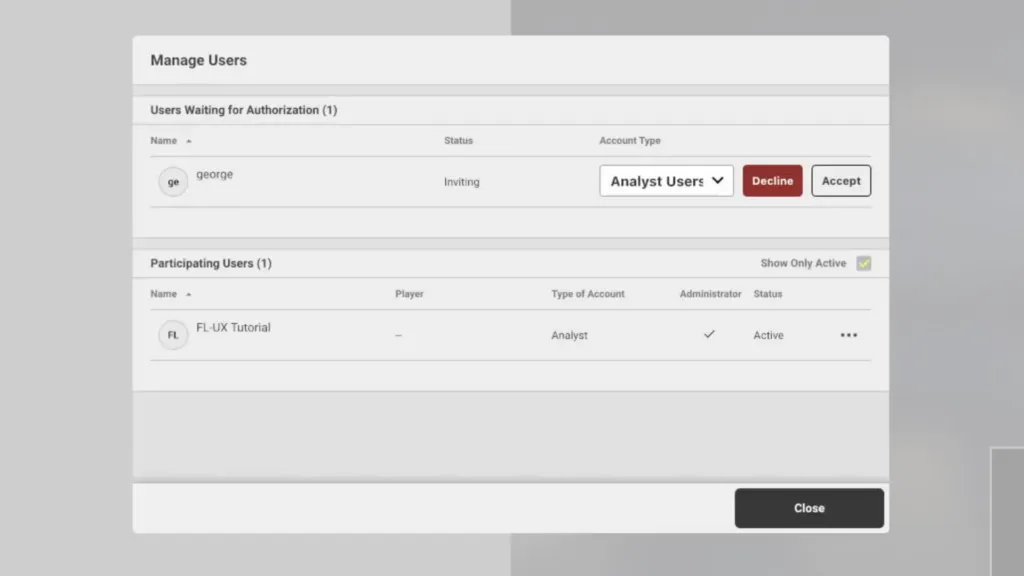
Go to menu > Users & Team > FL-UX Users and approve the invited users under Users Waiting for Authorization. This is a security step: because an invitation link can be shared, an admin checks who is joining before they get access.
Modify Type of Account
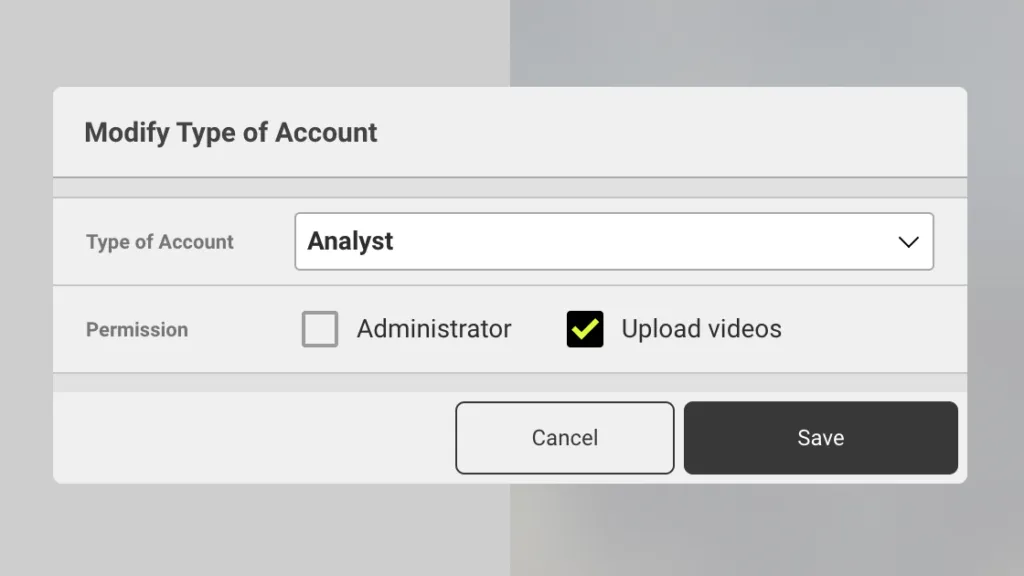
Go to menu > Users & Team > FL-UX Users and select the user to modify by clicking on “…”
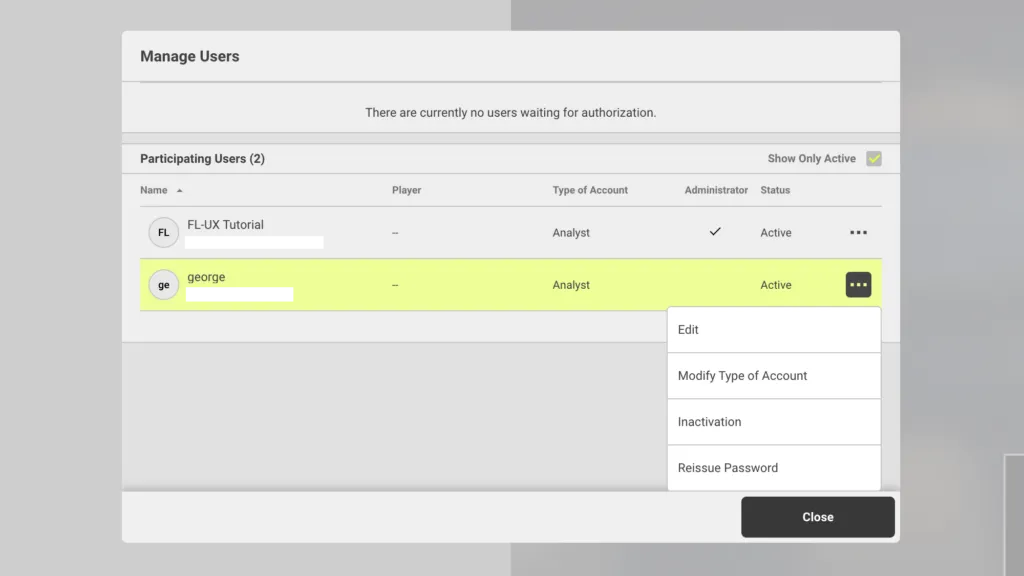
You can either modify the account to be an Analyst or a Viewer. You can also set users to be the Administrator and to have video uploading capabilities or not
Edit Account Info
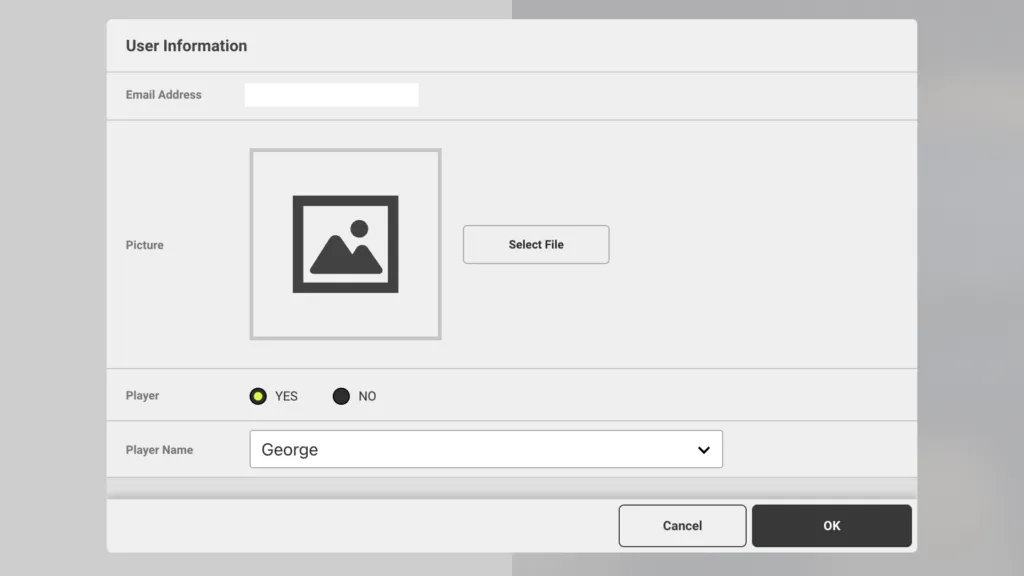
Go to menu > Users & Team > FL-UX Users and select the user to edit by clicking on “…”
Edit the user name for display, and set a user image from this window.
You can also link the user to a specific player in your player list. This is only possible after you have set up your team in Competition & team setup › Player & team setup. See the Manage My Team section below for more.
Manage My Team
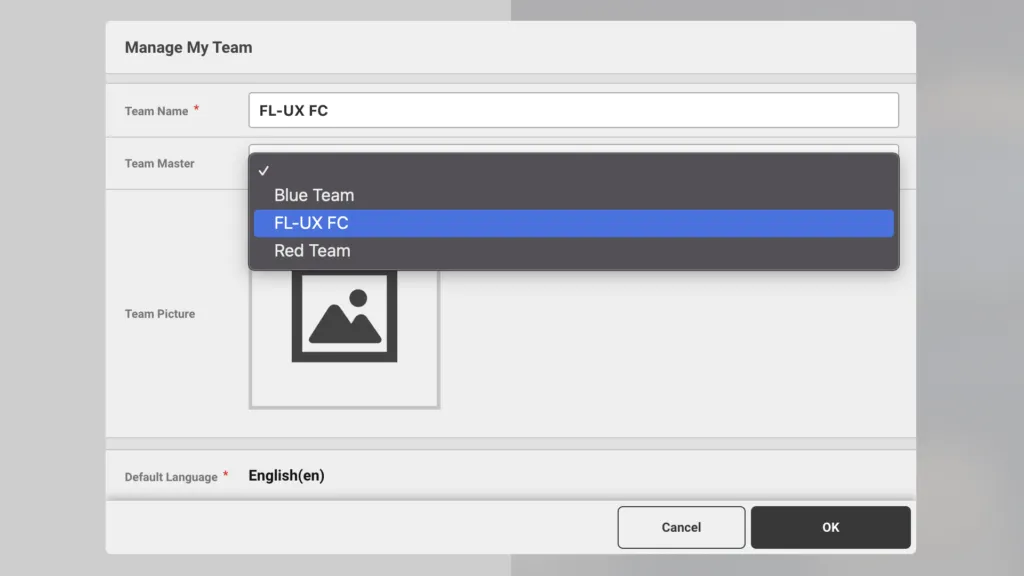
Go to menu > Users & Team > Team Information
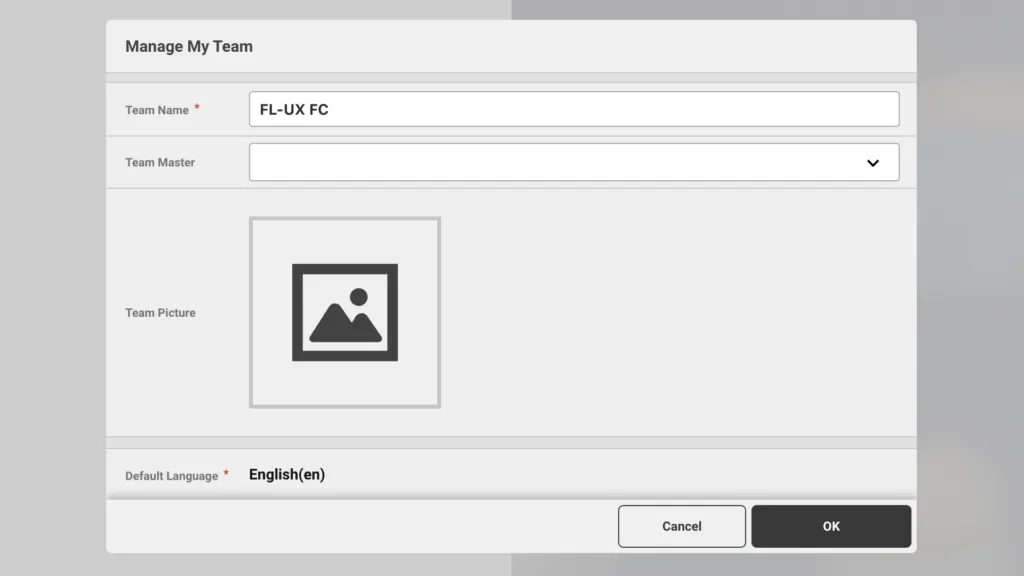
Click on the drop down menu and select the team