Browse all guides
Tag Videos
Follow the numbered steps. Click any picture to see it bigger.
Prefer watching? There’s a video lesson for this guide
How to Tag Videos
1st & 2nd Half Tags
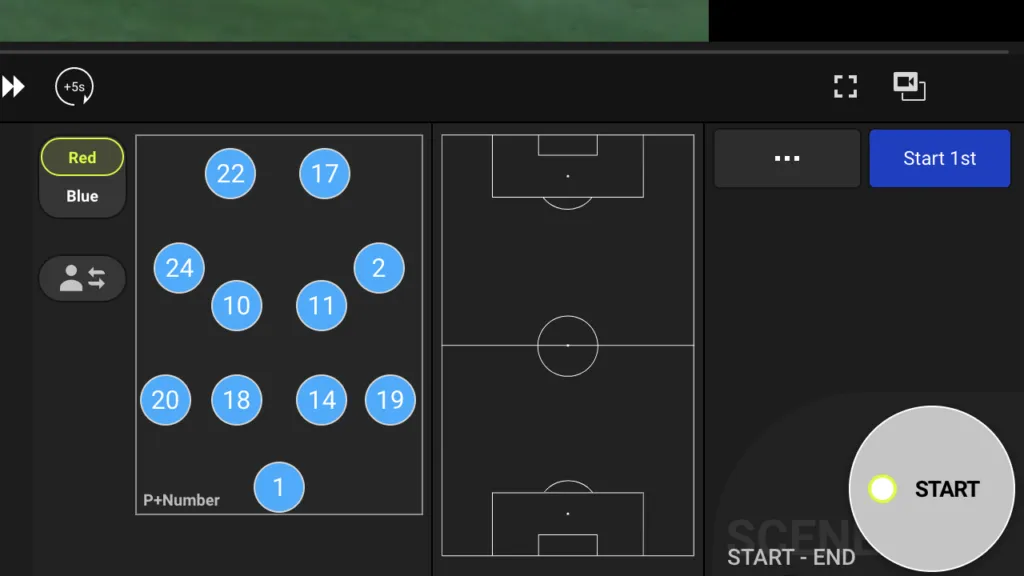
Click on the blue button on the right at the beginning of each half. These tags are used to track the time of the events
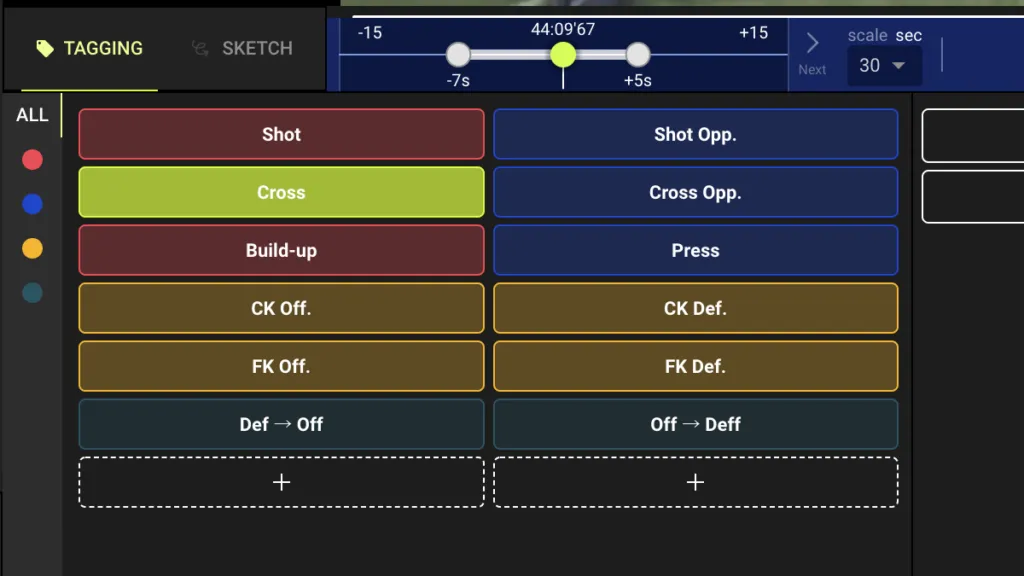
General Tagging
Make sure you are on the tagging page. Then click on the event tag that’s most appropriate for the scene
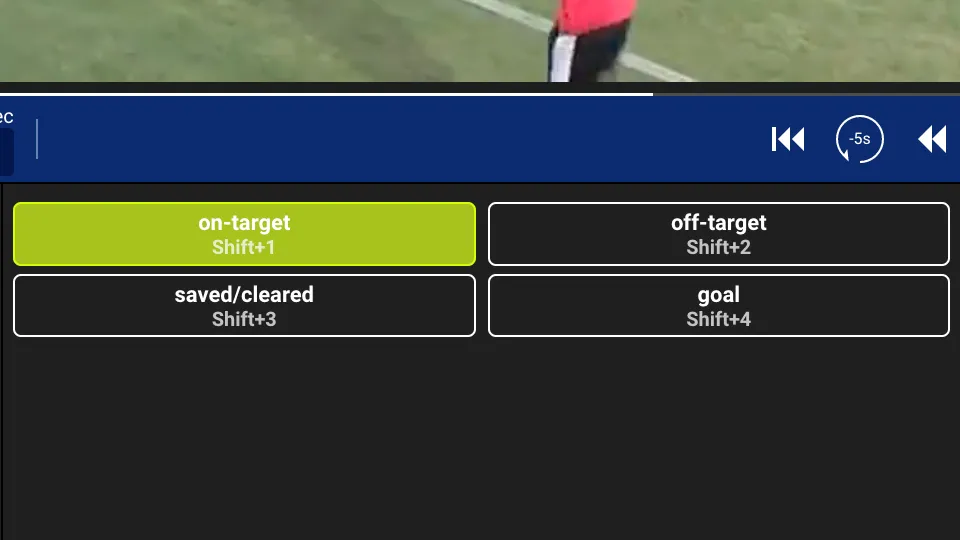
Select the option tag to add another depth to your tagging
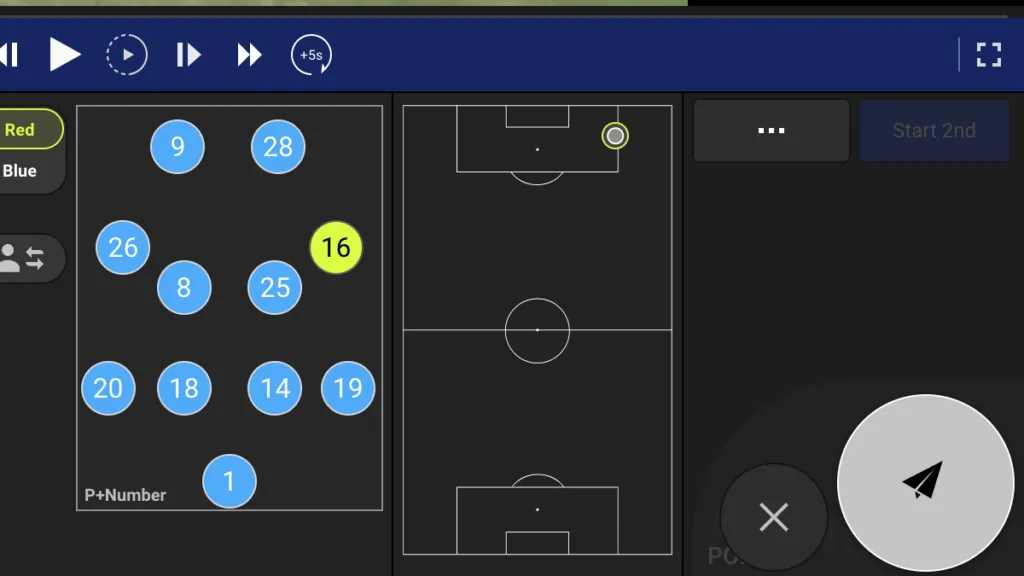
Select the players who were involved in the scene. You can toggle between home and away teams by clicking on the team name (Red and Blue in this example).
You can also make substitutions as necessary using the player swap icon.
This will only show when the tagging project is set to Event + Player + Location
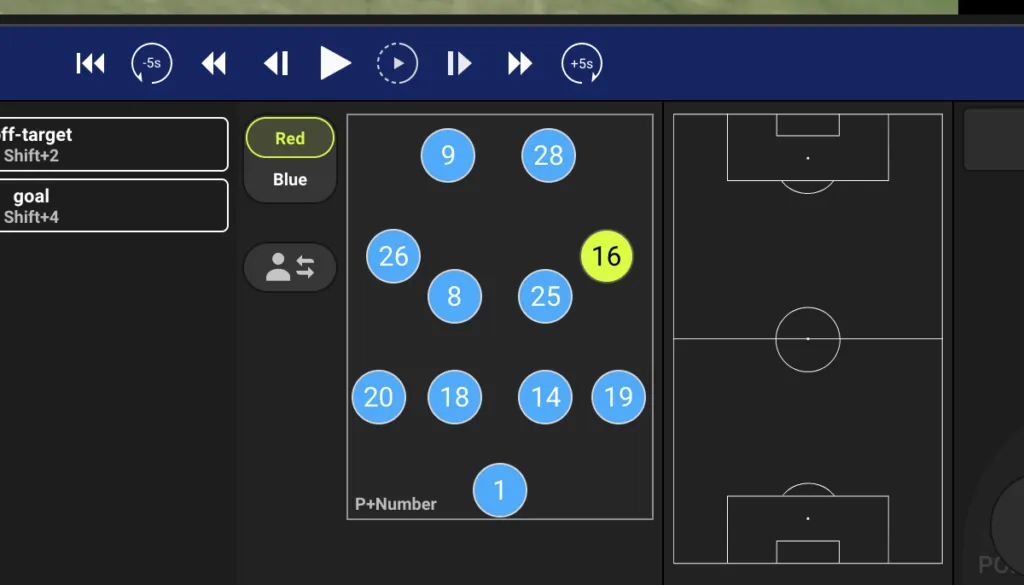
Select the location where the play occurred. Click on the button with the paper airplane icon to save.
This will only show when the tagging project is set to Event + Player + Location