Browse all guides
Share Video
Follow the numbered steps. Click any picture to see it bigger.
Share Videos with Other Teams
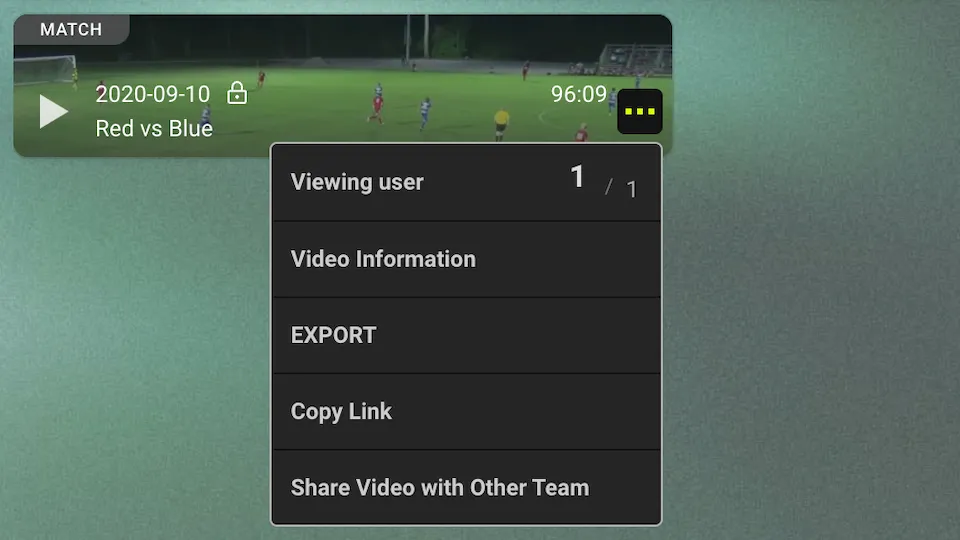
Click on “…” and select share video with other team
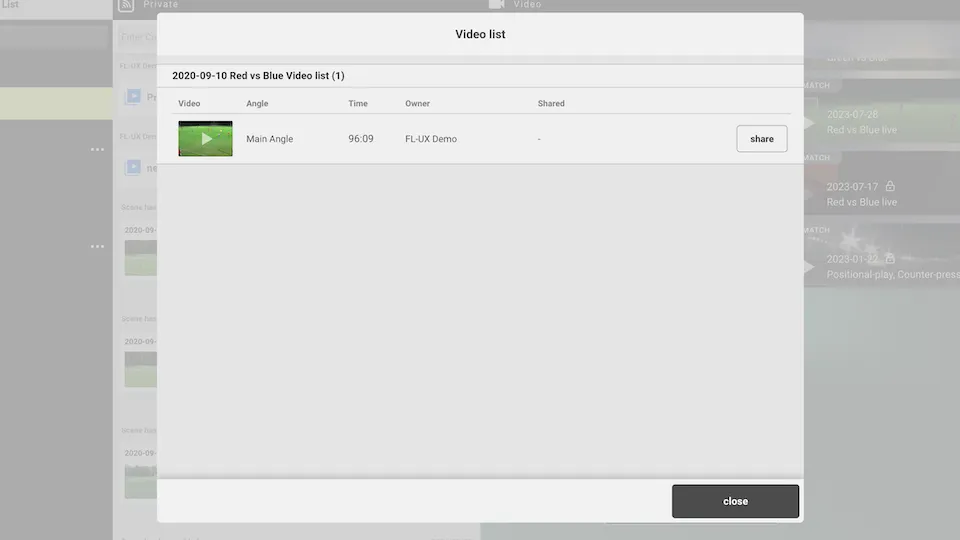
From this window, select the video angle you want to share with other teams. You will only see one option if you only have one angle.
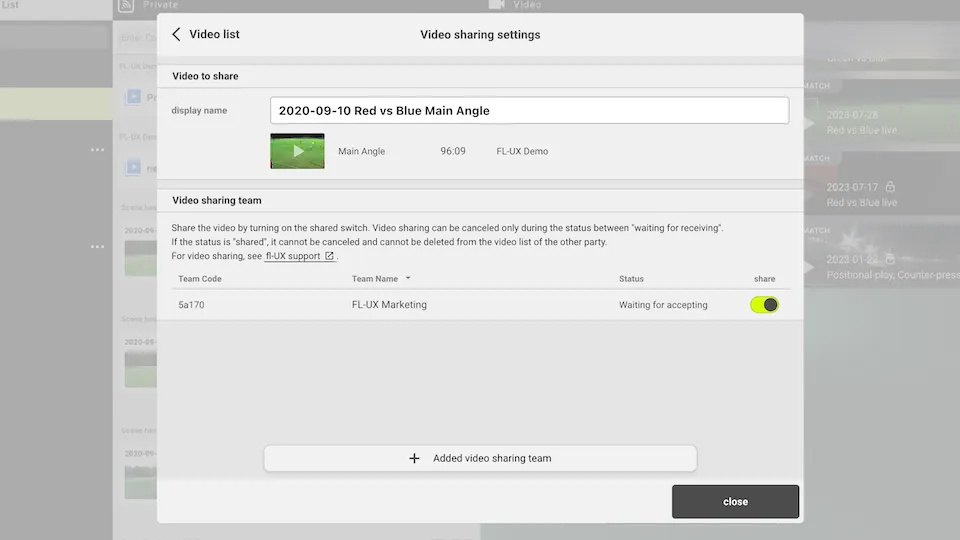
From the list of teams you have already registered on your account, select the teams to share the video with by toggling on the button
See Add / Remove Video Sharing Team below to learn how to add a video sharing team.
Use Shared Video
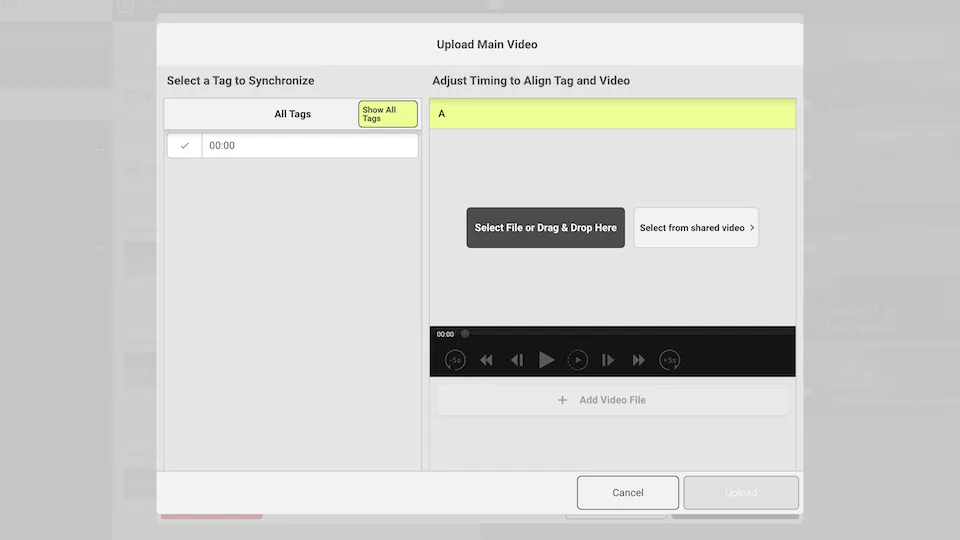
You can use the shared video by selecting the video file from the upload step.
Click on Select from Shared Video to choose a video file to use
Share Videos Using Guest Links
Guest links are part of FL-UX Elite.
Generate Guest Link
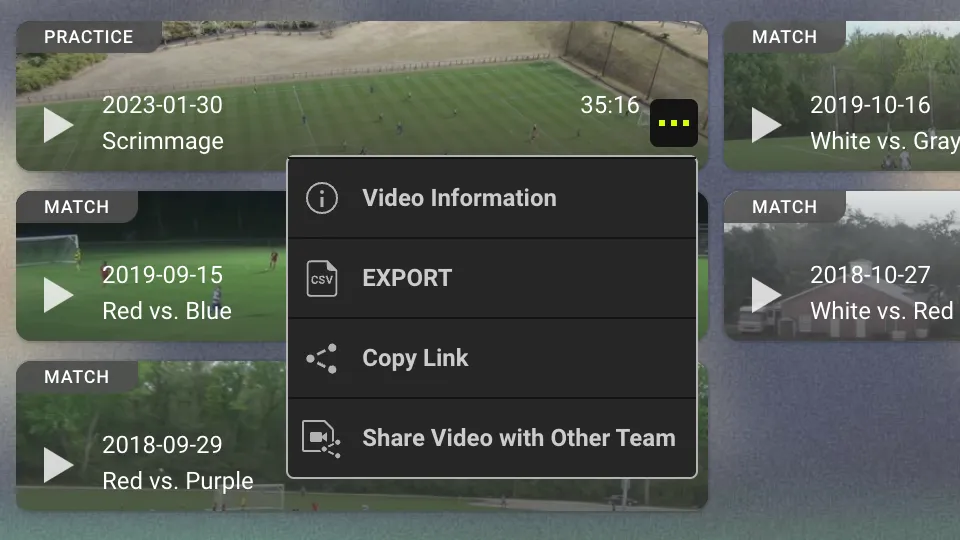
Click on the “…” of one of the videos that has been uploaded to your account and open video information
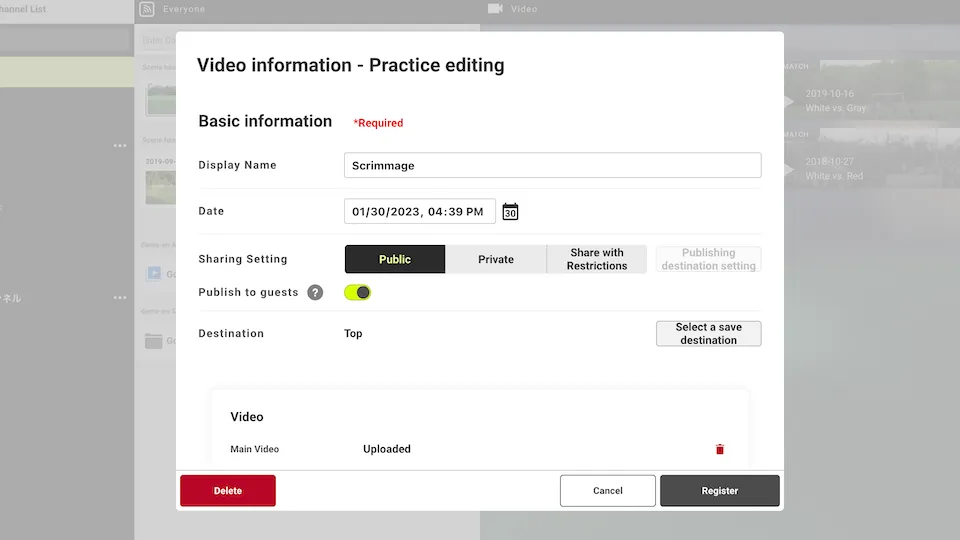
Click on the button next to publish to guests to turn on the guest link
Click on register to save the change and exit video information
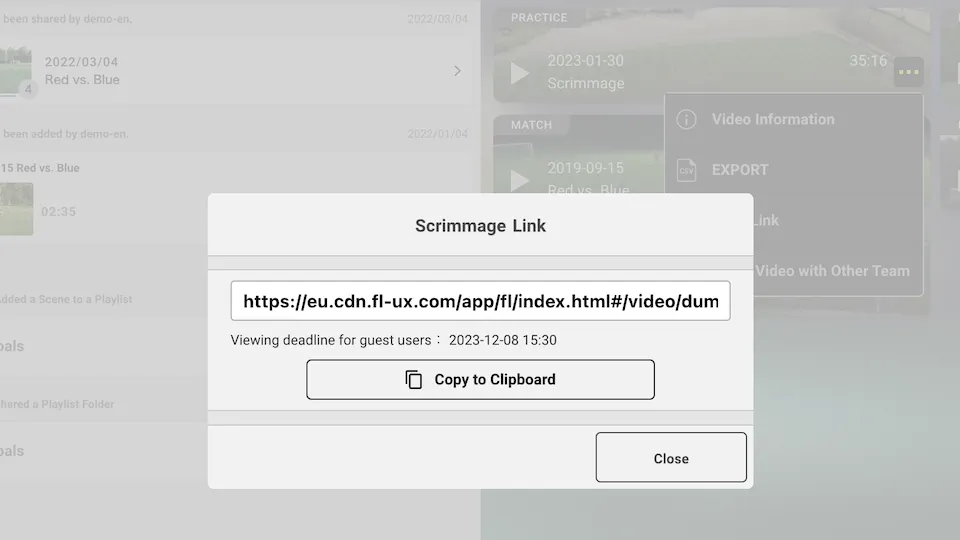
Click on copy link to show the guest link
Below the guest link, you can see when the link expires
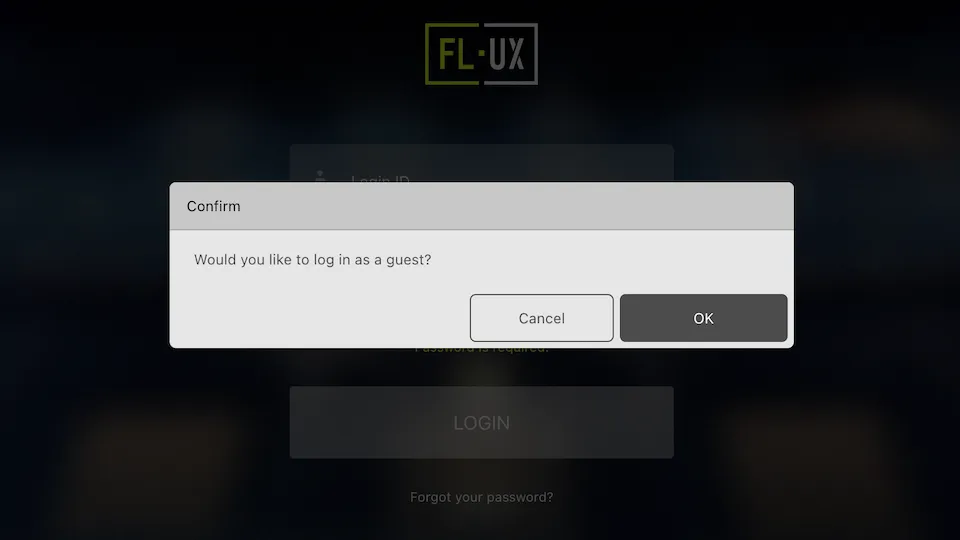
Access Videos Using Guest Links
Paste the guest link into a browser. If possible, use Google Chrome for better results.
Click ok to access the video as a guest
Guest users can view all content available in public channels including tagging data and sketch.
However, a guest user cannot edit, delete, or create video clips. Guest users can only view the content that’s set to public sharing
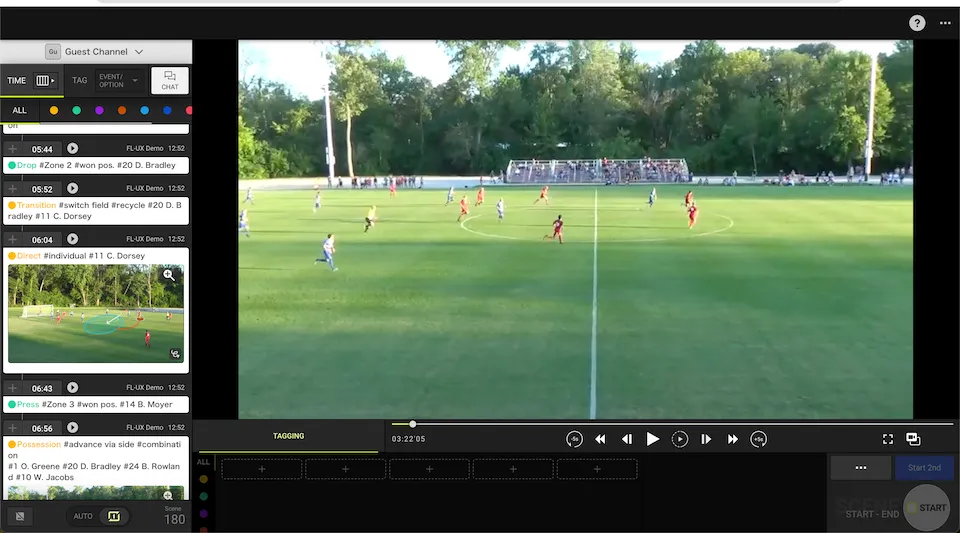
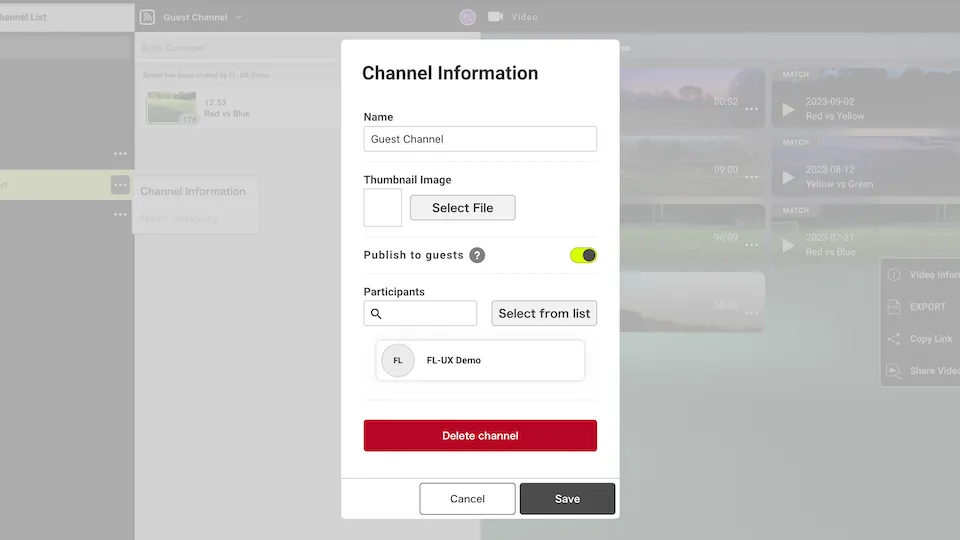
How to set a channel to be public
From the channel information, click on publish to guests to make a channel public.
Only content included in a channel that has publish to guests turned on will be available for guest users to view
Add / Remove Video Sharing Team
Go to menu > Video Sharing > Add a video sharing destination to add a team
Go to menu > Video Sharing > Manage video sharing destinations to remove a team
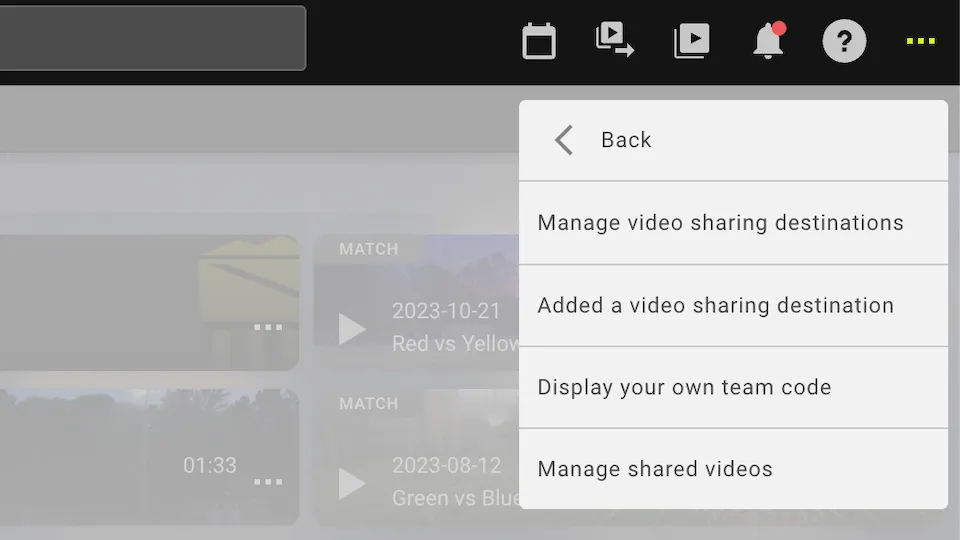
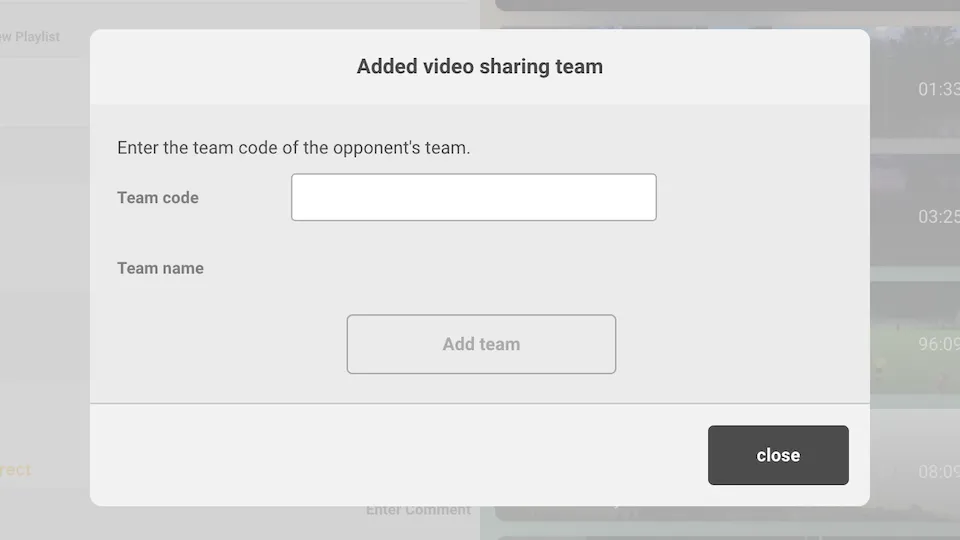
Add Video Sharing Team
Paste the team code in the text box and click on Add team
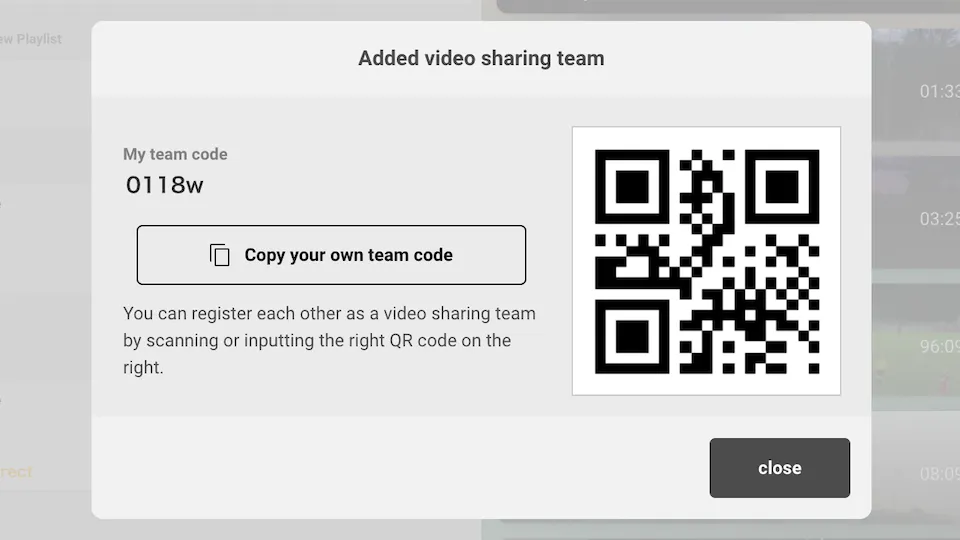
Display your Team Code
To display your own team code, go to menu > Video Sharing > Display your own team code
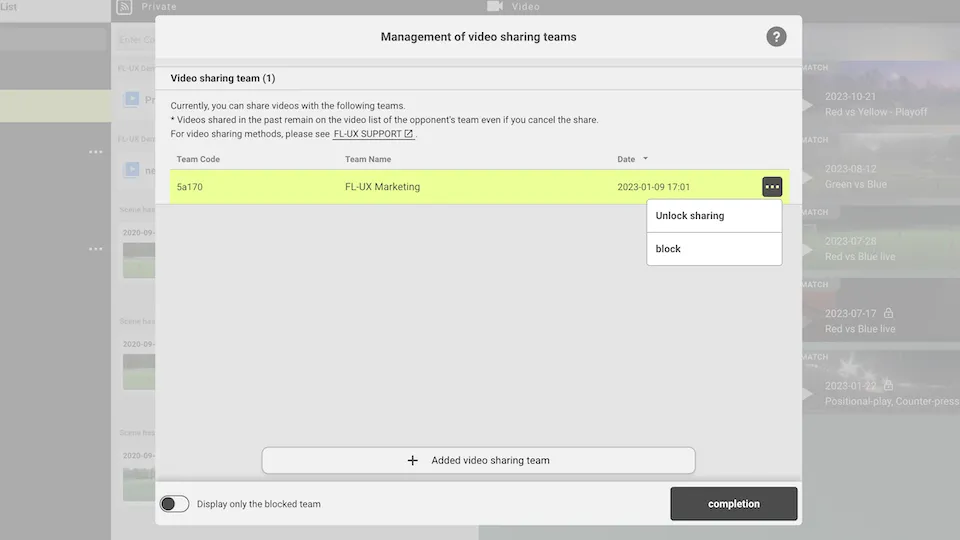
Remove Video Sharing Team
Click on “…” and select Unlock Sharing to remove the team
Or click on Block to block the team
Manage Shared Videos
Go to menu > Video Sharing > Manage shared videos
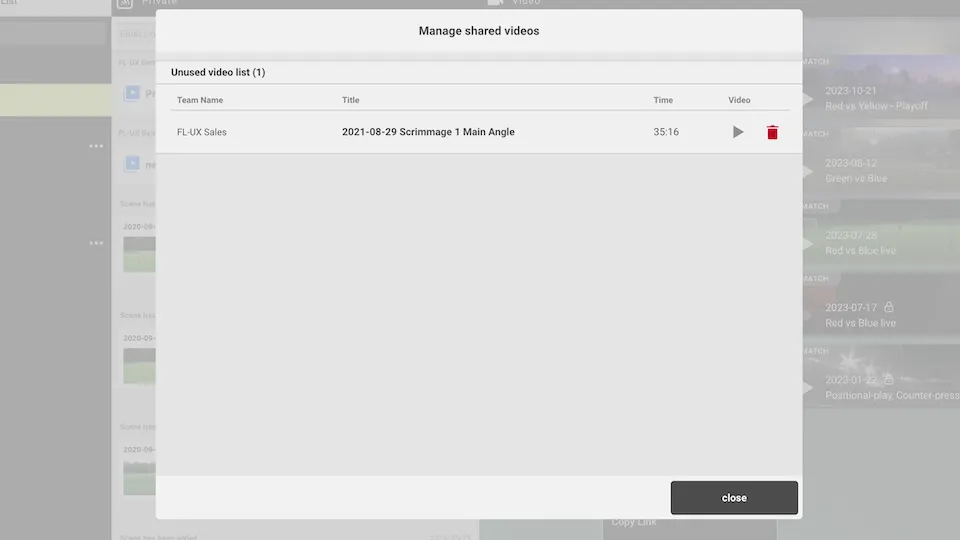
On this page you will see all the videos that have been shared with you
You can preview a video by clicking on play, or delete it.