Browse all guides
Caption Text
Follow the numbered steps. Click any picture to see it bigger.
Create Text
Create a scene or edit an existing scene
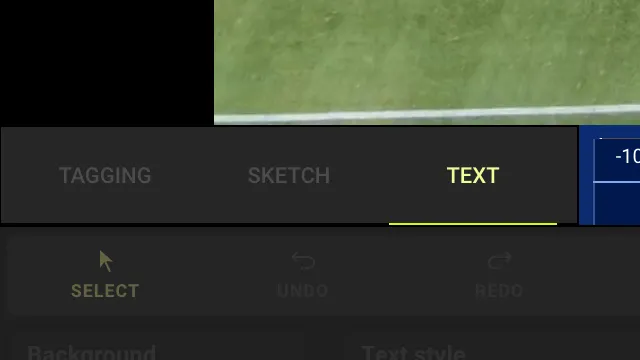
Make sure TEXT is selected
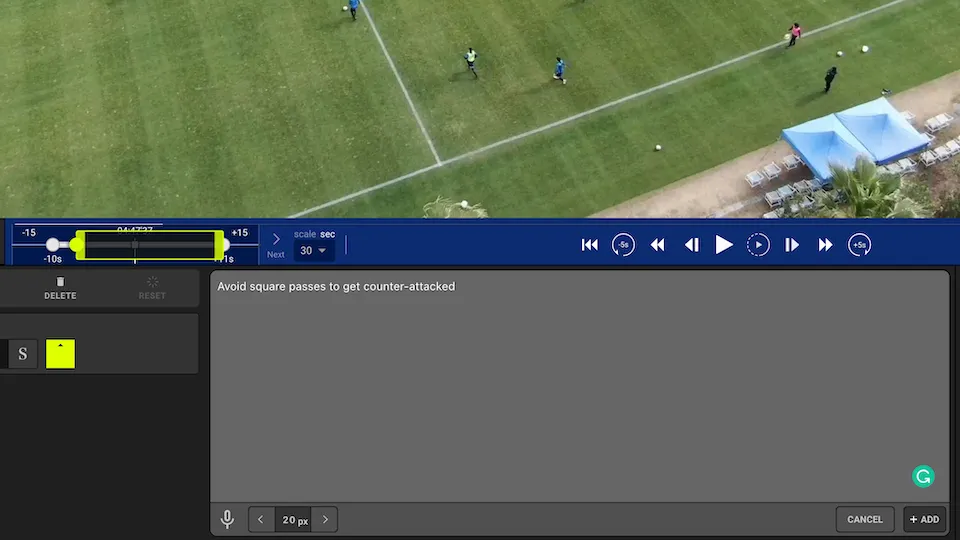
Click on create text sets and type your words to be displayed
You can click and drag the text box to adjust the position and use the styling tools to change the text color, text style, text size, and background color
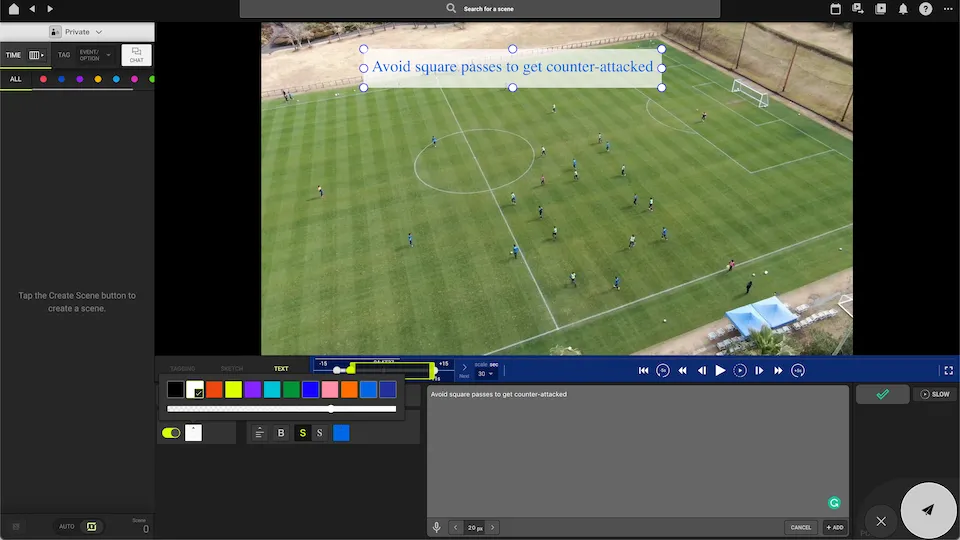
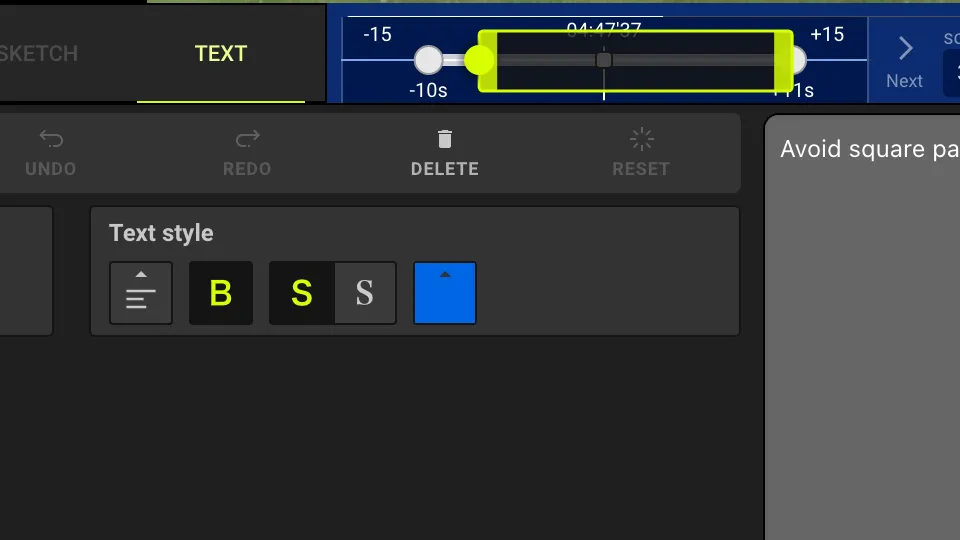
Text color / style
You can adjust the text color and style from this section
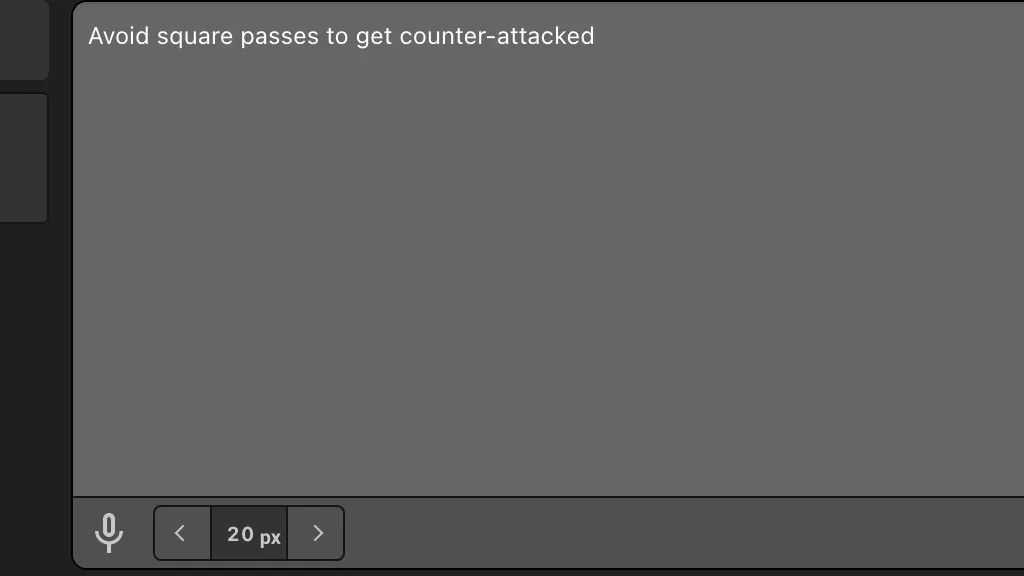
Text size
You can adjust the text size from the bottom of the text box
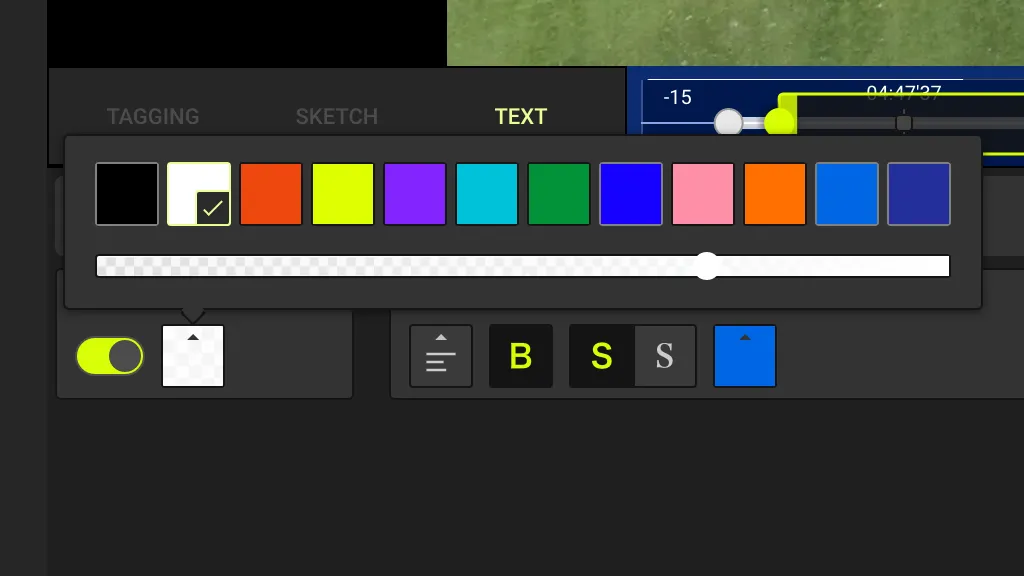
Background color
You can change the color of the background and the opacity. The toggle button turns off the background color
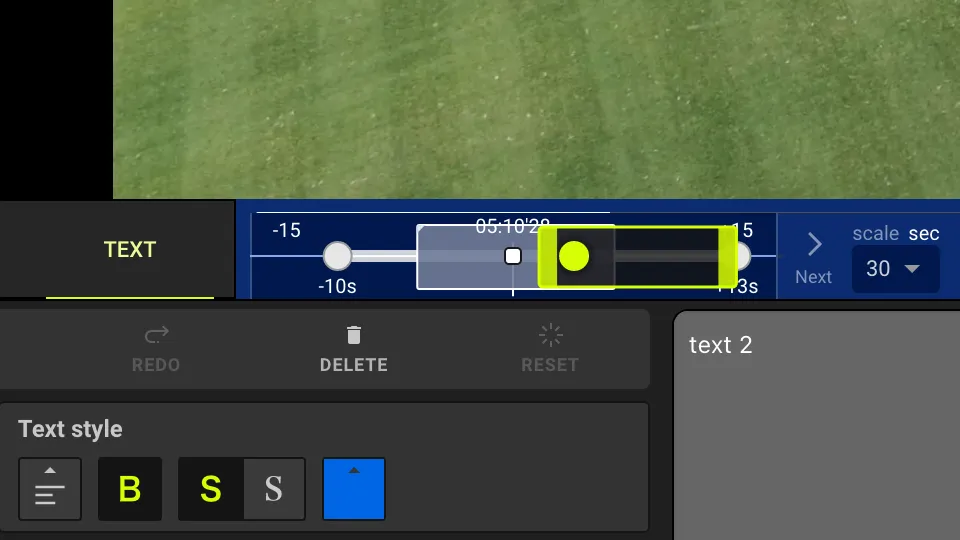
The yellow bounded rectangle is when the text will be shown when the video clip plays
Drag the edges to adjust when to start showing the text and when to end
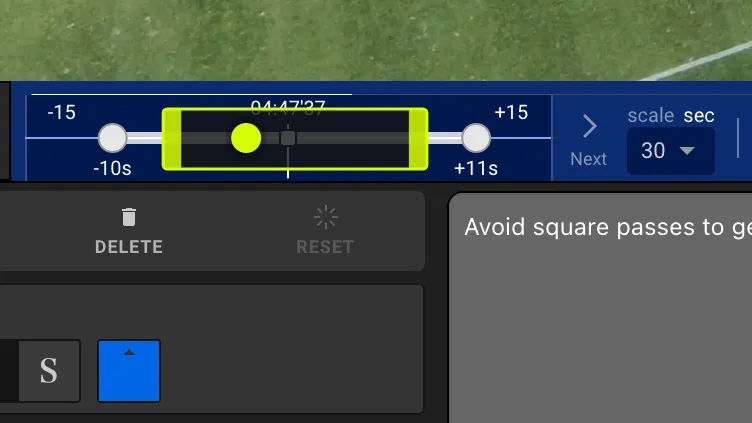
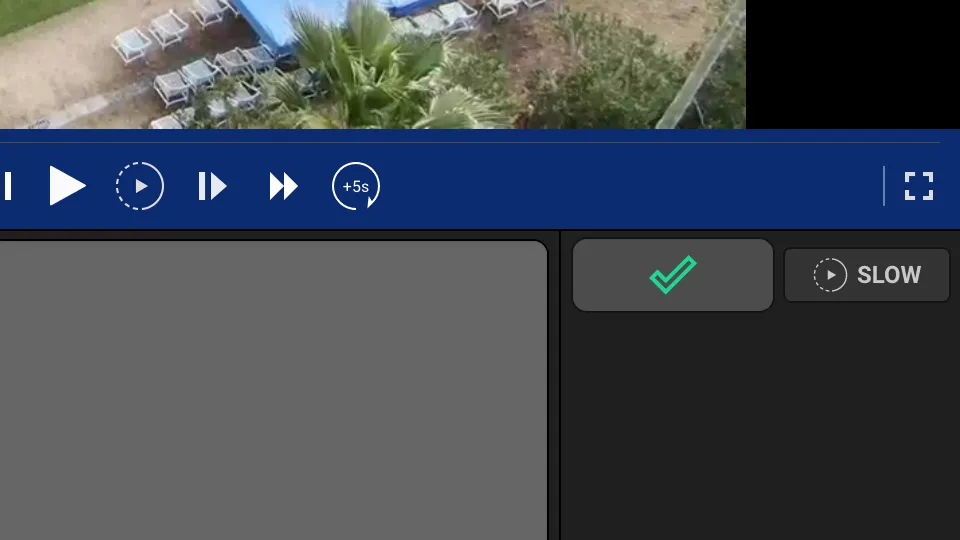
Similar to creating a sketch, click on the green check to save it to the video clip
When SLOW is selected, the video will play in slow-motion while the text is displayed
Edit / Add / Delete Text
Select the video clip and click on edit, then play the clip until the text shows
Use the SELECT tool to click on the text
TIP: the white rectangle is the placement of the text display
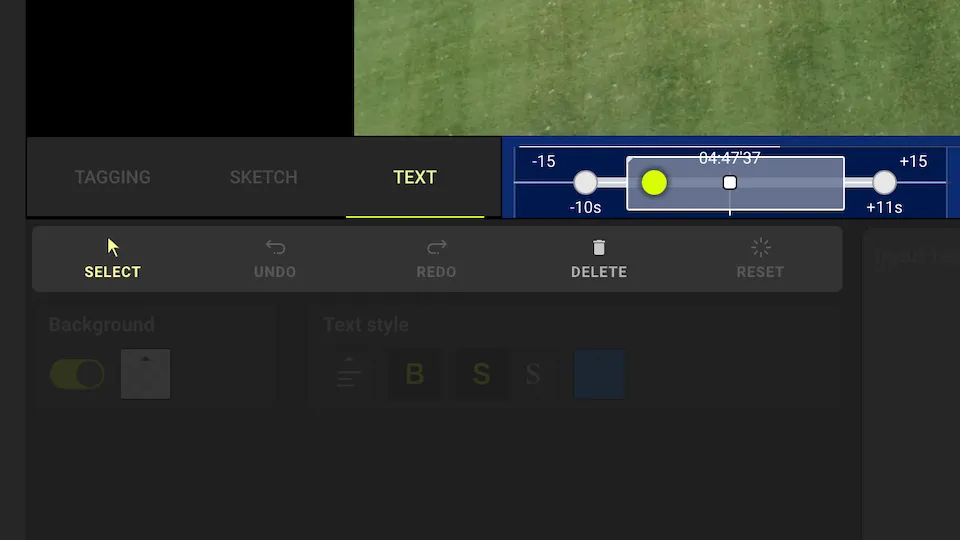
Edit the text from the text area or change text style and background
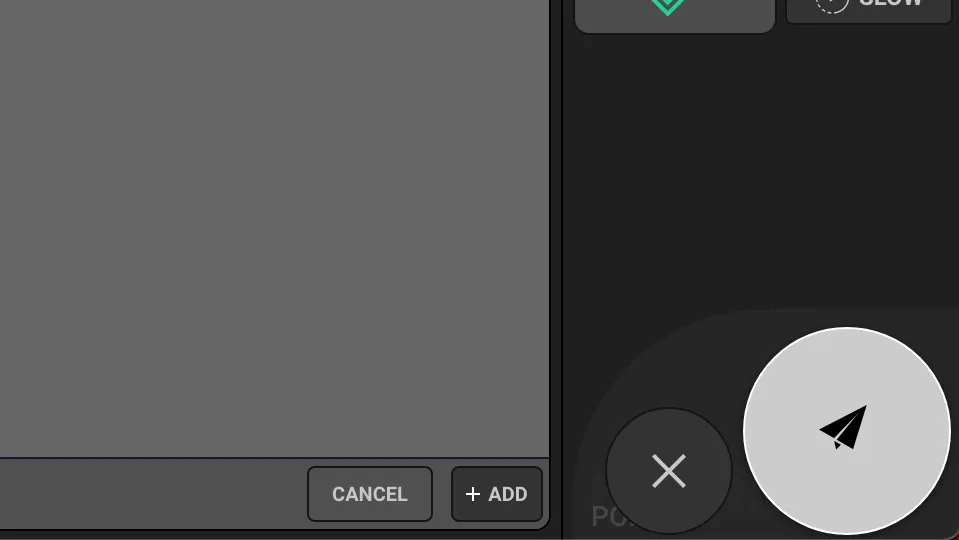
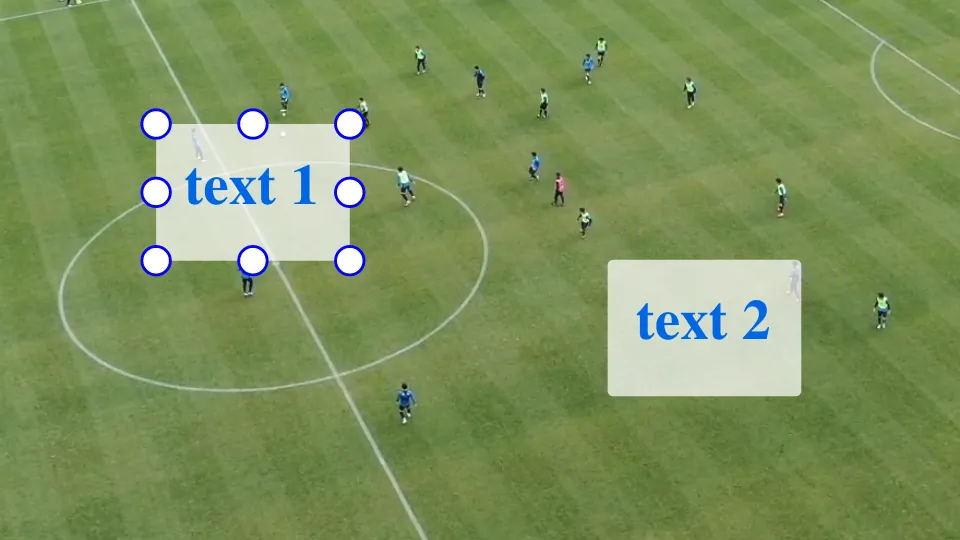
You can create multiple text boxes to show on the video
Simply click on ADD that’s on the bottom right of the text field
To adjust the duration, make sure the text is selected on the screen. Then you can drag the edges of the yellow rectangle to adjust
TIP: selected text will have white dots
While the text is selected, you can use the DELETE button to delete