Browse all guides
Player Tracking
Follow the numbered steps. Click any picture to see it bigger.
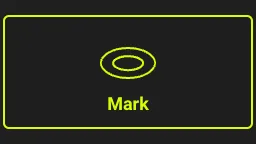
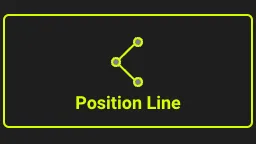
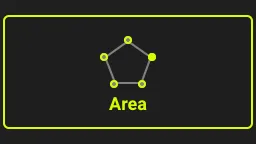
Player Tracking lets you draw on a player (a mark, a position line or a zone) and have the drawing follow them automatically as they move in the video.
What You Need
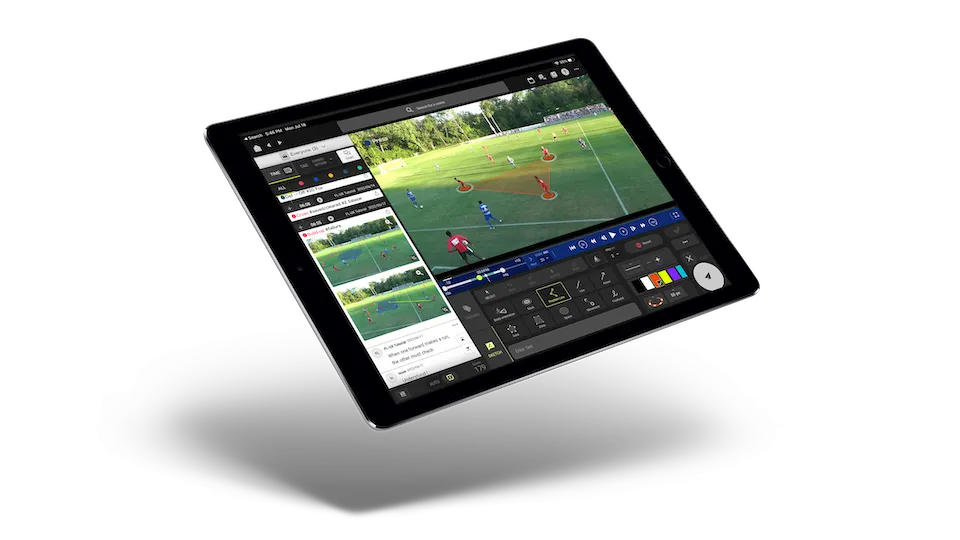
- An FL-UX Elite subscription.
- The FL-UX macOS desktop app on a Mac with Apple Silicon (M1 or newer). Intel Macs are too slow for it, and we recommend 16 GB of RAM or more.
- Player Tracking is no longer available on iPad.
Everyone on your account can watch clips with tracking graphics on any device; only creating them needs the Mac app.
Tracking graphics are included when you export clips or playlists as MP4 files.
Create a Tracking Graphic
Under the footage (the area with the telestration icons), click the … button and select Start-End + tracking.
Set the length of the video you want to track.
Choose how you want to show the player: a mark, a position line or a zone. See the styling tips below.
Click Validate, then end the scene to complete the clip. The drawing now follows the player through the clip.
Edit or Delete a Tracking Graphic
To change or remove a tracking graphic, open the scene’s edit screen. A step-by-step guide for this part is coming soon. Need help in the meantime? Contact us.
Styling Tips
Tool Options
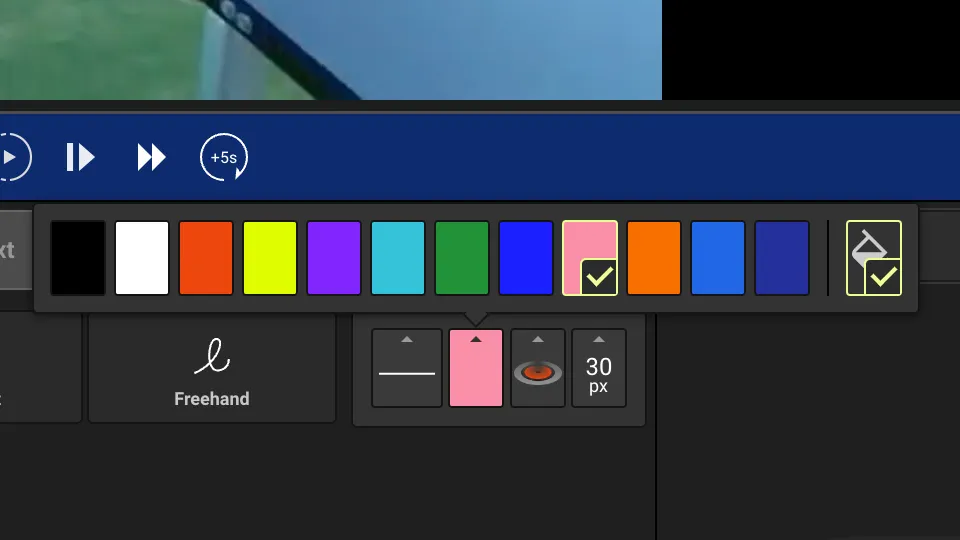
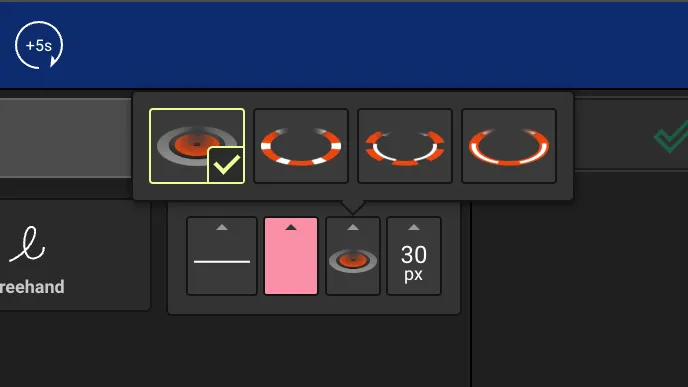
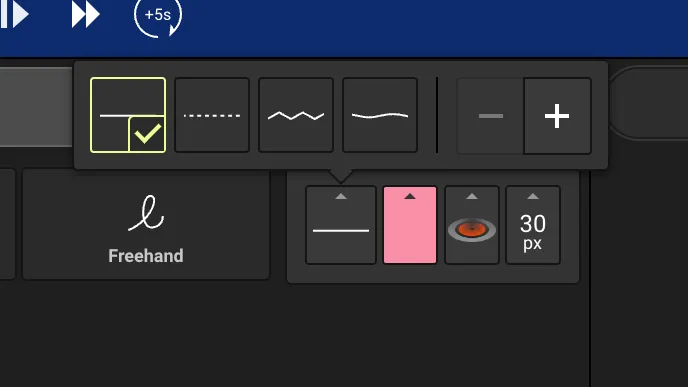
You can choose between the mark, position line and zone tools to create tracking graphics.
Styling Options
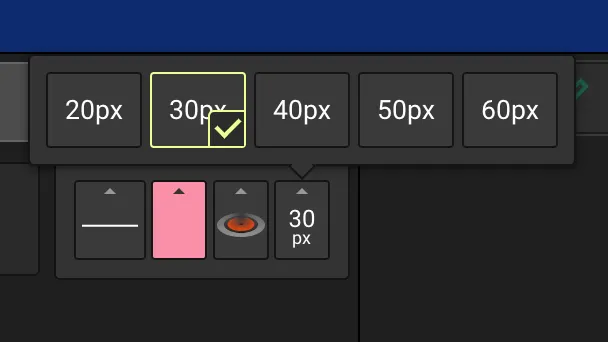
The styling options are the same as for static sketches.
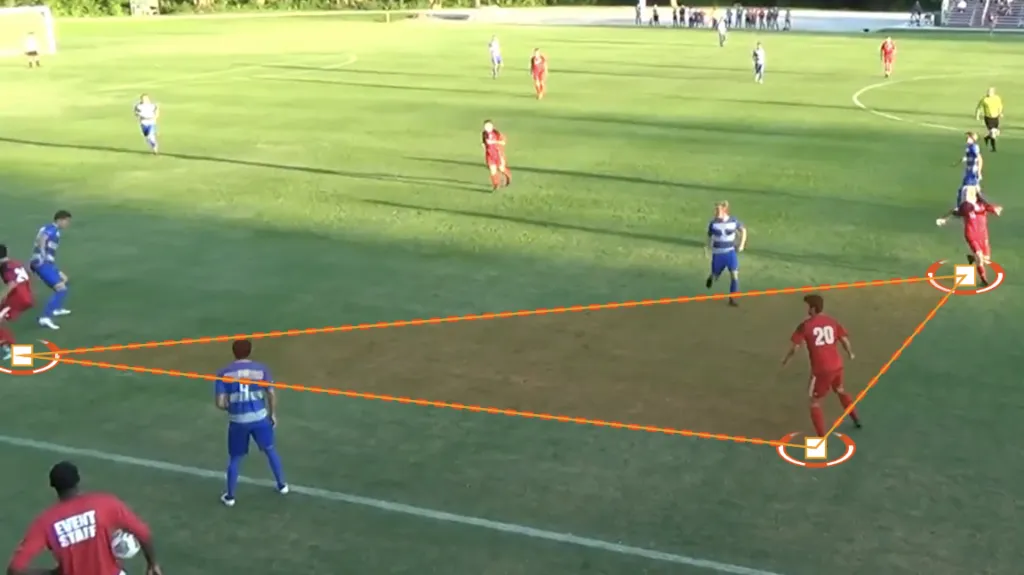
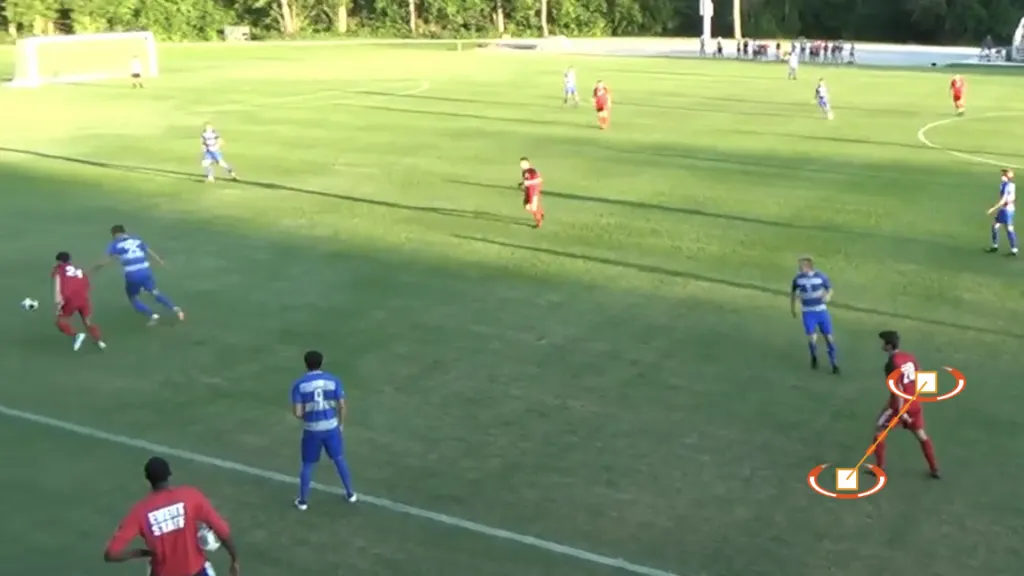
Tracking Tips
The tracking is done by image processing, and it can only be done correctly while the players are shown in the frame.
When a player goes out of the video frame or very close to the edge, the tracking may become broken
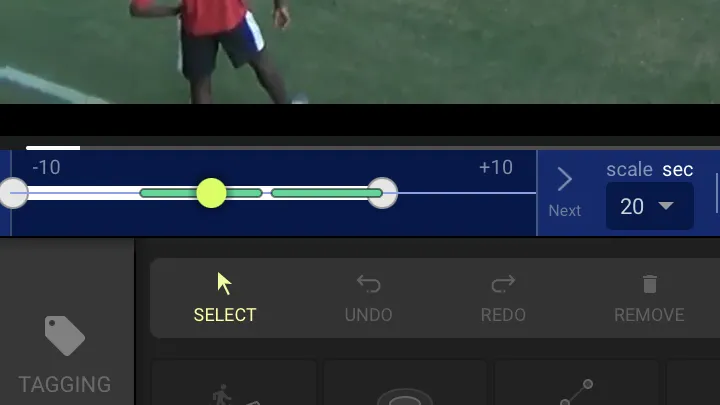
When this happens it is best to separate the tracking into two.
Create the first tracking and adjust the length so that everything is working properly.
Save the 1st one, and create the second tracking right afterward.
Just like sketches, you can create multiple tracking graphics in one video clip. This is one way to handle players going out of frame while being tracked.