Browse all guides
Channels
Follow the numbered steps. Click any picture to see it bigger.
Chat
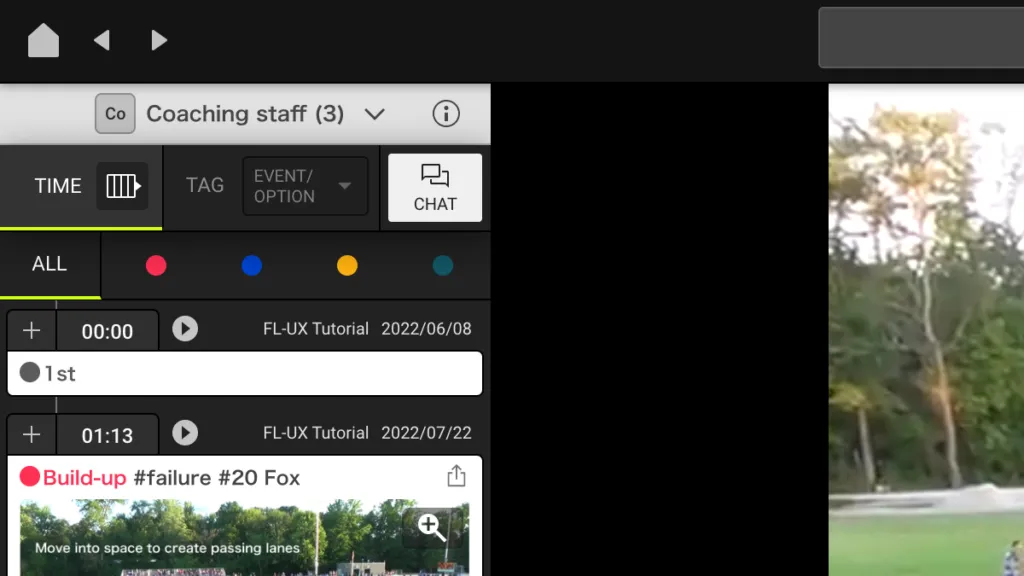
Select a scene to add your comment
When selected, the scene card will have a yellow border
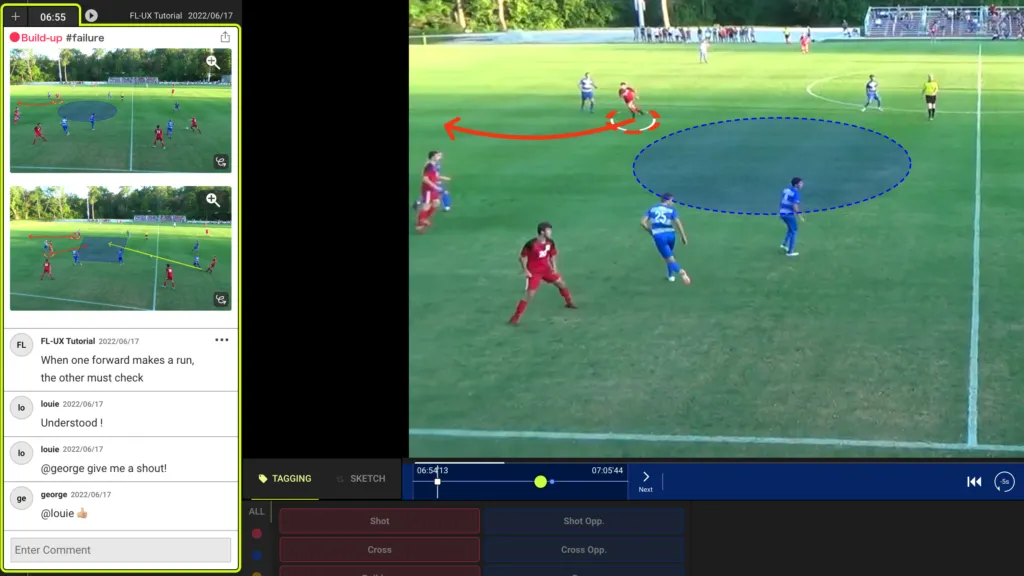
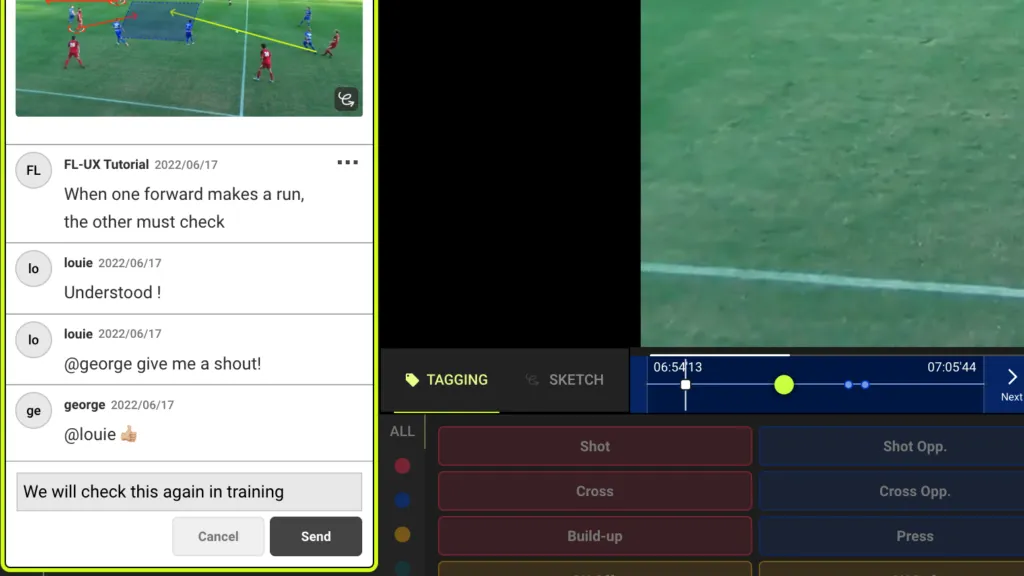
Write your message and click send
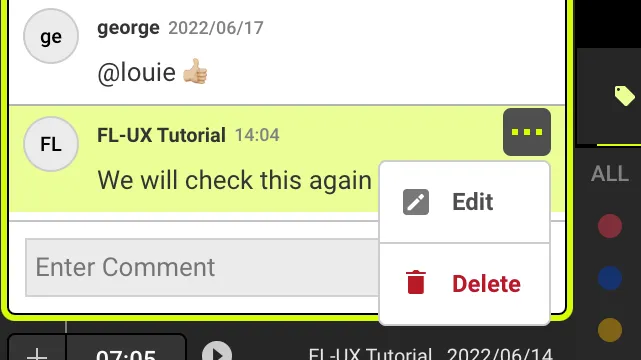
Edit / Delete comments
Click on “…” and select edit or delete to modify your message
You can only perform this action on your own comments
Create Channels
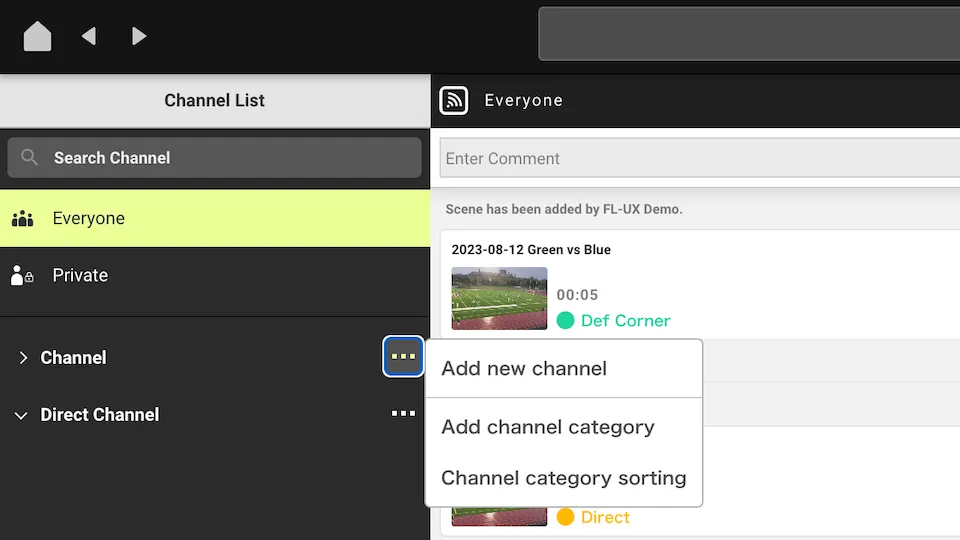
From the home page, navigate to the left side of the screen
Click on “…” by channels and select add new channel
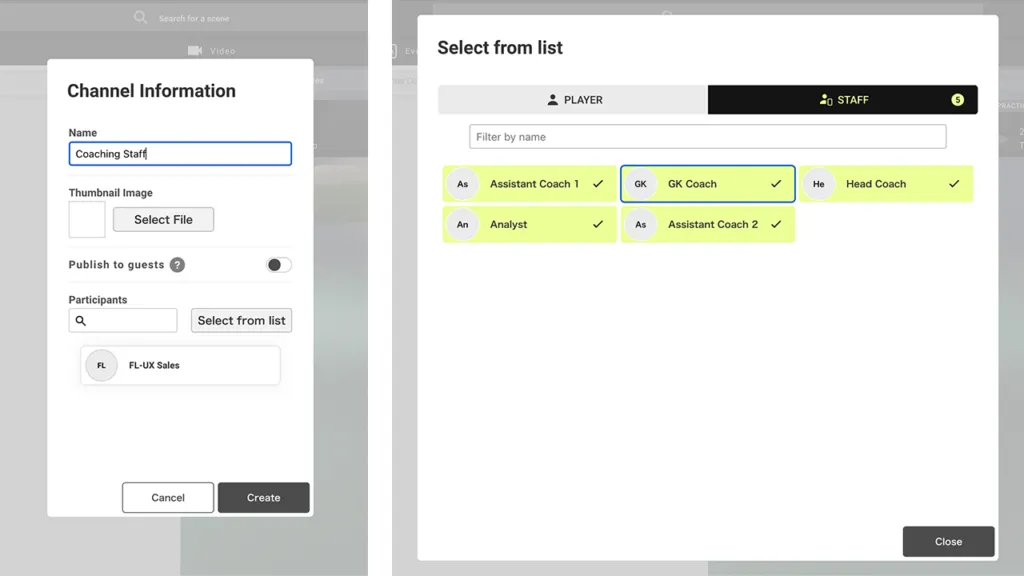
Name the new channel and select a thumbnail image for this channel
Then click on select from list to choose who will be part of this channel
Click on create at the bottom
Edit Channels
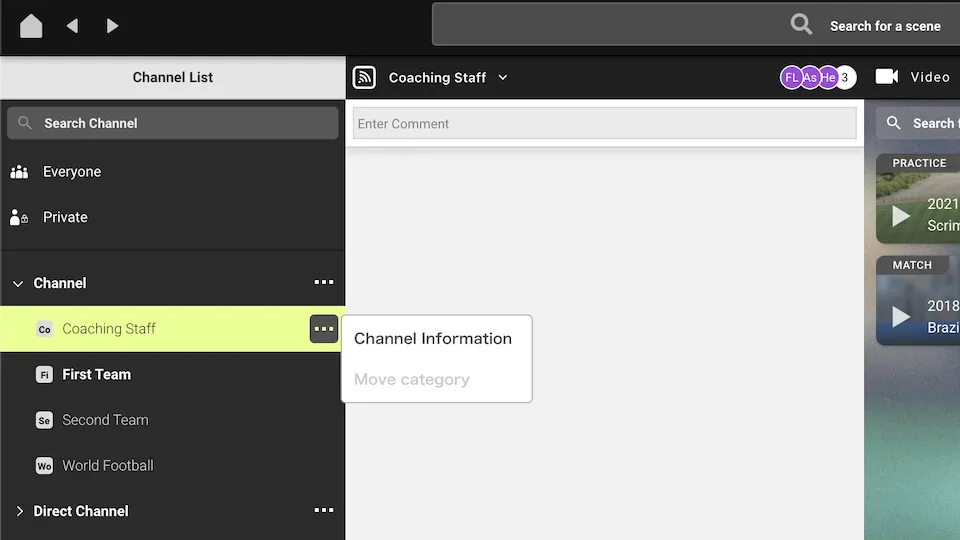
When you expand Channels, you’ll see all of the channels you are a part of
To edit channels, such as editing name, changing thumbnail, adding users, etc. click on “…” then channel information
It will take you to Step 2 for you to make changes
Create Direct Channels
Instead of making channels with multiple participants, you can choose to make a direct channel with one other user
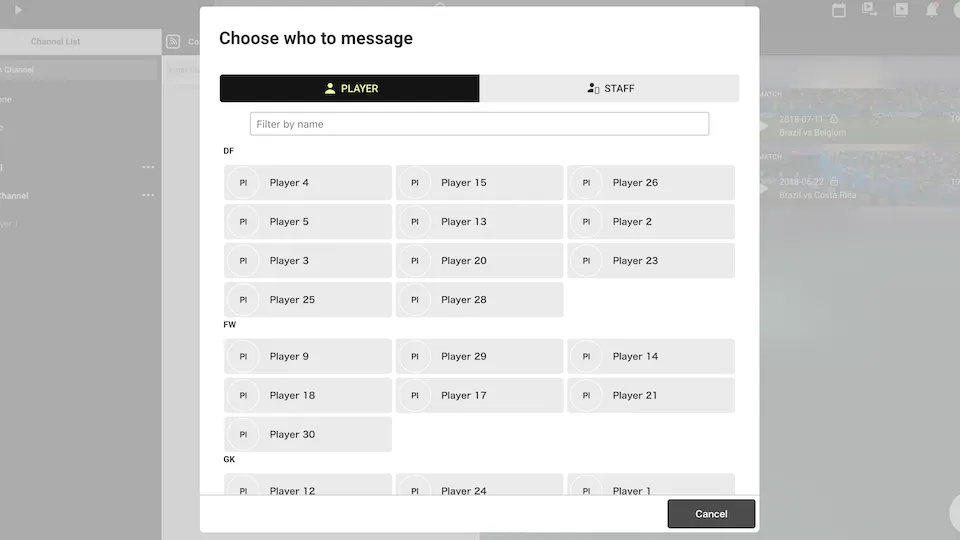
Click on “…” then choose who to message
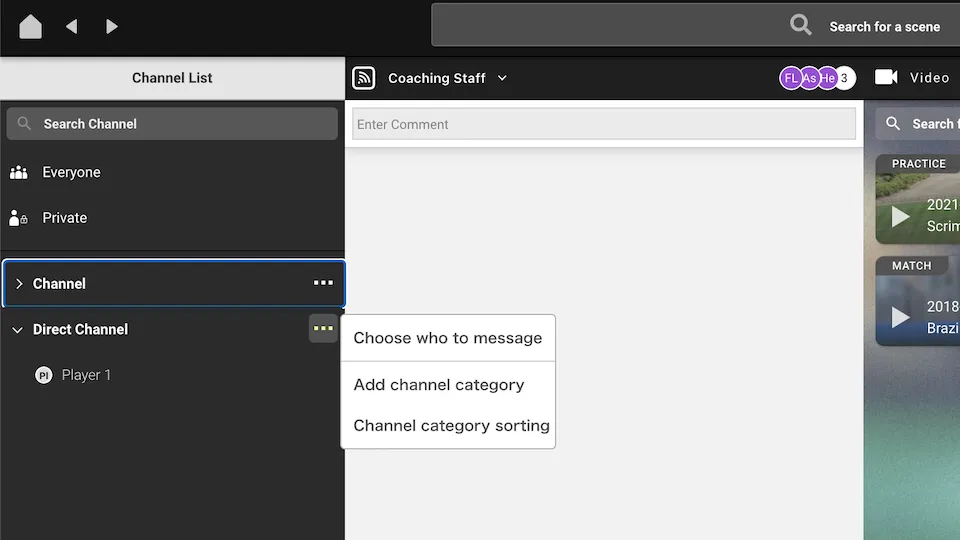
Choose a user from the pop-up list
You can either filter by players or staff
Or you can search by name
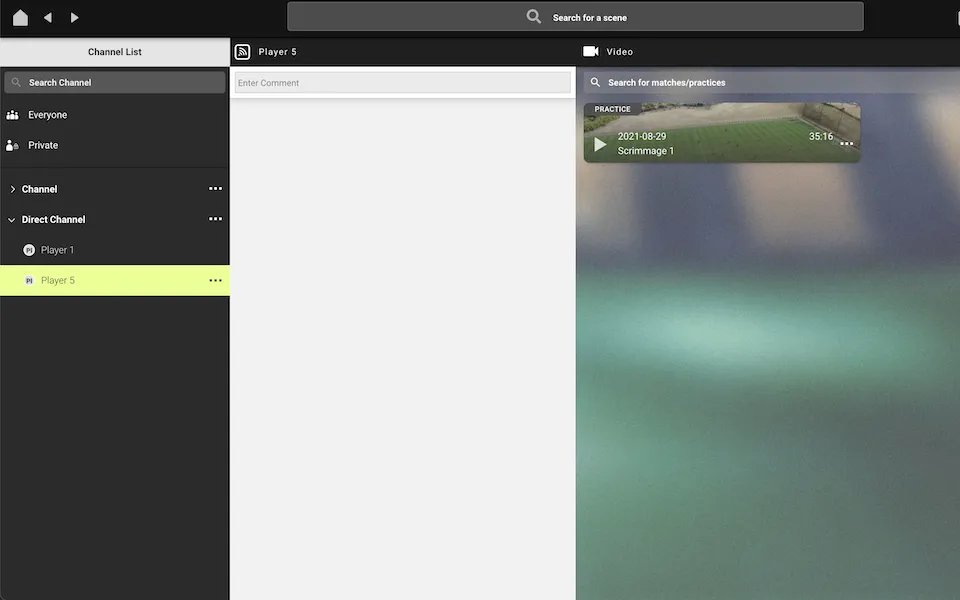
Direct Channel
When you select a direct channel from the left, only the videos common to both users will display on the right hand side of the screen
Categorize Channels
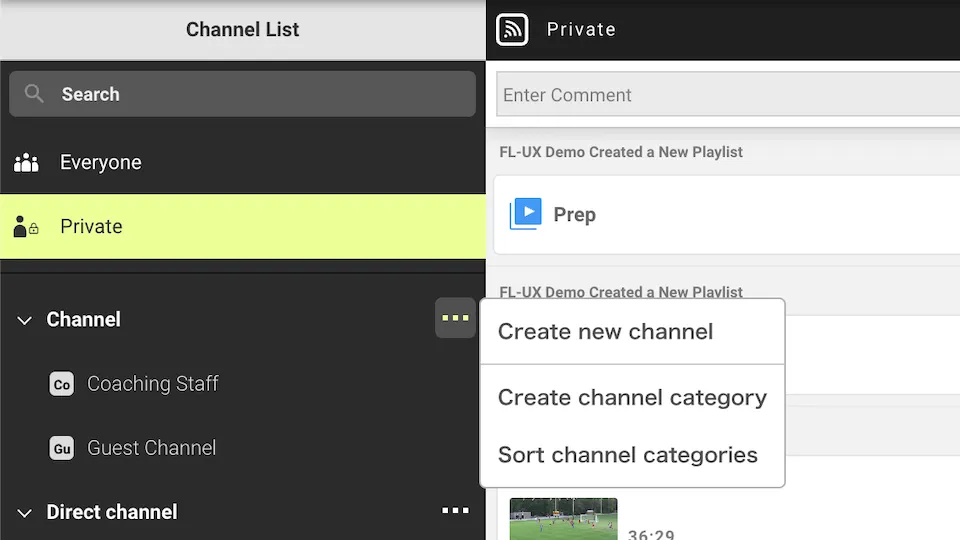
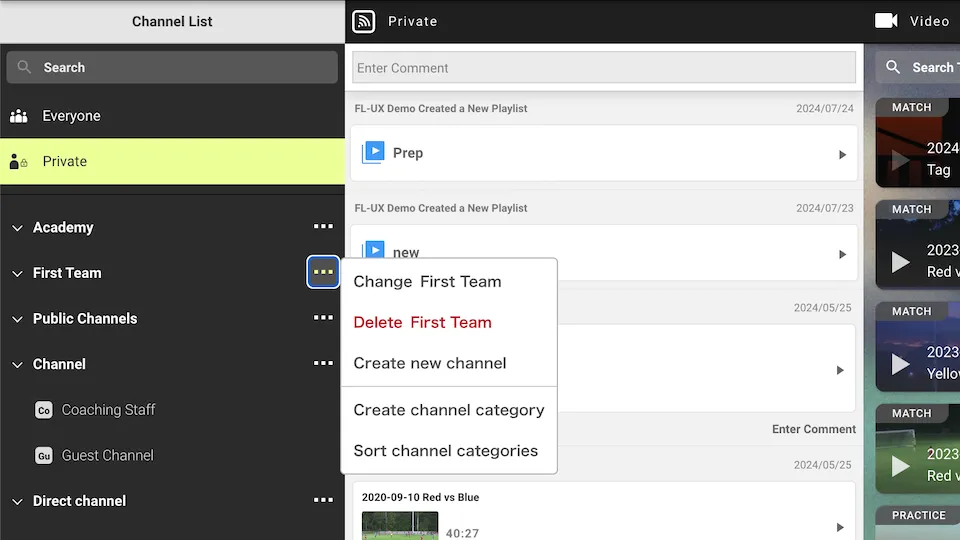
Create Category
Click on “…” next to channel and select create channel category
Type the name you want to give to the channel category
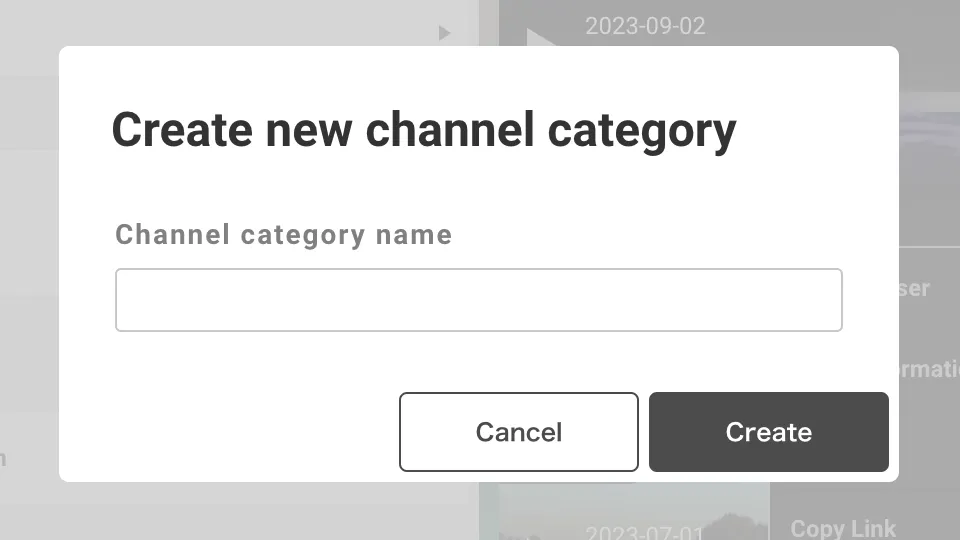
Sort Categories
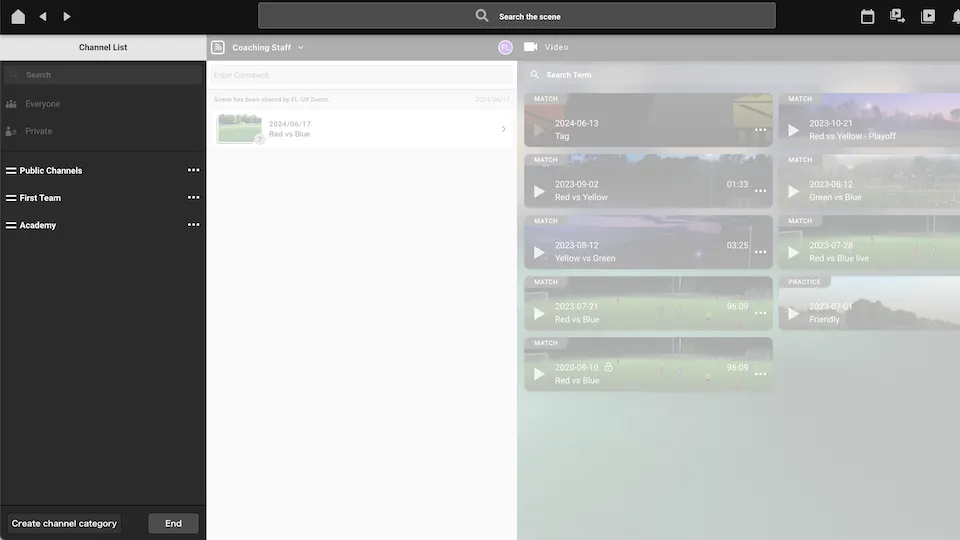
Click on “…” and choose Sort channel categories
Click and drag to reorder the channel categories
Add Channels to a Category
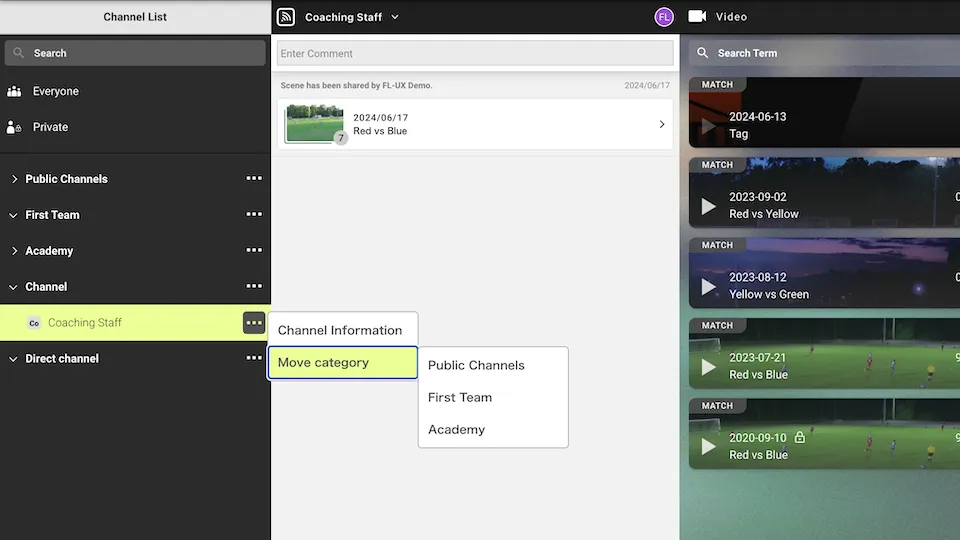
Click on “…” of the channel you want to categorize
Click on Move category, then choose the category you want to put the channel in.
Share Scenes to Other Channels
Click on “+” at the top right corner of each scene to select
Click on share
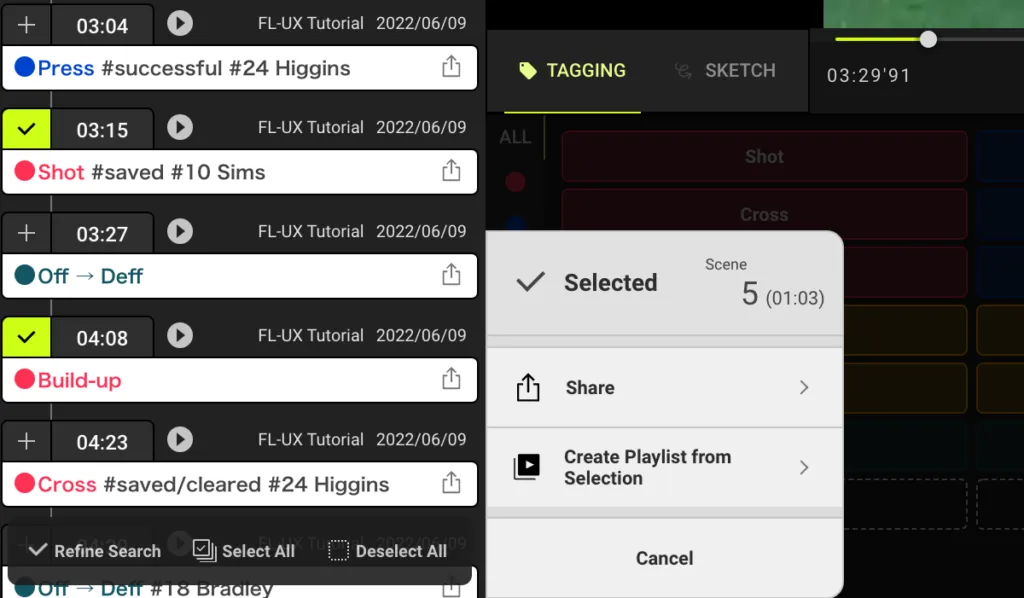
Click on the channel to share
Click on share to channel at the bottom
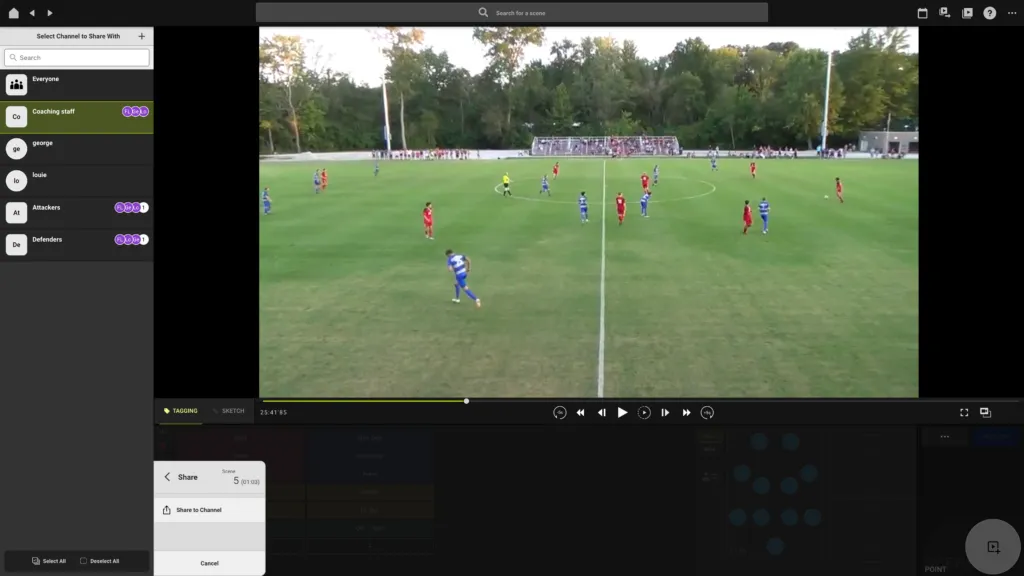
After you click share, FL-UX automatically opens the channel you shared the scene to.
Attention: The chat messages will NOT be shared across channels. Messages always stay private to the channel they were written in.