Browse all guides
Sketching Tools
Follow the numbered steps. Click any picture to see it bigger.
Prefer watching? There’s a video lesson for this guide
Sketching Tools Explained
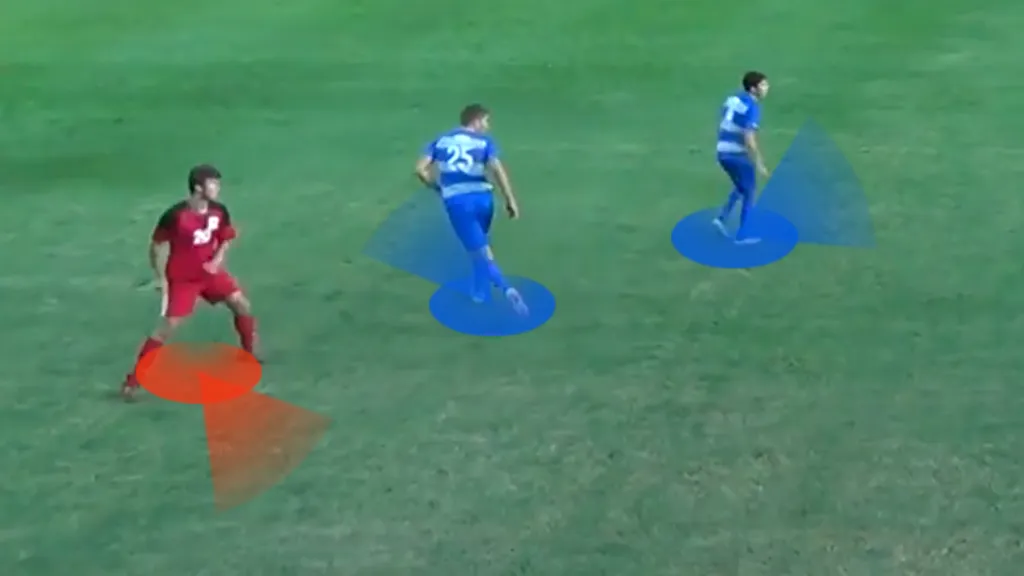
Body Orientation
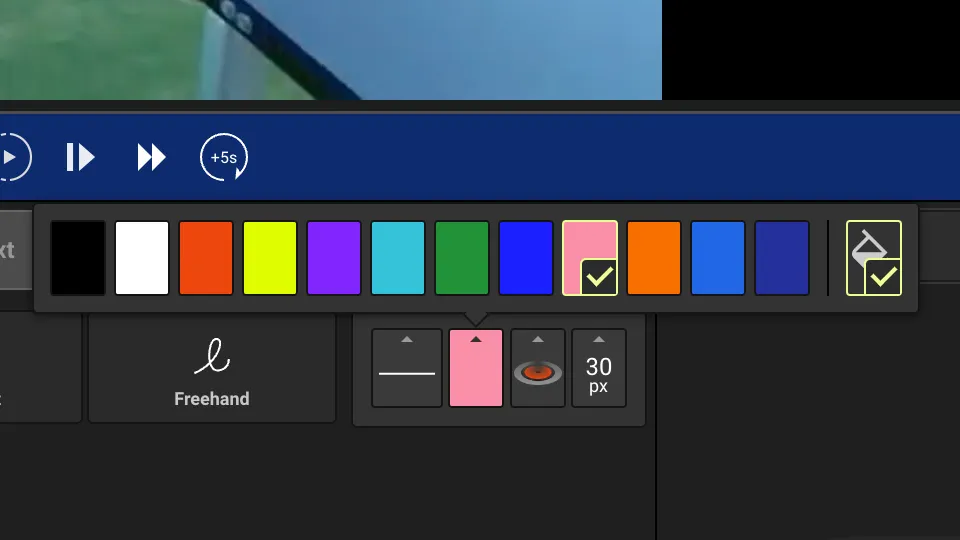
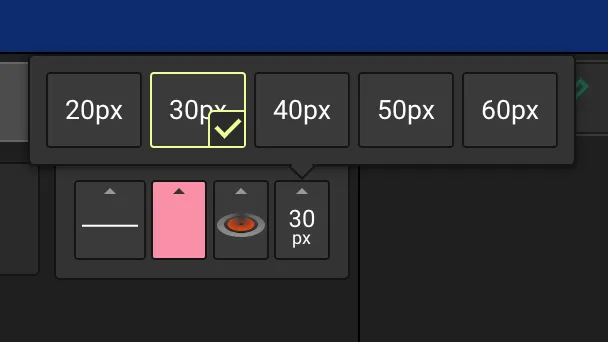
Styling
You can change the color and size of this element
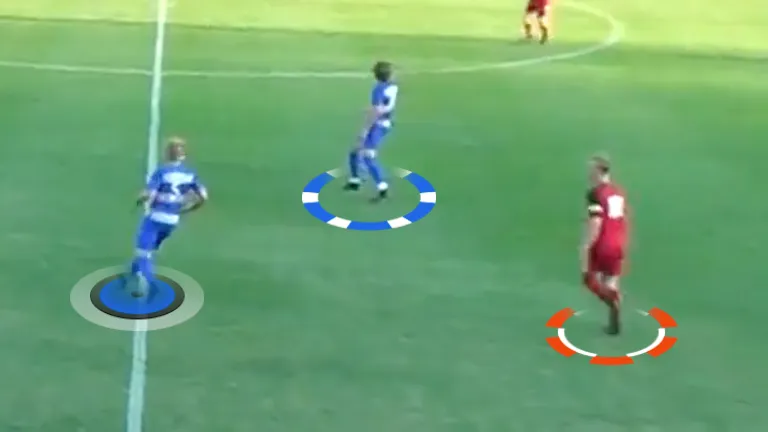
Mark
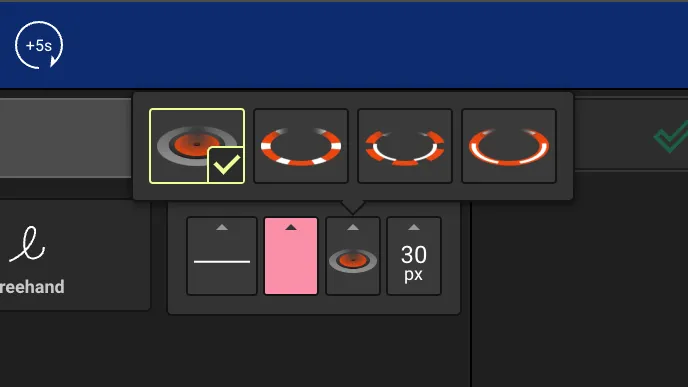
Styling
You can change the color, size, and marker style for this element
Position Line
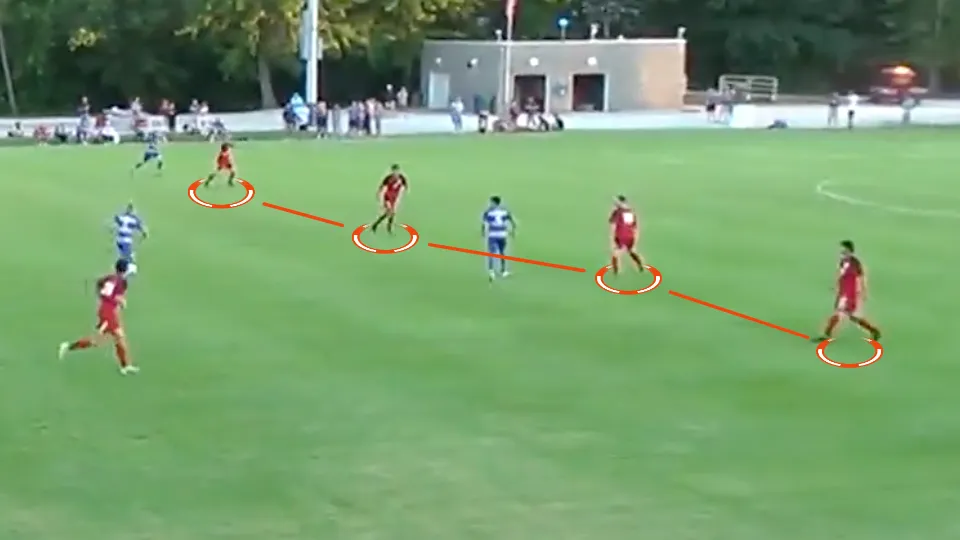
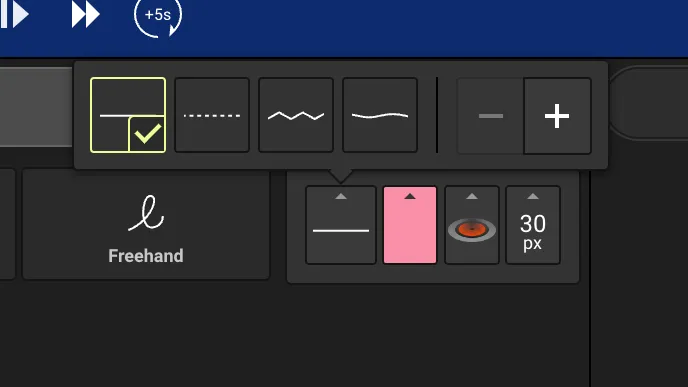
Styling
You can change the color, marker size, marker style, and line style for this element
Line, Arrow & Movement
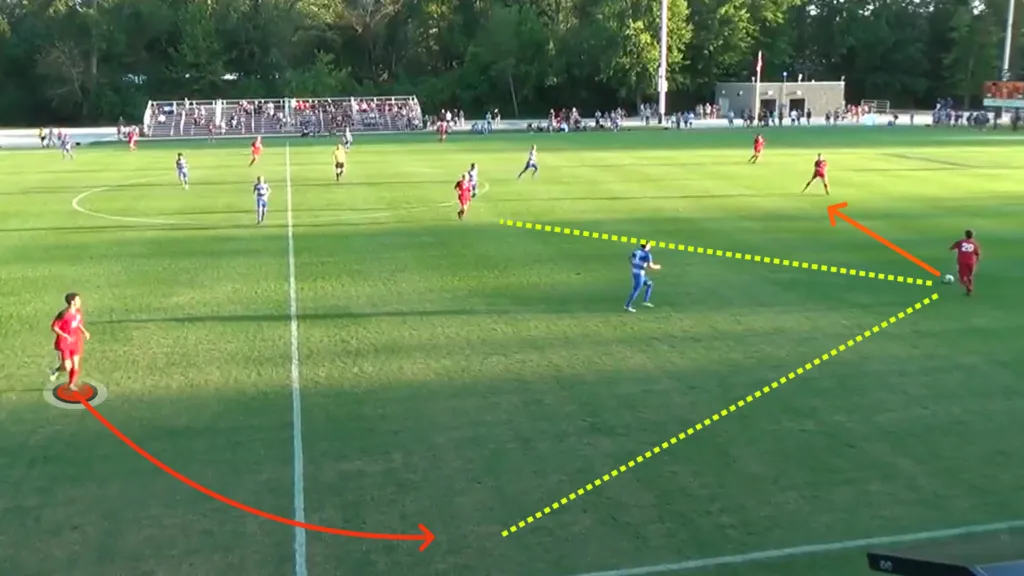
ATTENTION: Click and drag does NOT work with the line, arrow, and movement tools
Styling
You can change the color and line style for line and arrow
You can change the color, marker size, marker style, and line style for movement
Area & Zone
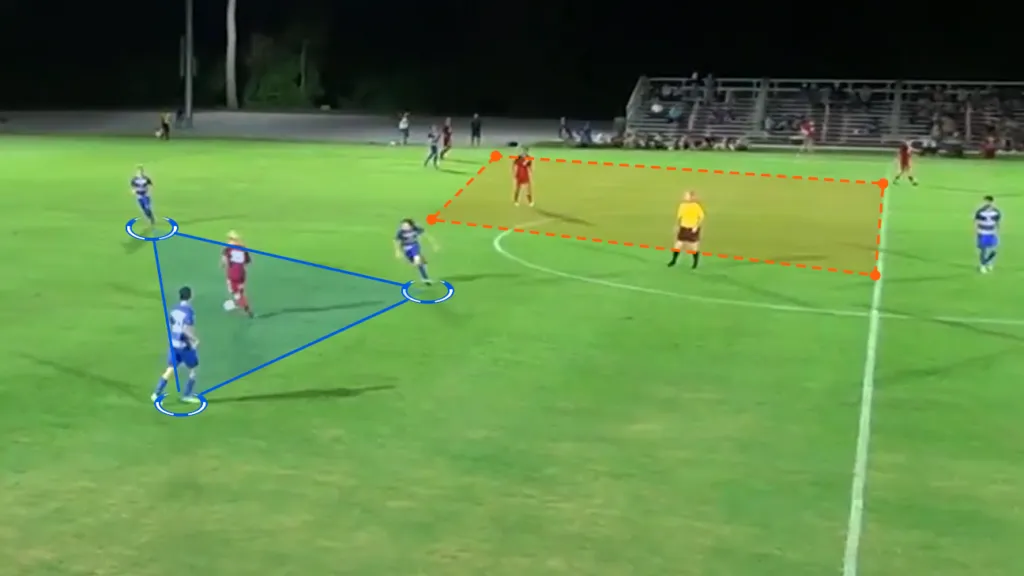
Styling
You can change the color, marker size, marker style, and line style for the area
You can change the color and line style for the zone
TIP: Click on the bucket icon when choosing a color to turn on/off the shading inside the shape
Space
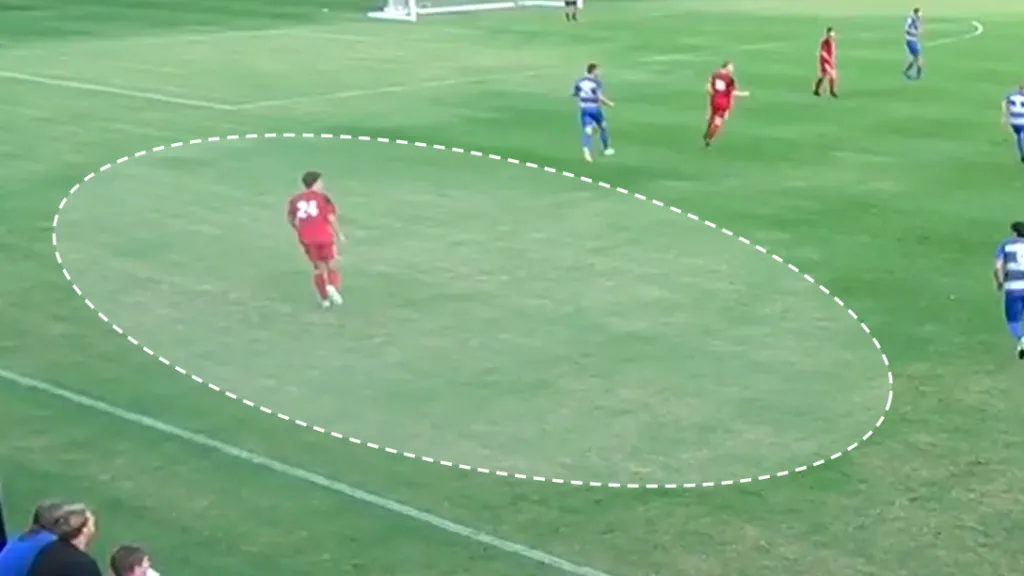
The software will automatically correct the roughly drawn shape into a nice ellipse
TIP: the end results will be better if the roughly drawn shape is closer to a circle than you may originally think
Styling
You can change the color and line style for this element
Freehand
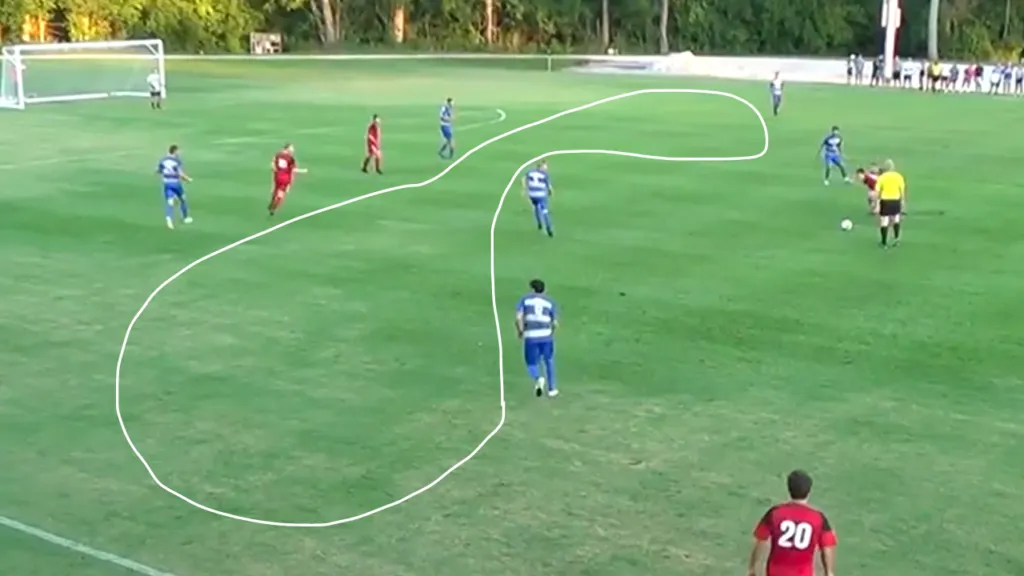
Styling
You can change the color and line style for this element
For the line style, you can only use a solid line and change its thickness.
Text
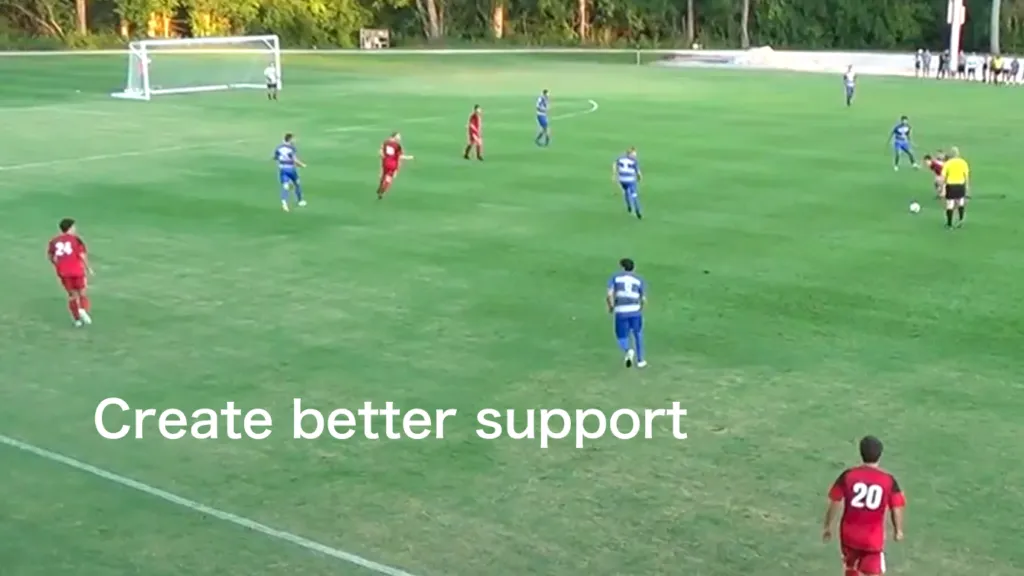
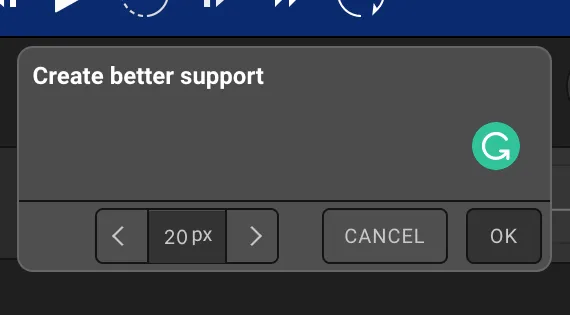
Styling
You can change the color and font size of the text
Voice-Over
Styling
There is no styling for this tool