Browse all guides
Make Video Clips (Scenes)
Follow the numbered steps. Click any picture to see it bigger.
Start-End Mode
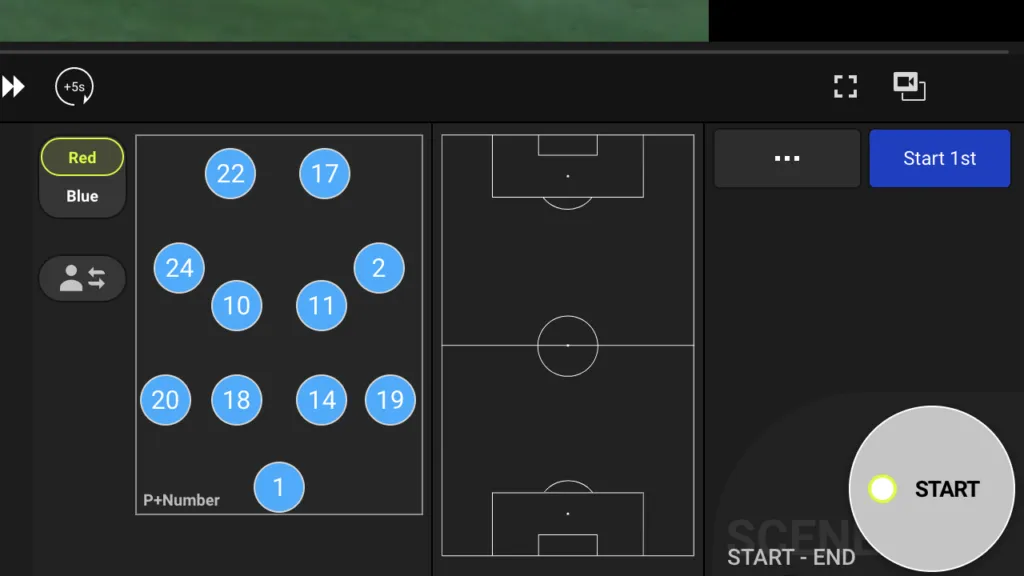
Click on the START button to start the beginning of the scene
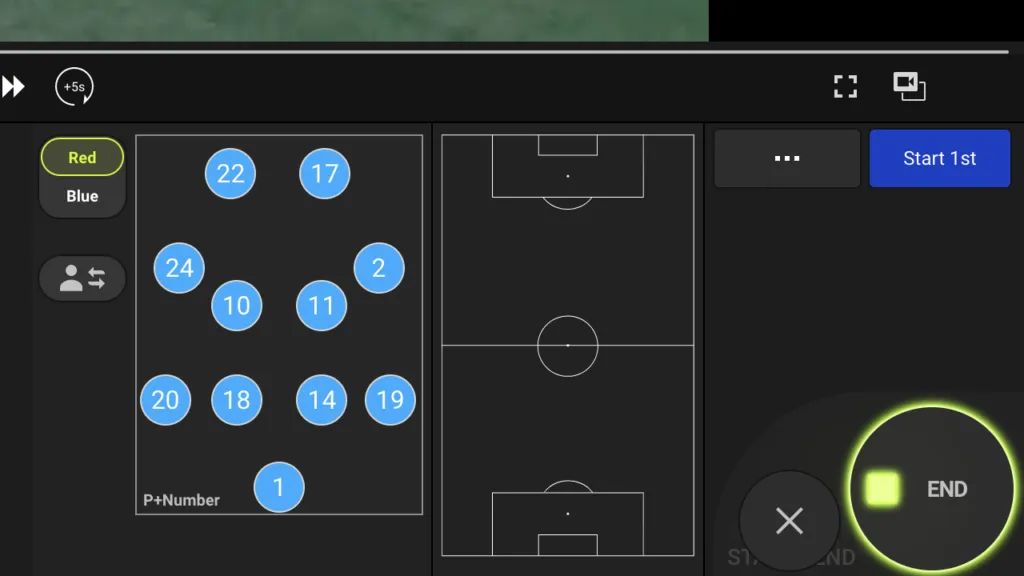
Click on the END button to end the scene
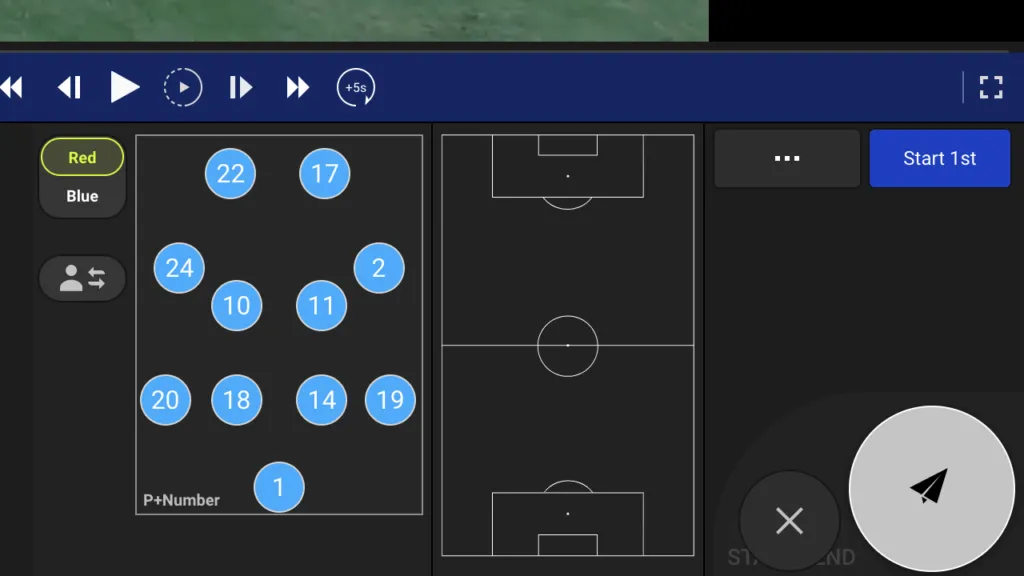
Click on the gray button with the paper airplane icon to save the scene
The scene card will appear on the left-hand side as blue for a brief moment and turn gray.
Point Mode
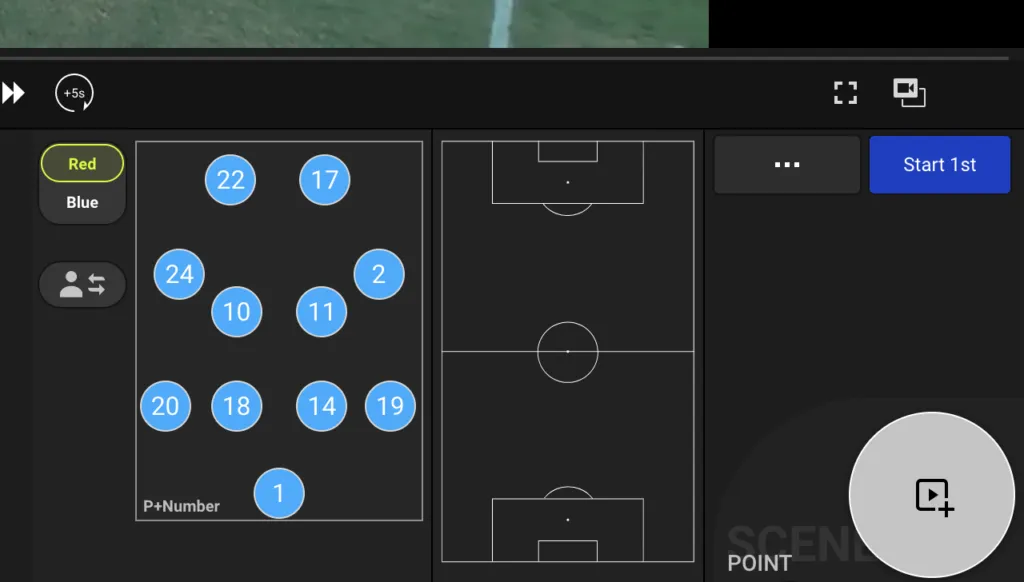
Click on the POINT button when you see a moment in the game you want to clip
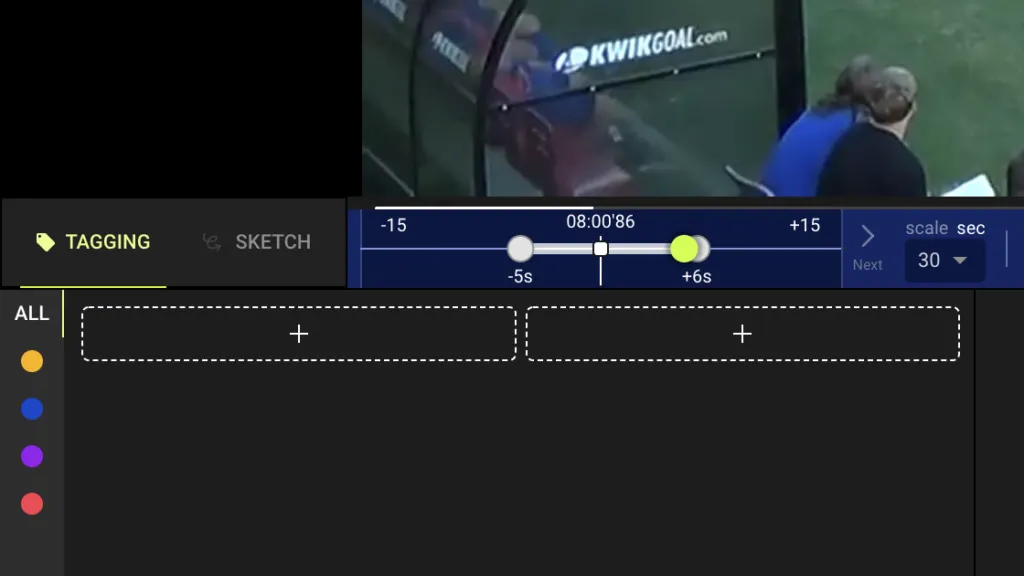
Drag the white dots to adjust the starting and ending points of the scene
If you need a longer time frame, click on scale sec on the right-hand side and choose a larger time frame to extend the scene
Click on the gray button with the paper airplane icon to save the scene
The scene card will appear on the left-hand side as blue for a brief moment and turn gray.
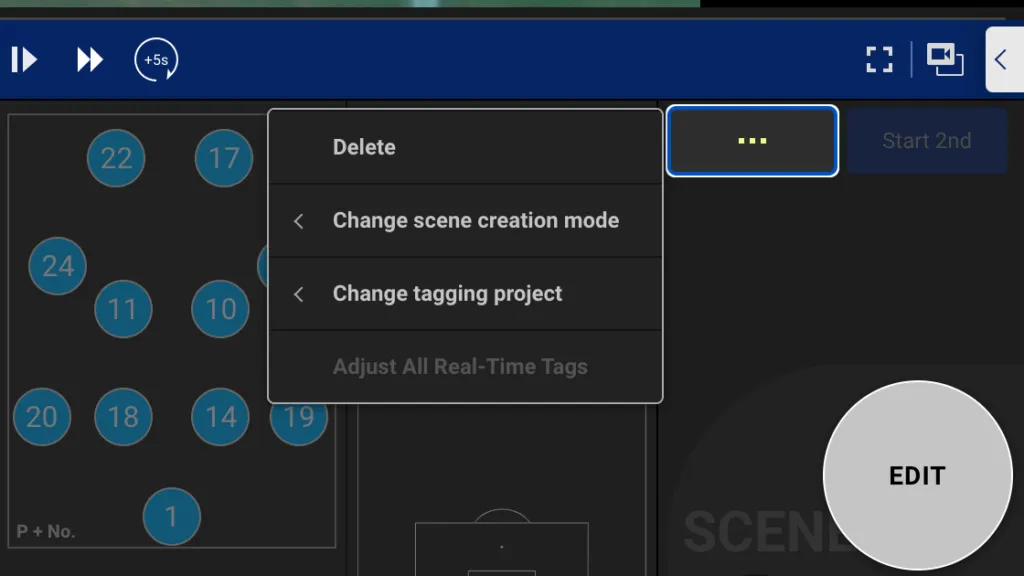
Change Scene Creation Mode
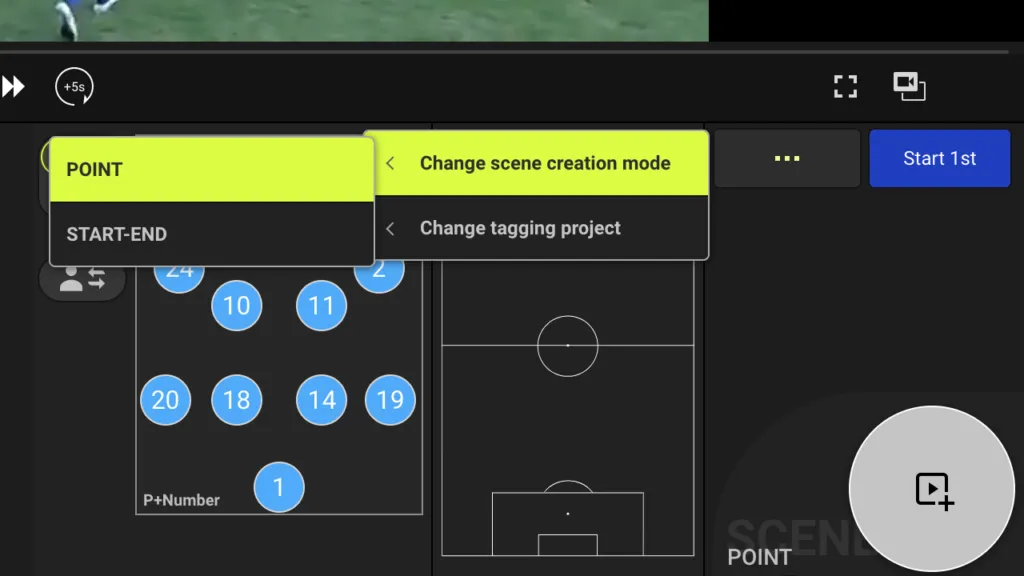
Change scene mode
Click on “…” then change scene creation mode. Choose between POINT or START-END
Edit / Delete Scene
Click on the scene to edit or delete from the left-hand side. It will become highlighted in yellow when it is selected
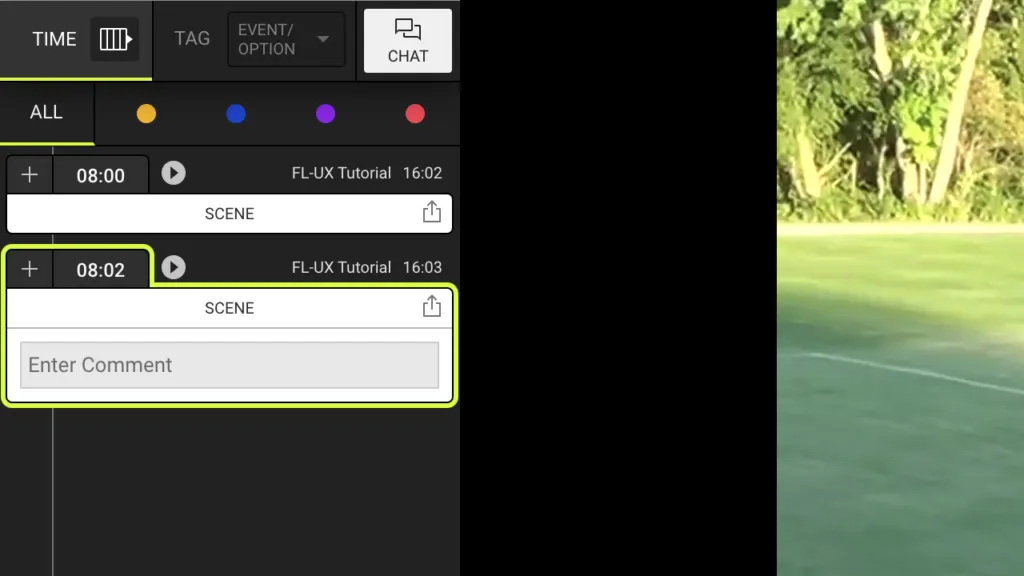
To edit, click on the edit button in gray
To delete, click on “…” and select delete