Browse all guides
Stream with OBS Studio
Follow the numbered steps. Click any picture to see it bigger.
Use the free OBS Studio software to send a live video from your computer to FL-UX. You’ll need the RTMP link and stream key shown in FL-UX when you set up a live stream (see Set Up a Live Stream). RTMP is simply the standard way of sending live video over the internet, and the RTMP link is the address OBS sends your video to.
Live broadcast is part of FL-UX Elite.
Set Up the Streaming Destination
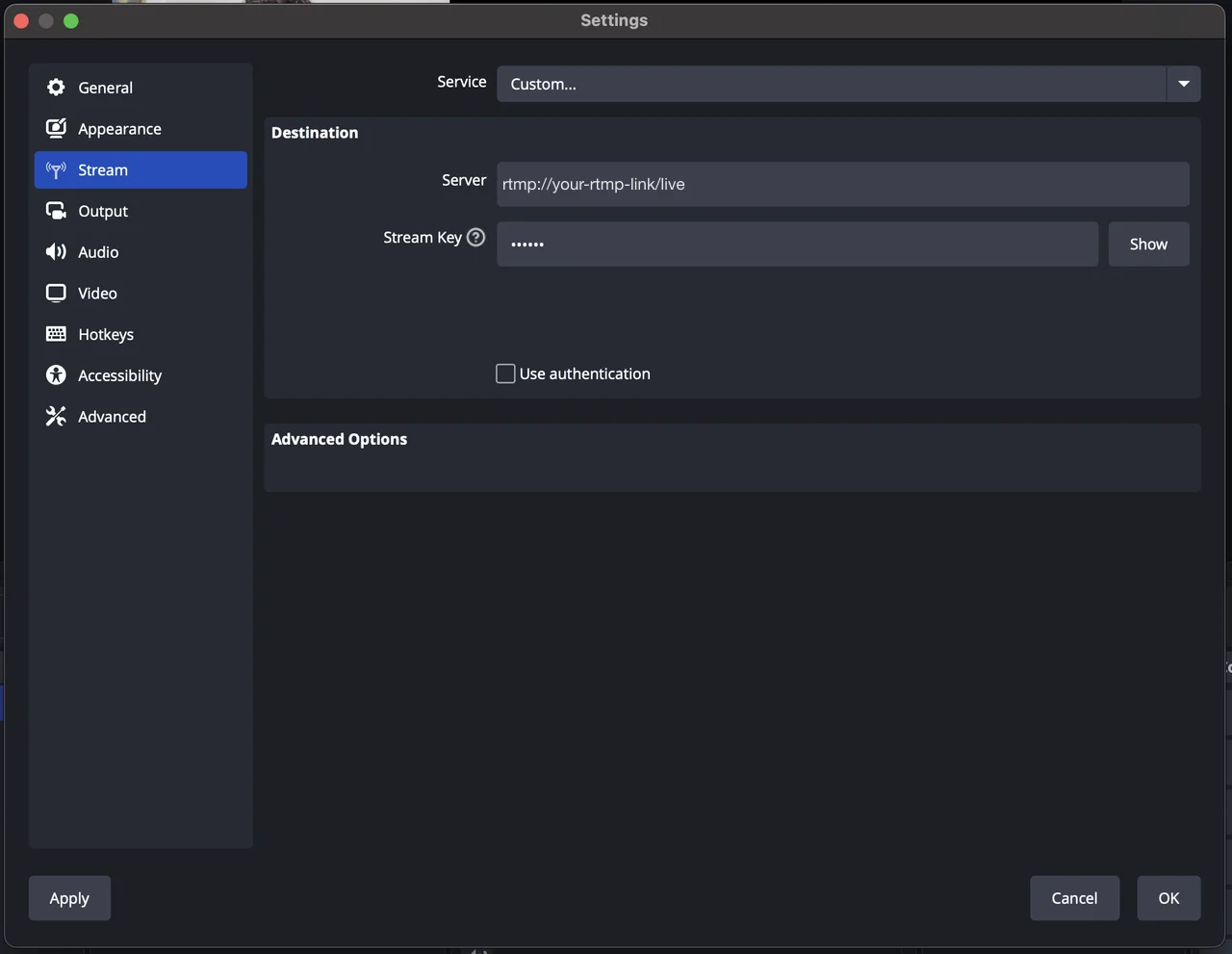
Open OBS Studio, go to Settings (gear icon in the bottom-right corner), then click Stream.
Choose Custom as the service. Paste your RTMP link in the Server field and your stream key in the Stream Key field, then click OK to save.
Output, Video and Audio Settings
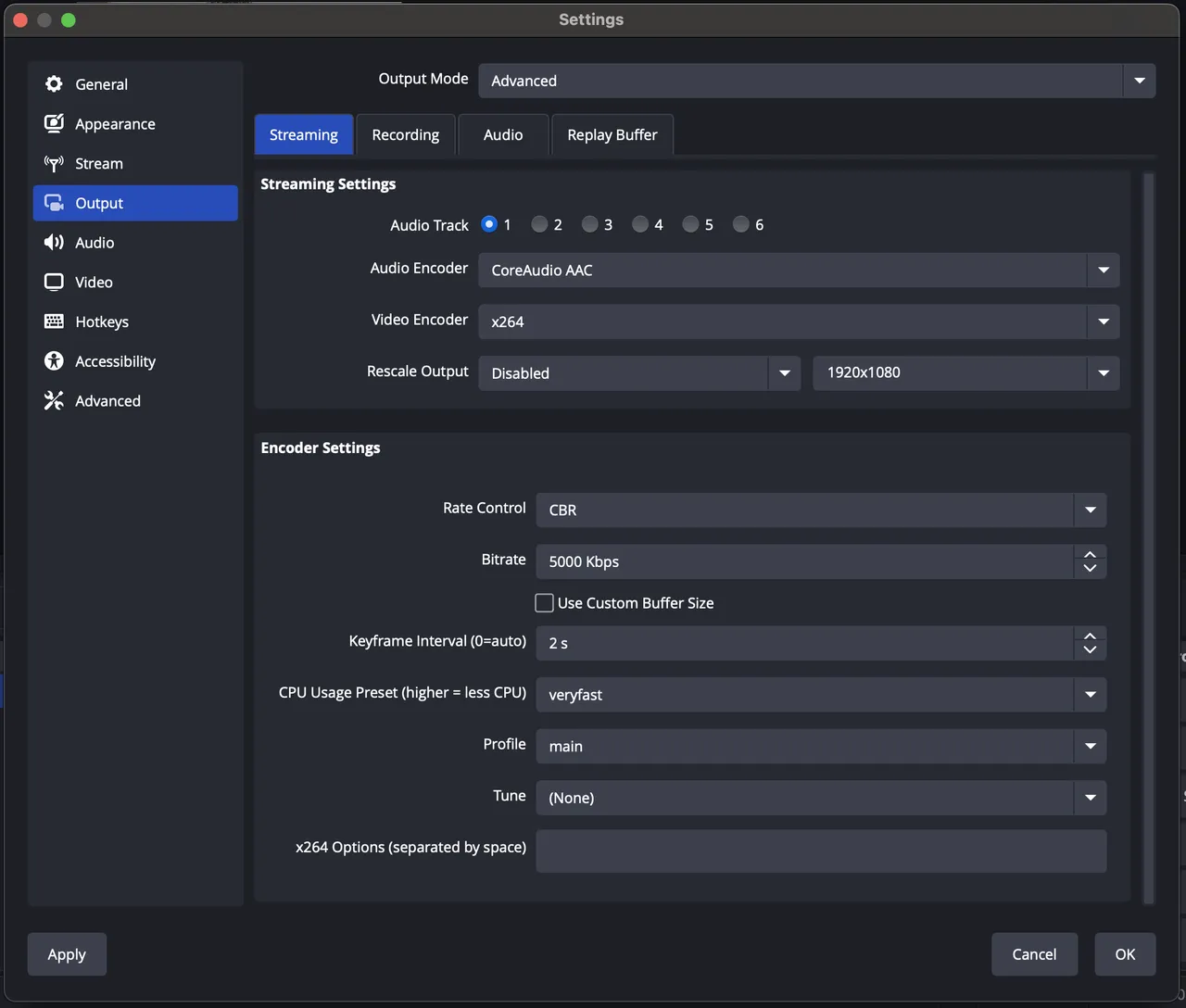
Go to Settings > Output and set Output Mode to Advanced. Under the Streaming tab:
- Encoder: the encoder is the part of OBS that compresses your video before sending it. Use x264 to let your computer’s processor (CPU) do the work, or NVENC/AMD to use your graphics card (GPU) if your computer has one that supports it.
- Rate Control: CBR (Constant Bitrate), which sends the video at a steady, even quality.
- Bitrate: the amount of video data sent each second. This is crucial for quality. Use the table below, based on your upload speed.
- Keyframe Interval: 2 seconds. A keyframe is a full picture of the video; the others only store what changed in between.
- CPU Usage Preset: with x264, choose Very Fast for mid-range computers or Faster for more powerful ones. Slower presets (e.g. Medium) improve quality but need more CPU power.
- Profile: Main or High, for better compatibility and quality.
- Tune: None, unless you have specific needs.
| Internet upload speed | Resolution | Bitrate | FPS |
|---|---|---|---|
| Under 2 Mbps | 480p (SD) | 800–1500 Kbps | 30 |
| 2 to 4 Mbps | 720p (HD) | 1500–3000 Kbps | 30 |
| More than 4 Mbps | 1080p (Full HD) | 4000–6000 Kbps | 60 |
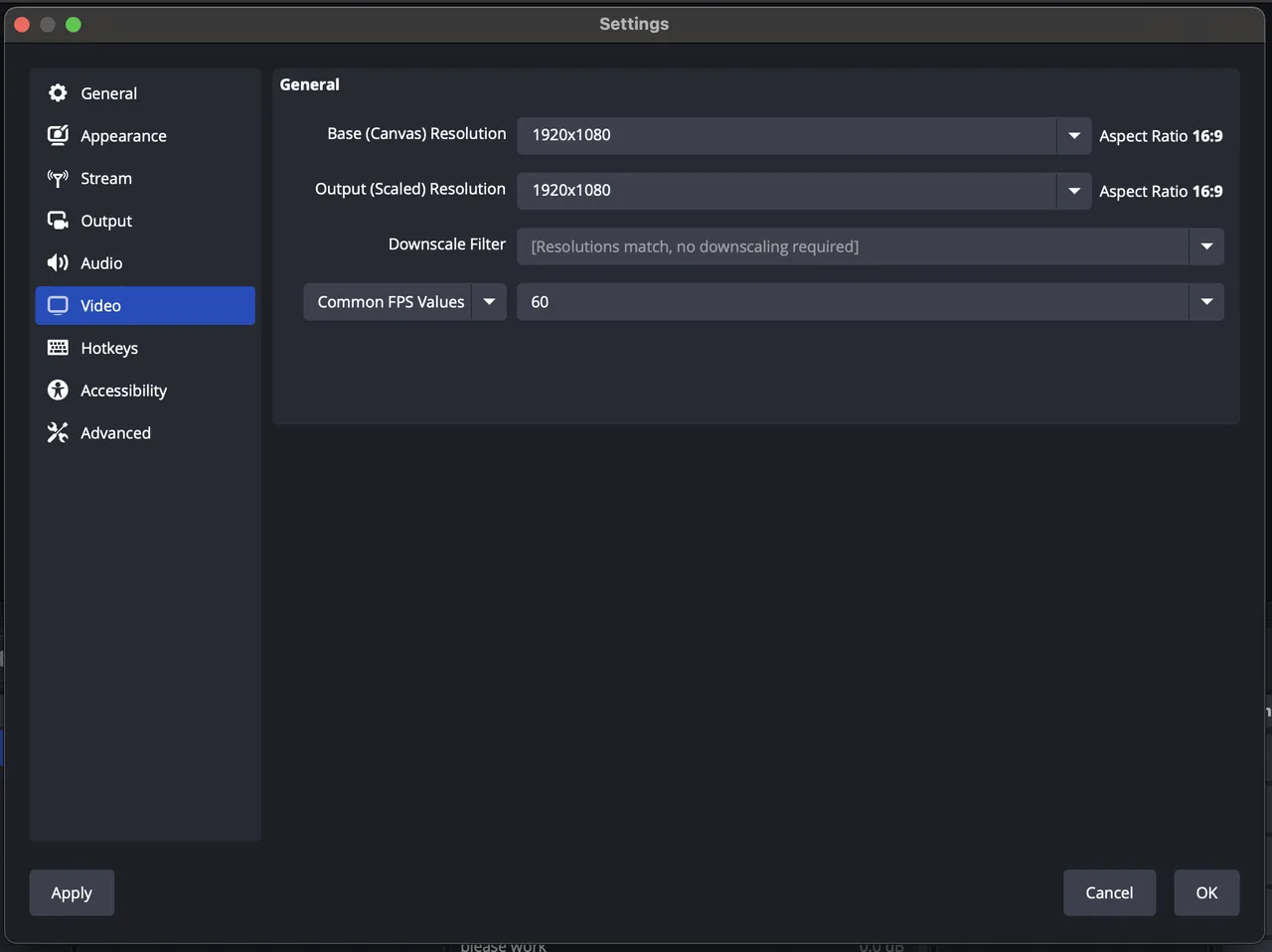
Go to Settings > Video:
- Base (Canvas) Resolution: your monitor’s resolution (e.g. 1920x1080).
- Output (Scaled) Resolution: the resolution you want to stream (e.g. 1280x720 for 720p).
- Downscale Filter: Lanczos, for high-quality downscaling.
- FPS: 30 for most streams, or 60 for smoother motion if your connection and computer allow it.
Important: the Output (Scaled) Resolution decides the video quality FL-UX receives. If your connection allows it, set it to 1920x1080.
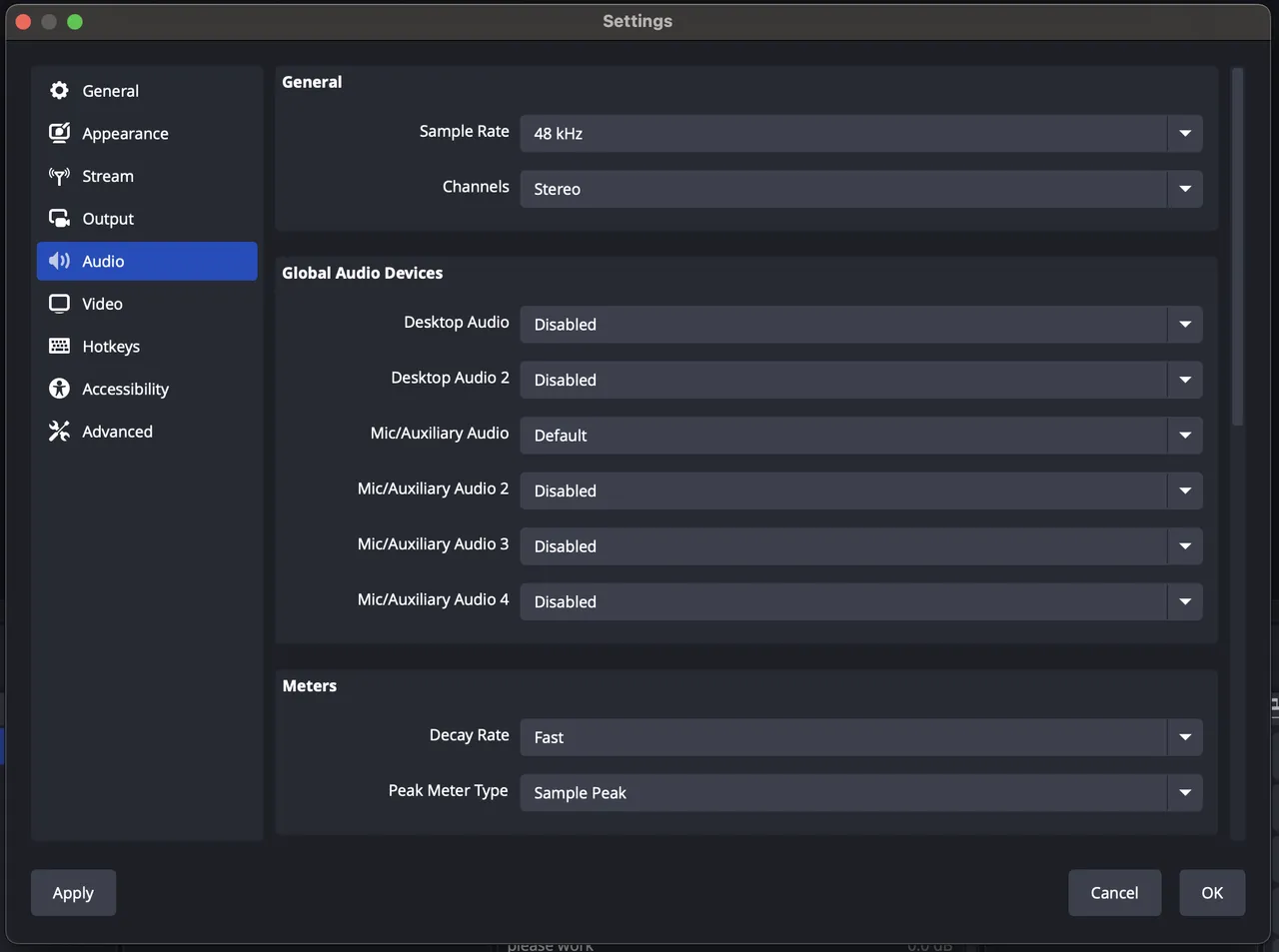
Go to Settings > Audio. Set the Sample Rate to 48 kHz and select the right devices under Mic/Auxiliary Audio and Desktop Audio. Then set the audio bitrate under Output > Audio: 96 Kbps for standard quality, or 128 Kbps and more for professional-grade streams.
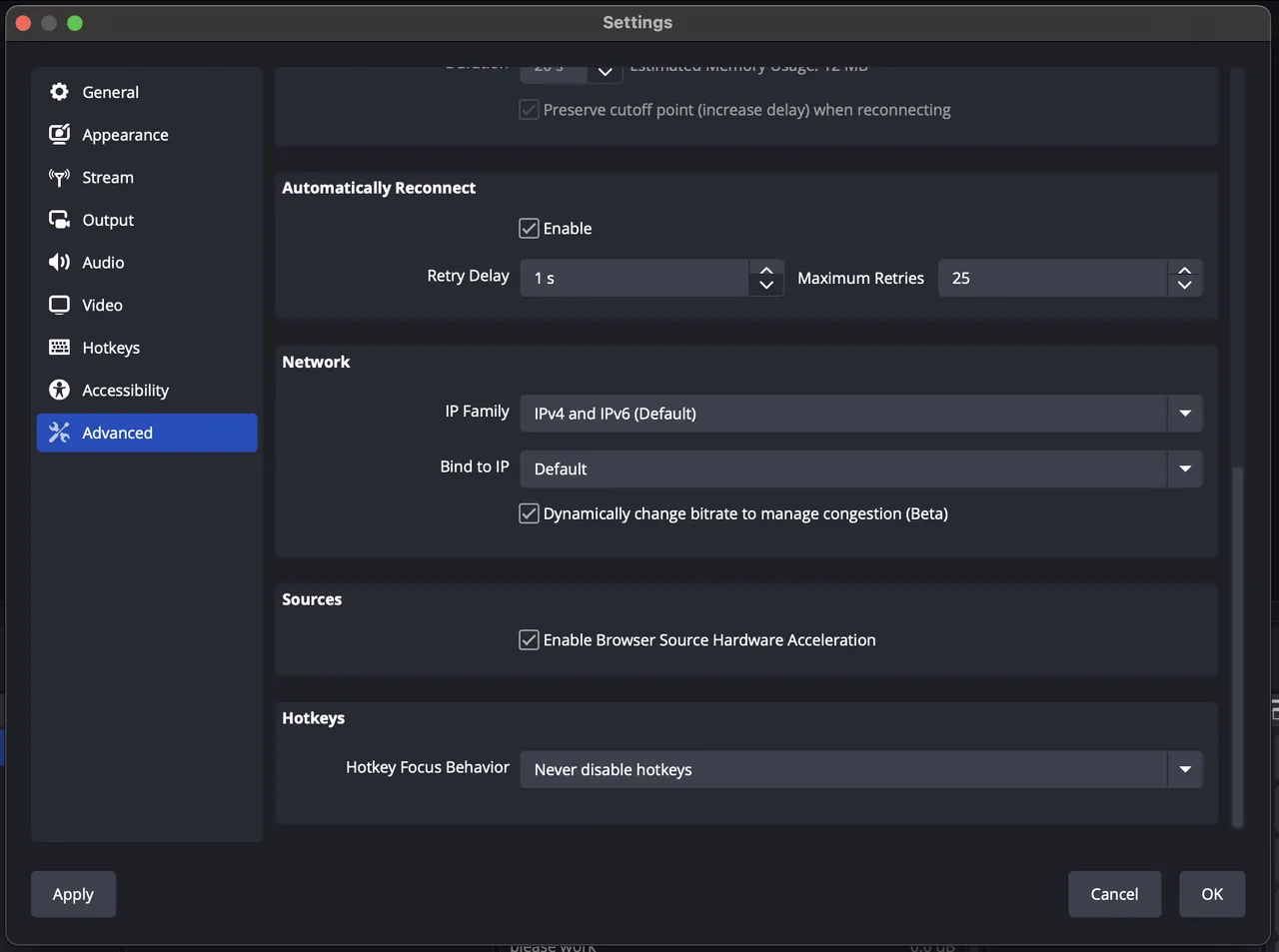
Go to Settings > Advanced. Under Network, leave Bind to IP at its default (unless you use several network adapters) and enable Dynamically change bitrate when dropping frames while streaming.
Slow Internet Connections
If your connection is slow:
- Lower the Output (Scaled) Resolution, e.g. from 1080p to 720p or 480p.
- Reduce the bitrate: 800–1000 Kbps at 480p for speeds under 2 Mbps, or 1500–3000 Kbps at 720p for 2–4 Mbps.
- Lower the frame rate to 24 or 30 FPS.
- Enable Dynamically change bitrate in Advanced > Network to avoid disconnections.
Test Your Stream
Open OBS’s Stats window (in the View menu) and keep an eye on CPU usage, dropped frames and bitrate stability.
Run a short test stream before the match to check that everything works.
Tips for a stable stream
- Use a cable: a wired Ethernet connection is the most stable. On Wi-Fi, make sure the signal is strong.
- Keep some bandwidth free: leave at least 20% of your upload speed unused.
- Close other programs: this frees up your computer for OBS.