Browse all guides
Upload Video
Follow the numbered steps. Click any picture to see it bigger.
Prefer watching? There’s a video lesson for this guide
How to Upload Videos
Match or Practice
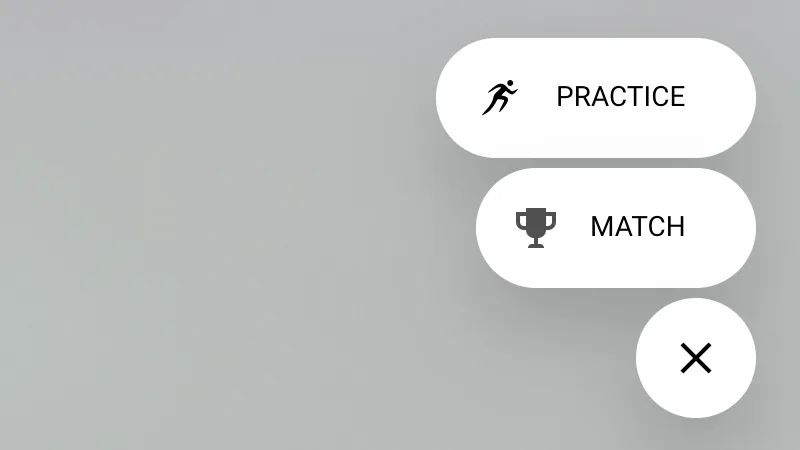
Click on the “+” on the bottom right corner of the page. Then click on Match
If you select PRACTICE, you will not have the option to set match category, home-away teams, and formation. However, the rest of the steps are the same.
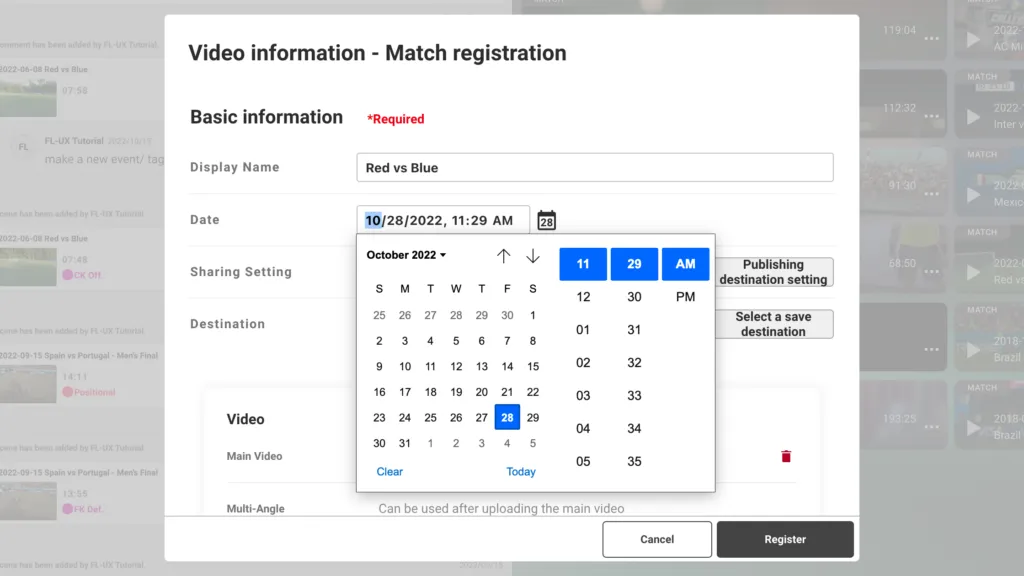
Type in the display name and the date of the match near the top of the window
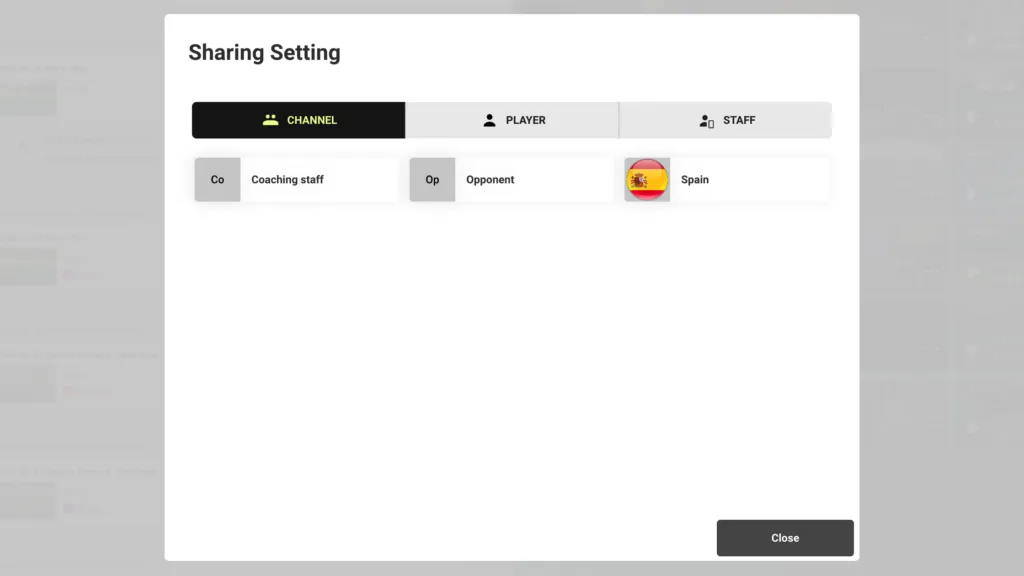
You can either make the video public to everyone, private to yourself or share with restrictions.
To share with restrictions, select who to share this video with from the list of channels, players, or staff members.
Once finished, go back to the main window by clicking on close
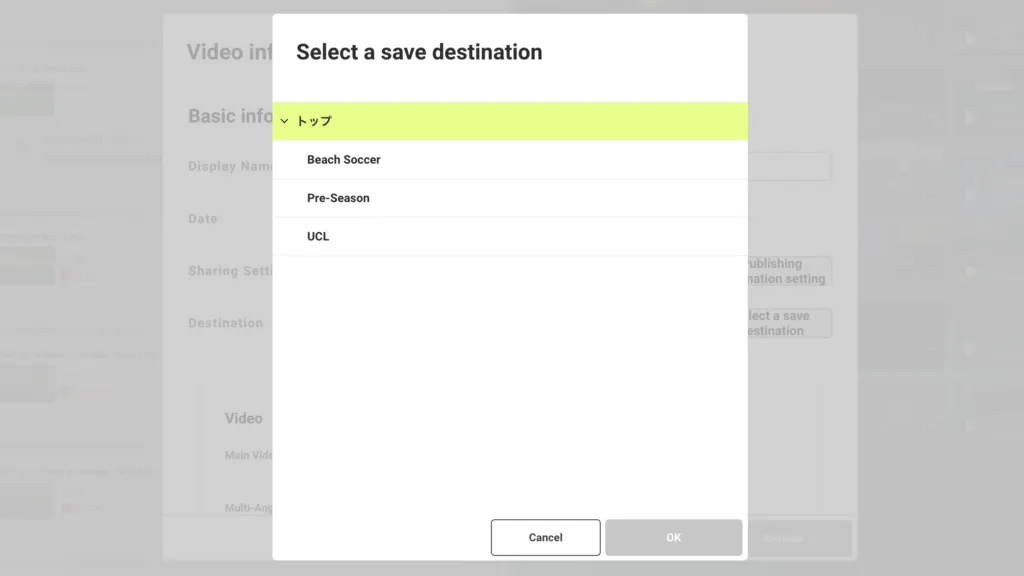
If you have folders created already, you have the option to put this in a specific folder. Click on select a save destination and select your folder from the list
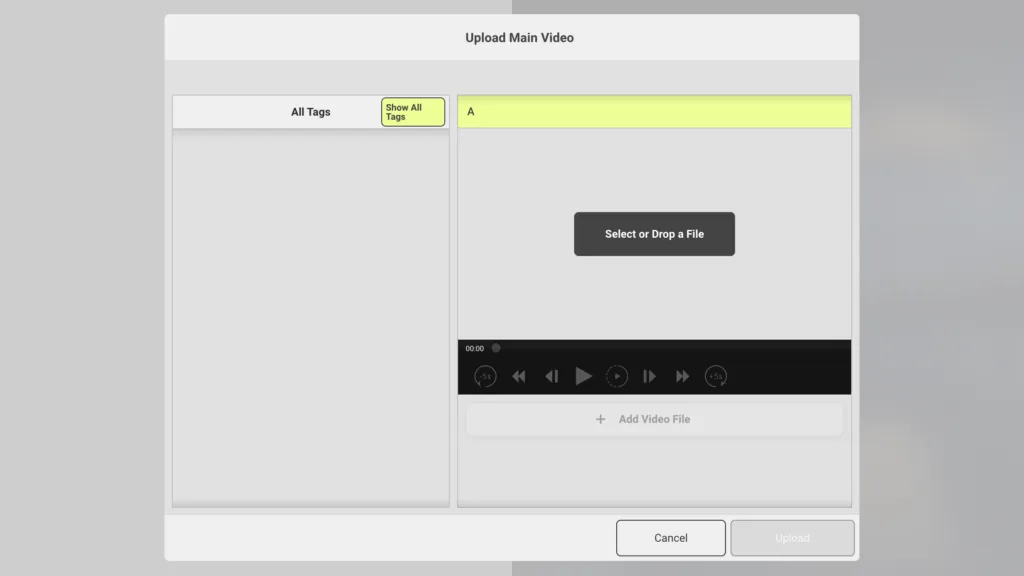
Click on upload and either drag and drop the video file or select the video file from the pop-up window
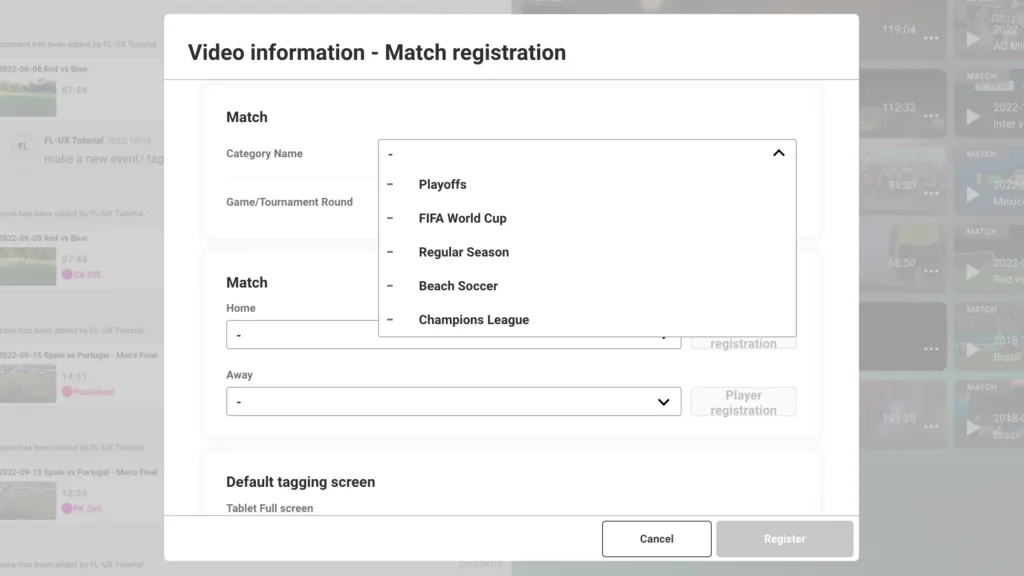
Specify the game category from the drop-down menu.
These only show once you have added your competitions. Set them up in the menu under Competition & team setup › Competition & tournament setup.
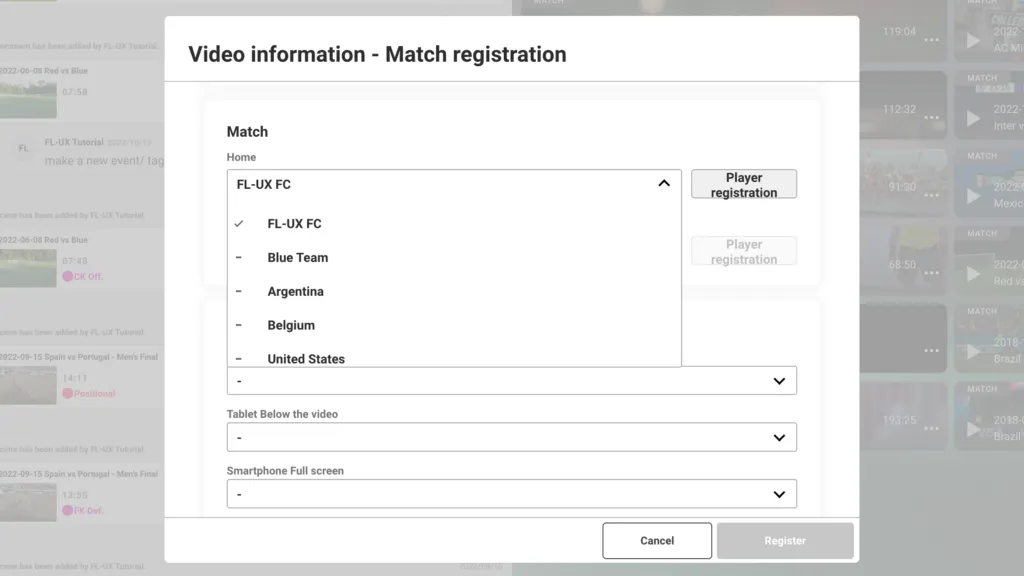
Specify the home and away team by selecting teams from the drop-down menu
These only show once you have added your teams. Set them up in the menu under Competition & team setup › Player & team setup.
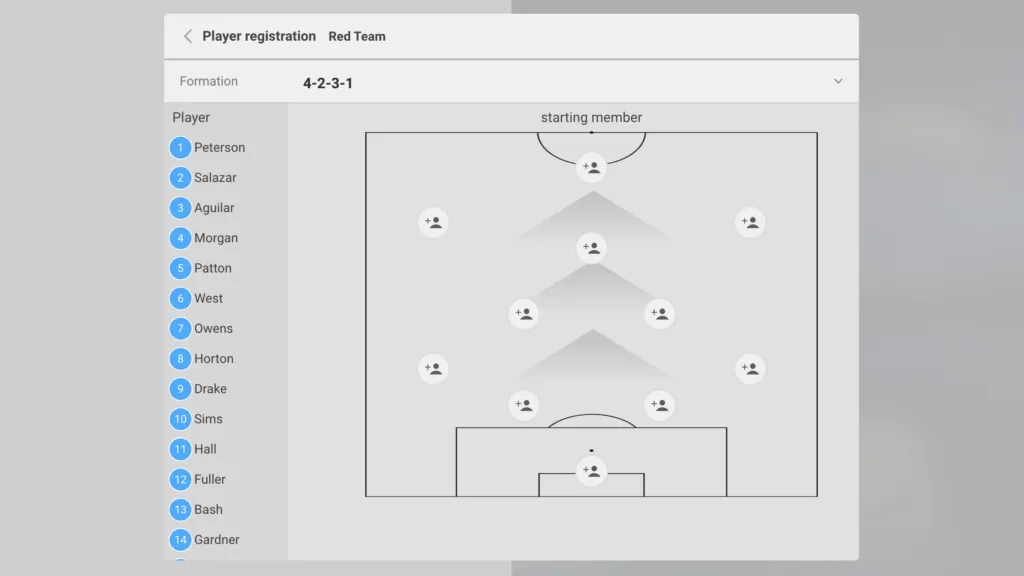
Click on player registration to set the starting formation for each team.
Select the formation from the drop-down menu at the top. Highlight the player by clicking and clicking on the player’s position on the diagram.
Once finished, go back to the main window by clicking < at the top
Set the default tagging screen for each device type.
If you have created a custom tagging board, it will show here in addition to Event + Player + Location and Event Only options.
Click register to finish
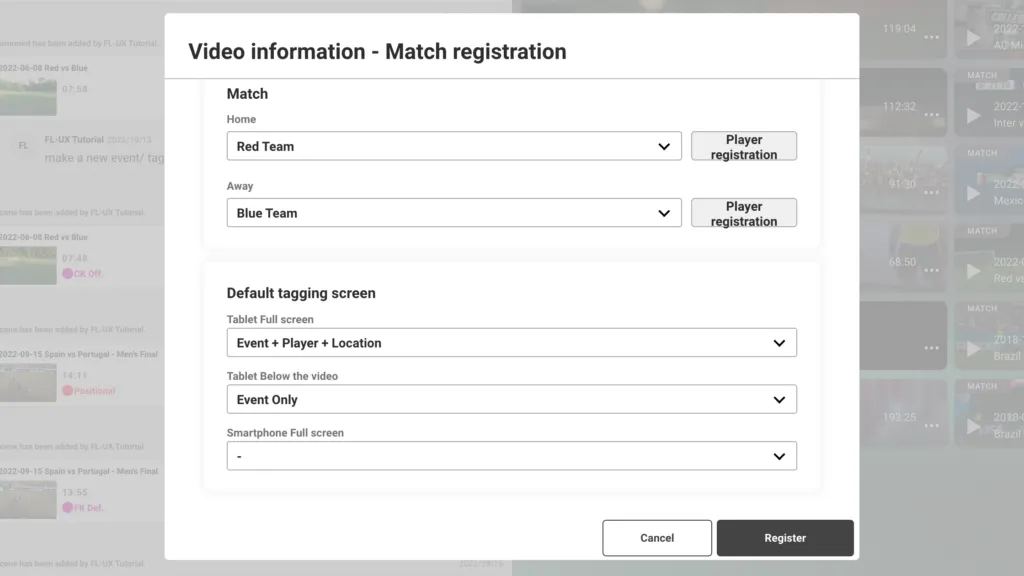
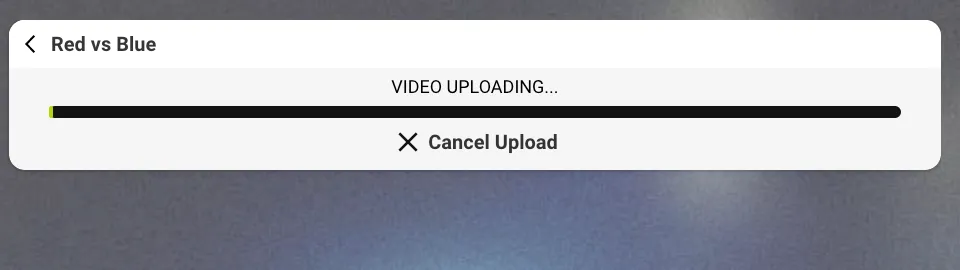
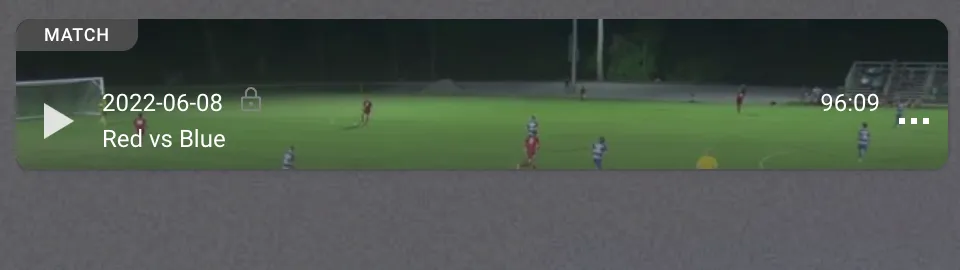
Allow the video to be uploaded to the cloud and processed for it to become viewable for you to start analyzing!
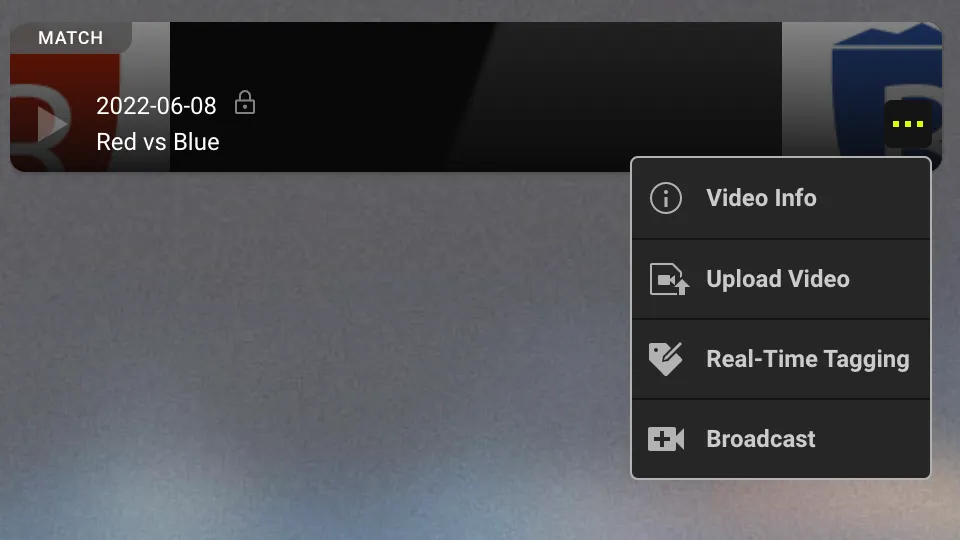
Edit video info
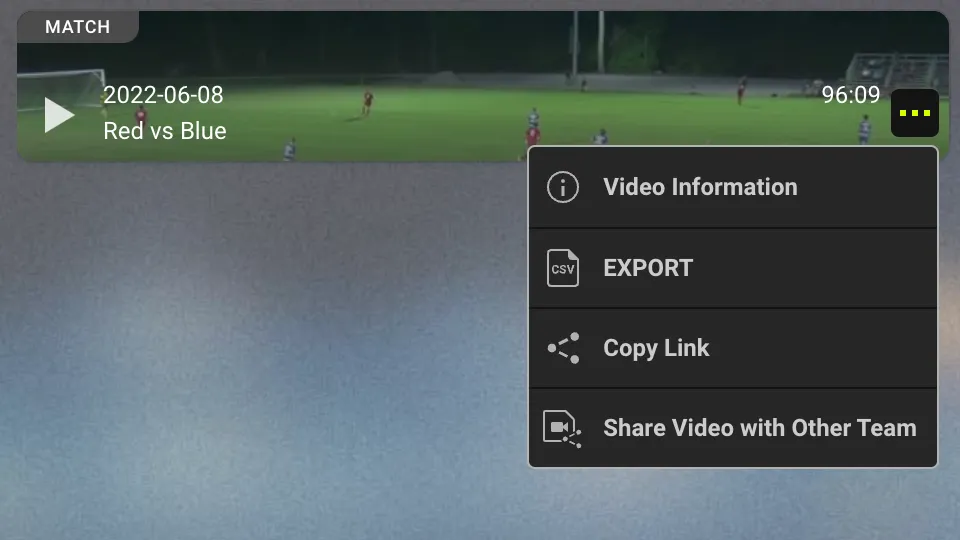
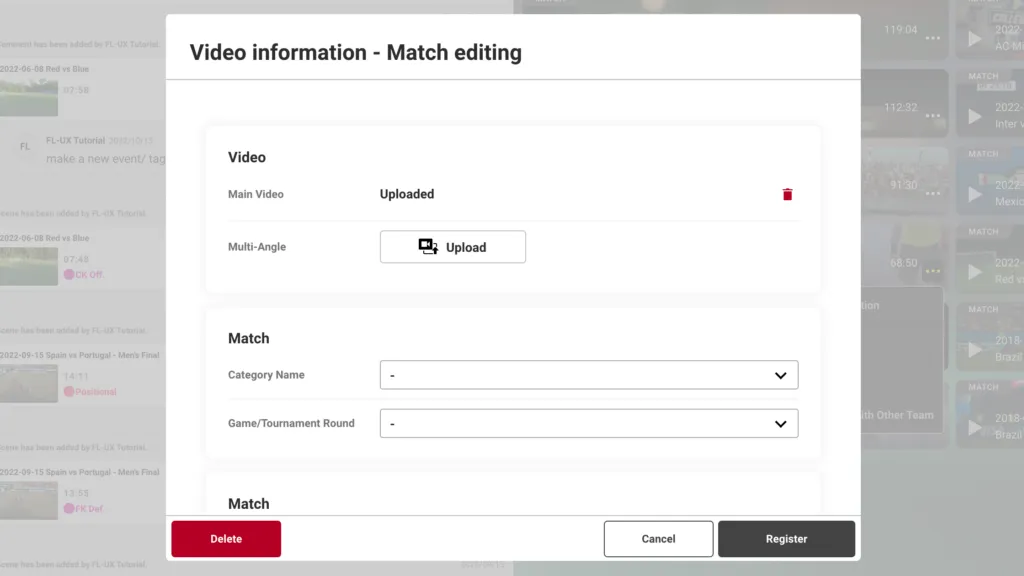
To edit the video information set in the previous steps, click on “…” and video info. This will take you back to the window above to make necessary changes
Upload Multi-Angle Videos
Click on “…” and select Video Info
Click on upload multi-angle that’s located near the top right corner
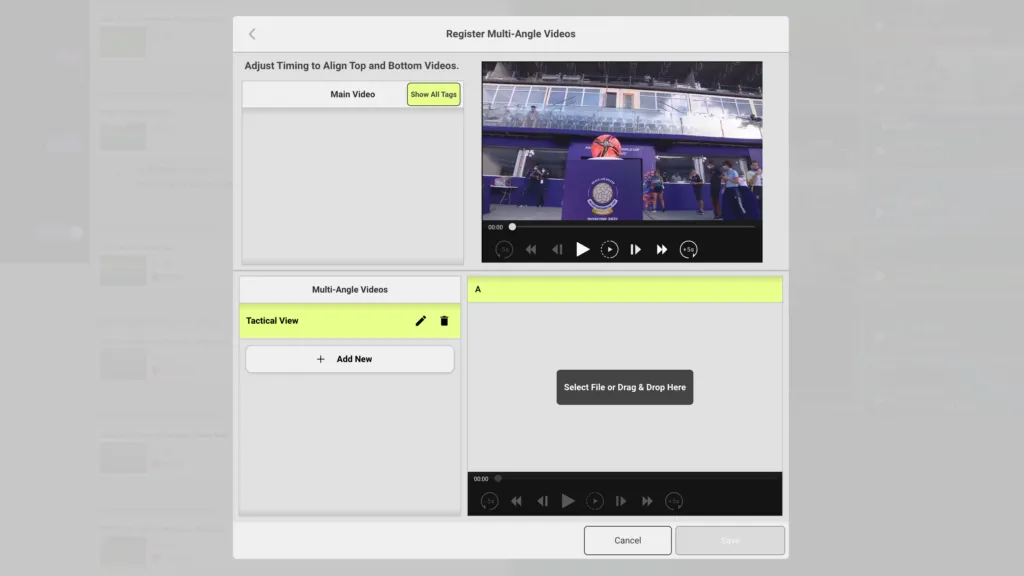
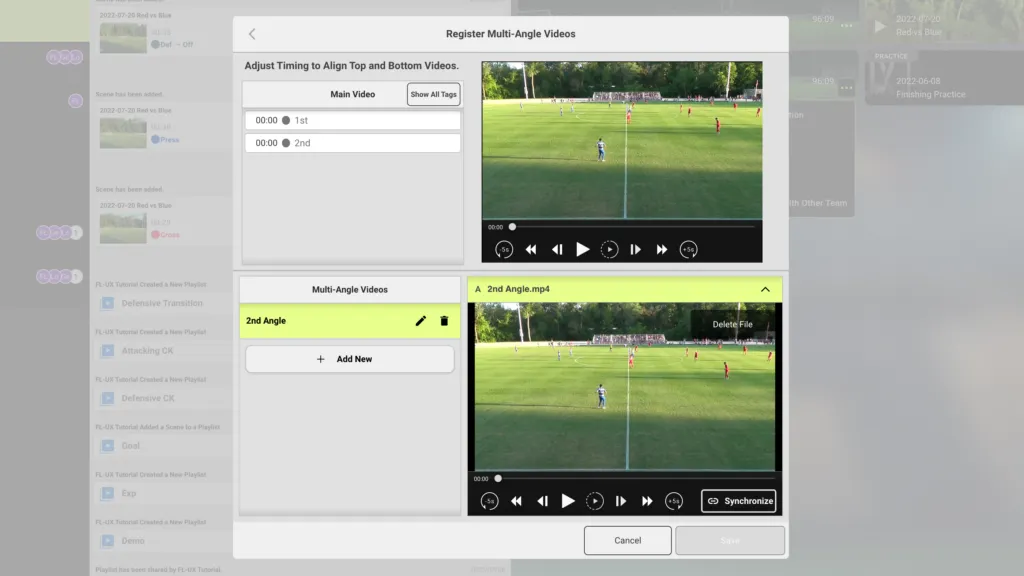
Create a new angle and name it under the Multi-Angle Video column on the left
Select the video file from your device to upload
Use the video preview to find the point to synchronize the two videos
Press on Synchronize and click on Save
NOTE: It is possible to add more than 2 angles to synchronize
You will be returned to the Video Info window
Click on Register and wait for the video to upload and finish processing
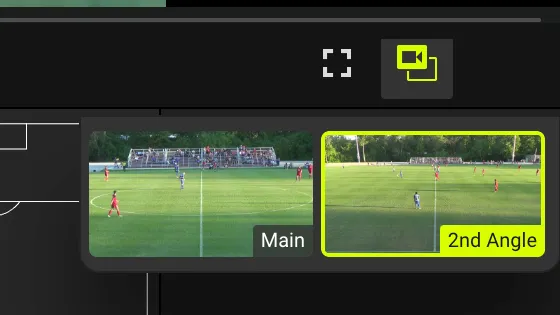
Switch between angles
To switch between angles, click on this button near the bottom right corner of the video
Adjust video angles
If the uploaded angles are off-sync, you can resync them
Click on “…” > Video Info > Upload Multi-Angle
First, disable sync and use the video controls to make the adjustment