Browse all guides
Live Analysis Methods
Follow the numbered steps. Click any picture to see it bigger.
Prefer watching? There’s a video lesson for this guide
How to Use Real-Time Tagging
How to Sync Real-Time Tags with Video
Real-time tagging and live analysis are part of FL-UX Elite.
Live Tagging
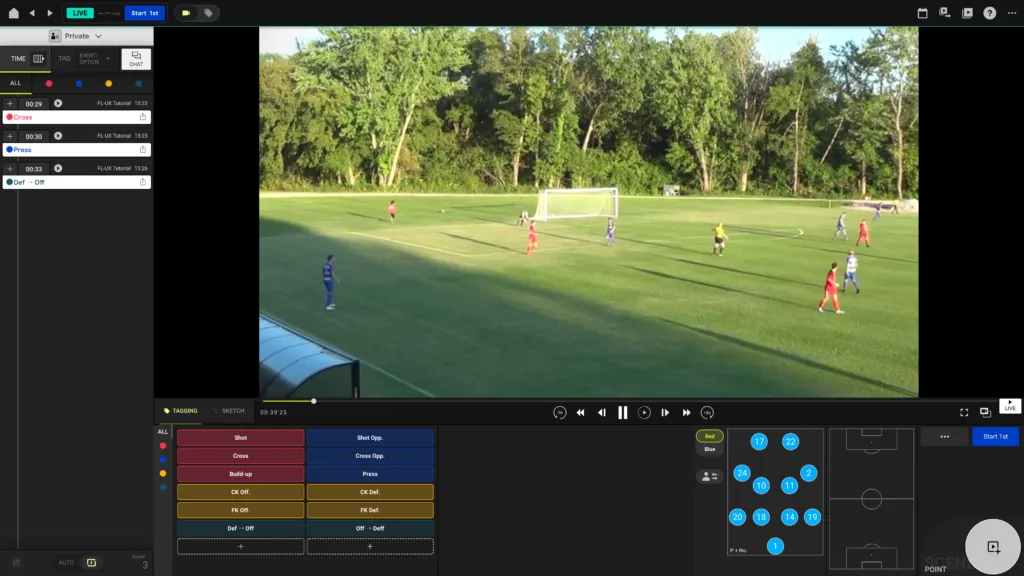
Use live video to analyze
When you enter the live stream on FL-UX, you will see a screen similar to this.
You can clip, sketch, and tag as you would normally do with a recorded video.
We recommend this method for an analyst who can’t be at the field and is working remotely.
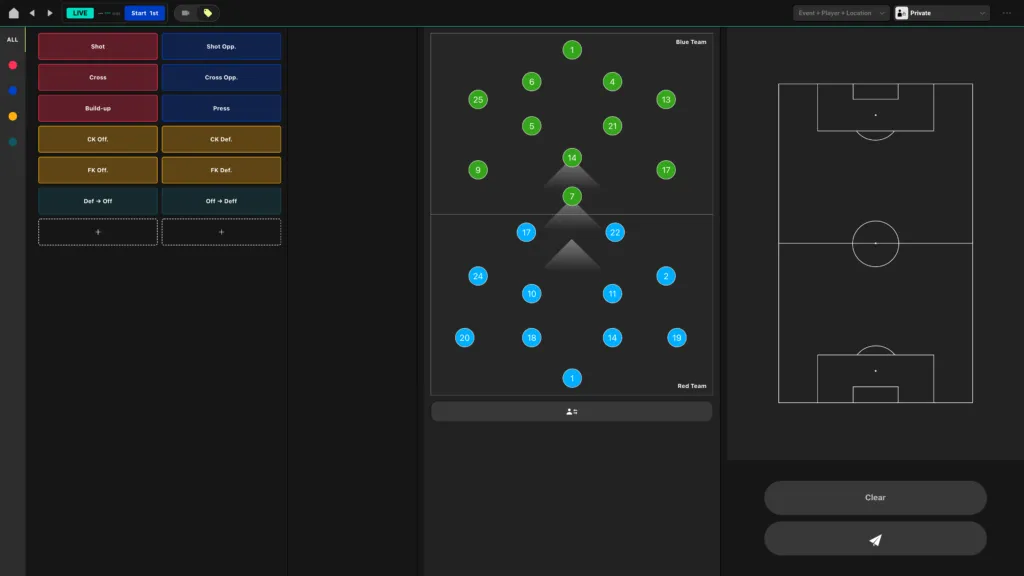
Use real-time tagging to analyze
Instead of analyzing using a live feed, you can use the real-time tagging board.
Click on the tag buttons on the screen as you watch the game with your own eyes. FL-UX will automatically sync your tags with the live video feed.
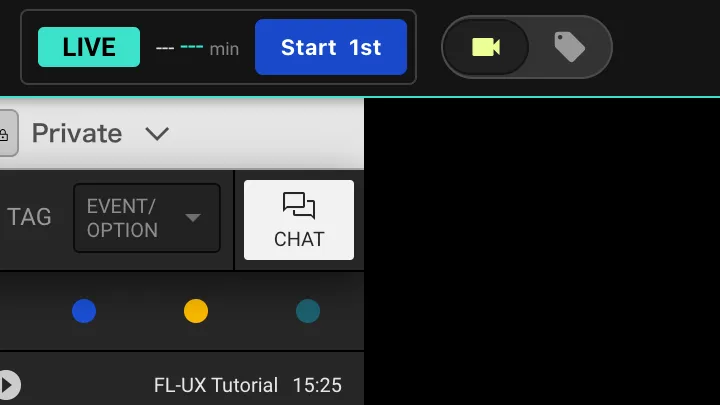
Switch live analysis mode
To switch between live video view and real-time tagging view, click on either the camera icon or the tag icon near the top left of the screen
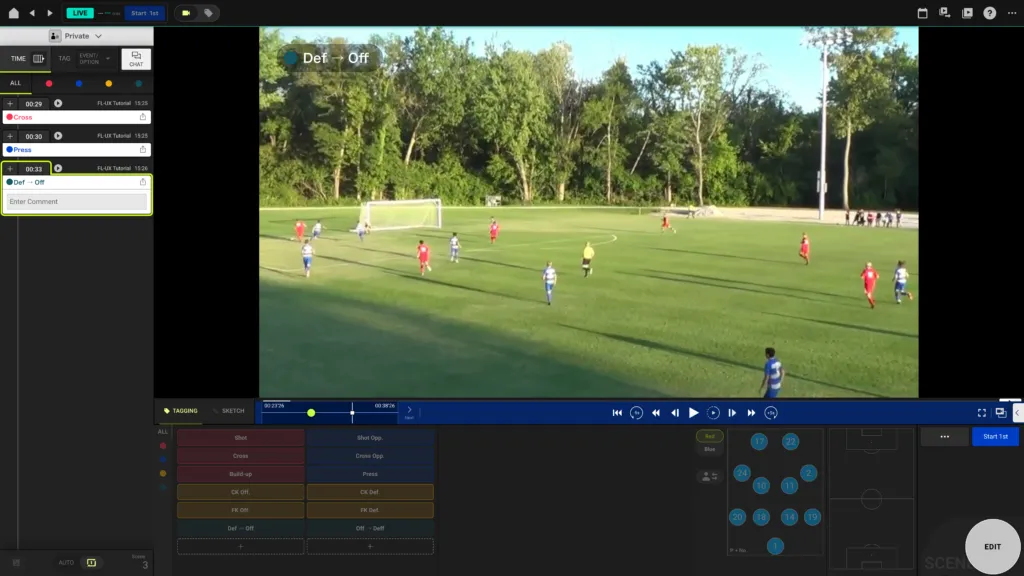
Instant replay
To view the scenes you’ve created during the game, switch over to the live video view and simply click on the scene from the left side.
To exit the replay, click on “<” at the right end of the blue video control bar
Real-Time Tagging
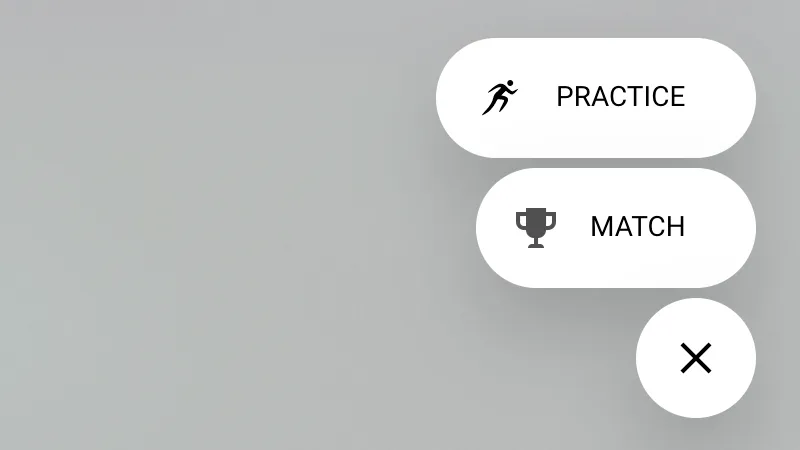
Click on the “+” button and create a match or a practice
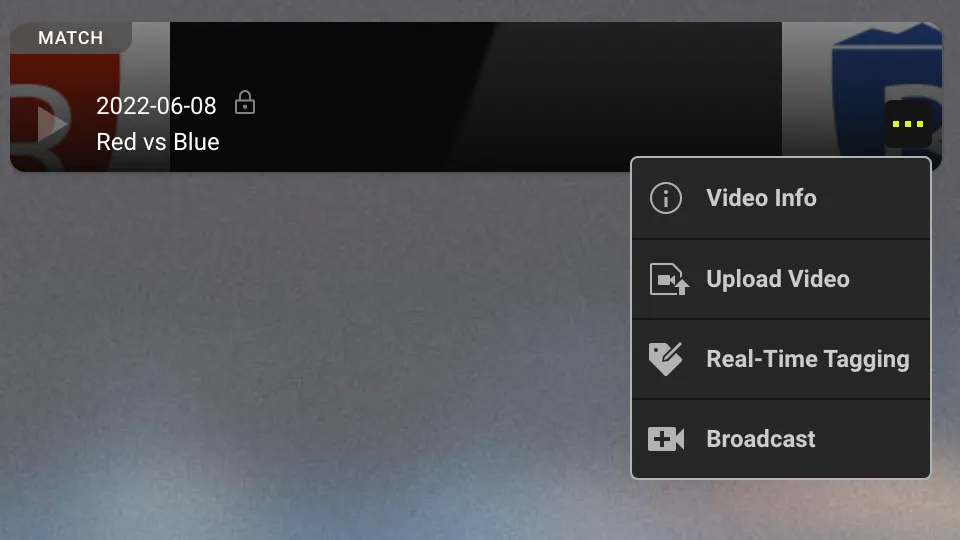
Click on “…” of the match or practice you’ve just created and select real-time tagging
While watching the game, tag the match using event tags you’ve created and team and formation you’ve set for the match or practice
TIP: Use the start of 1st half tag
We recommend using the start of 1st half tag when the match kicks off.
This creates a reference point that makes it easy for you to sync the recorded game and the real-time tags
Click on “…” of the match or practice you’ve just created and select upload video
Select the video file from your device to upload
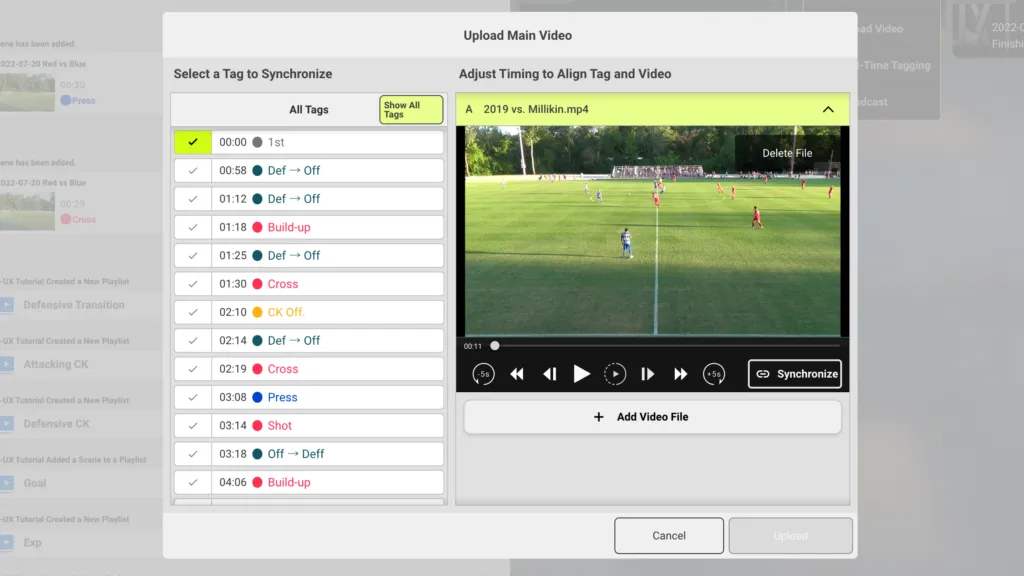
Click on show all tags and select a tag to use as the syncing point. We recommend the start of 1st half tag
Play the video in the preview and find the moment when that tag was made.
Click on Synchronize to sync the video and tags
Adjust Real-Time Tags
Once the video is uploaded and processed, you can adjust the real-time tag if needed
Click on “…” near the bottom right and click on adjust all real-time tags
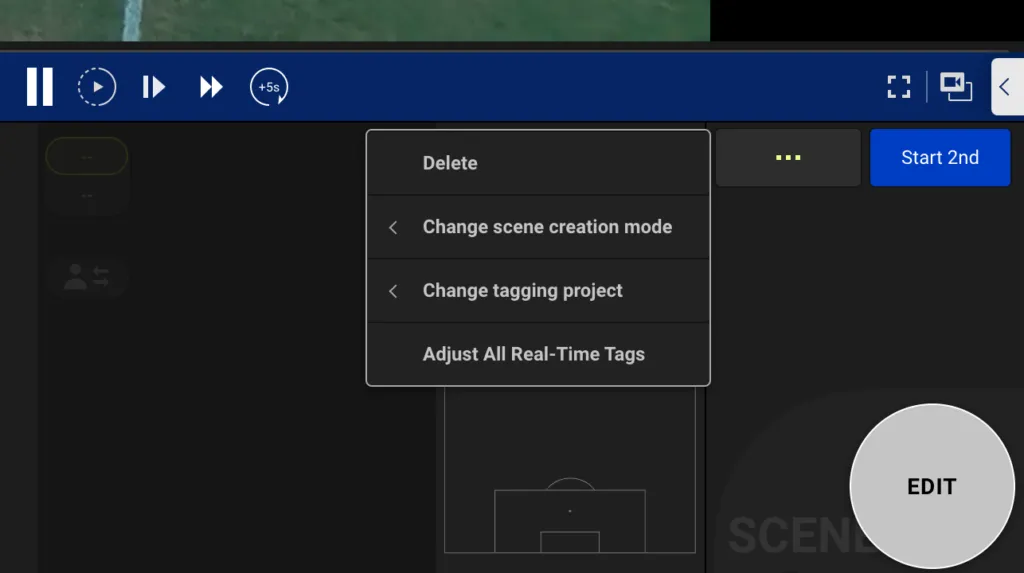
Play the scene until it is adjusted. We recommend using the frame-by-frame control for more precise adjustment
When finished, click on the button at the bottom right corner
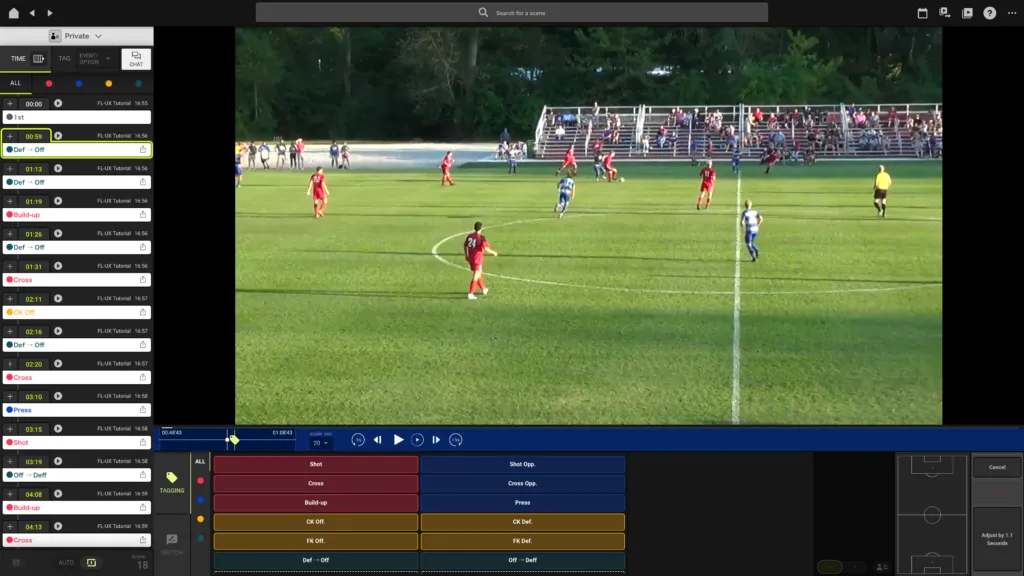
This shifts all tags by the adjusted amount