Browse all guides
Export
Follow the numbered steps. Click any picture to see it bigger.
Export Playlists
Create a playlist if you don’t already have one
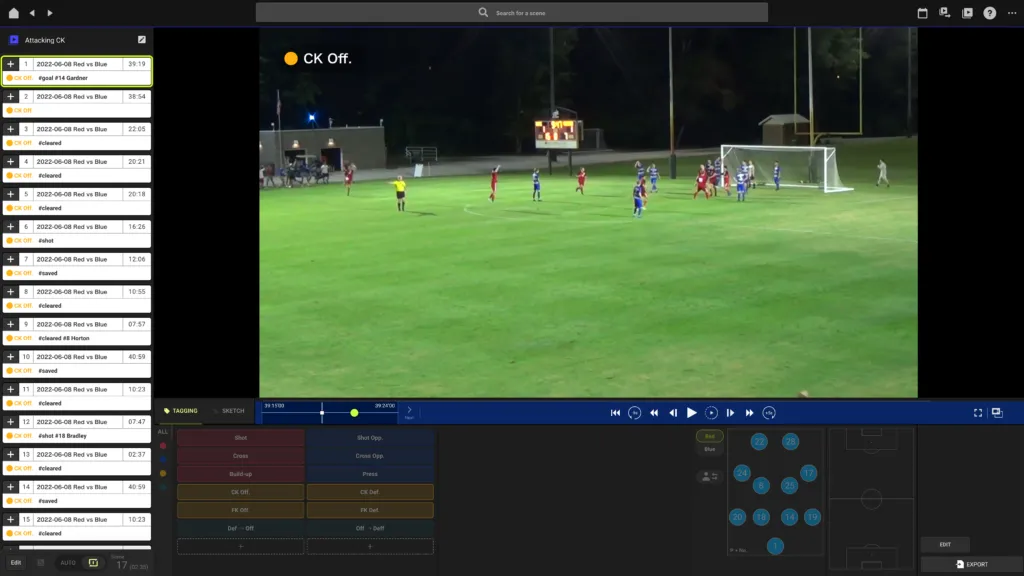
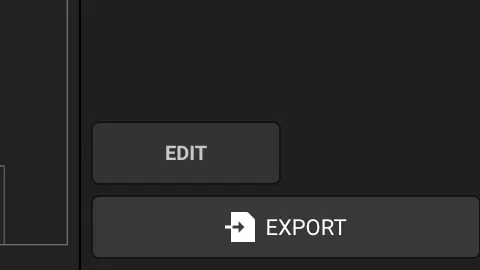
Click on export at the bottom right
Please keep in mind that all video clips in the list will be exported.
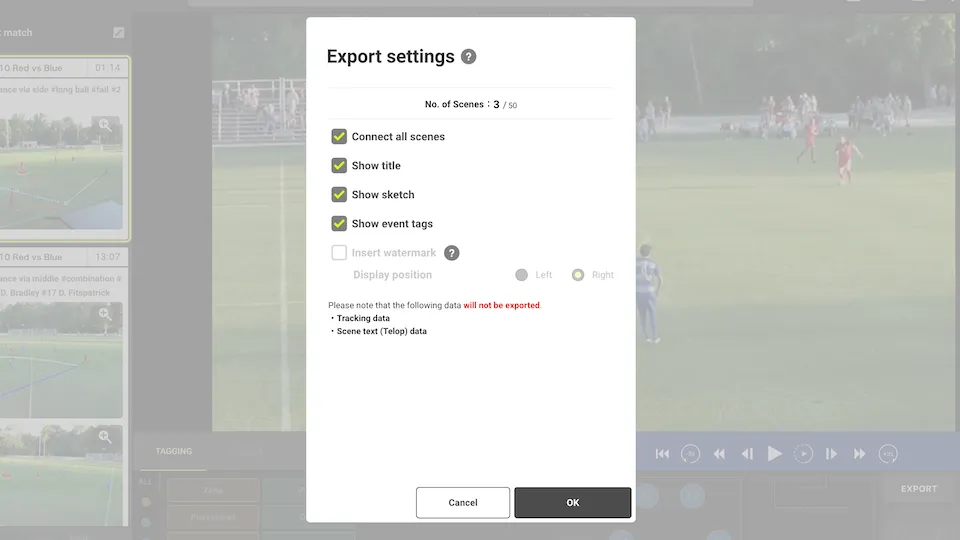
You have a few export settings to choose from at this stage
Connect all scenes (if not, each video clip will be exported as an individual file)
Show titles
Show sketches
Show event tags
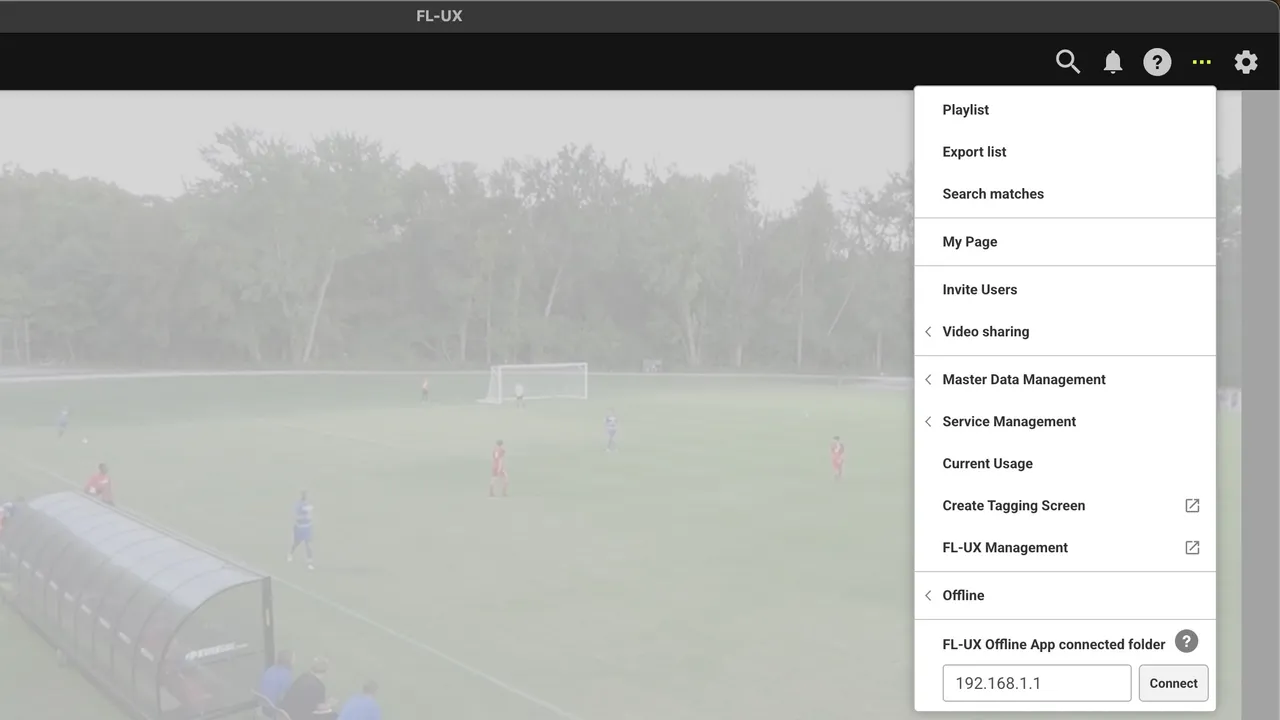
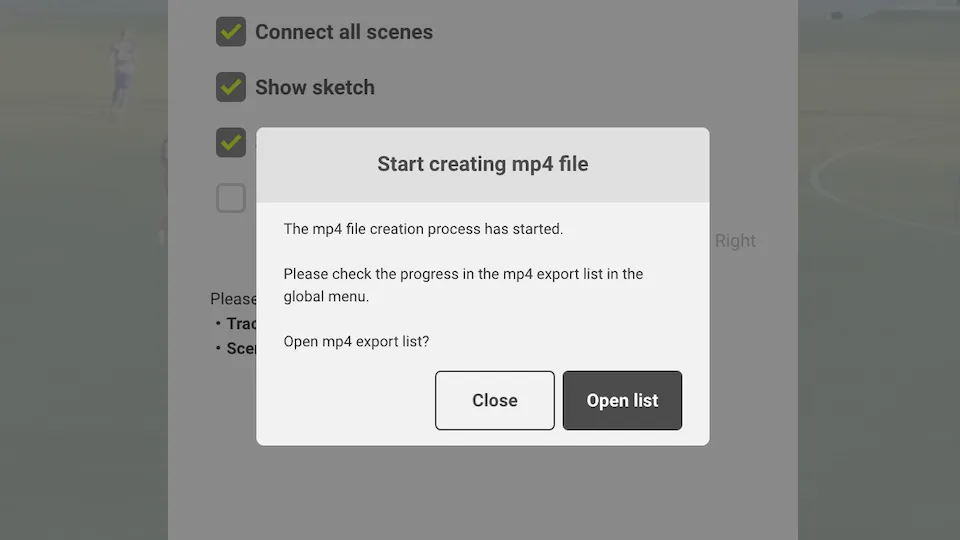
Click on menu then on Export List or go directly from the pop-up message
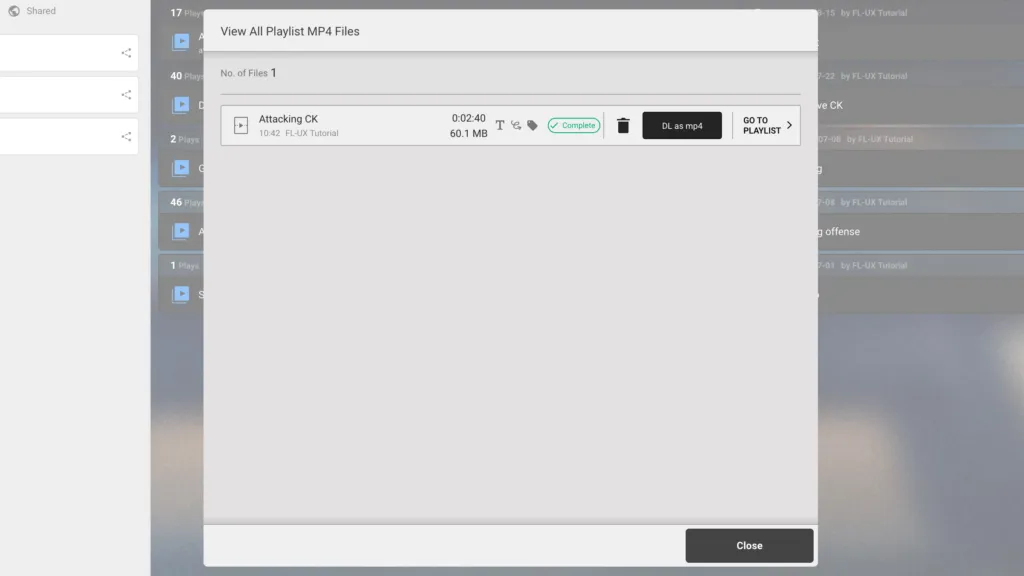
Wait for the files to be processed
When the button becomes clickable, click DL as mp4 to save the exported MP4 file on your computer.
Export Video Clips
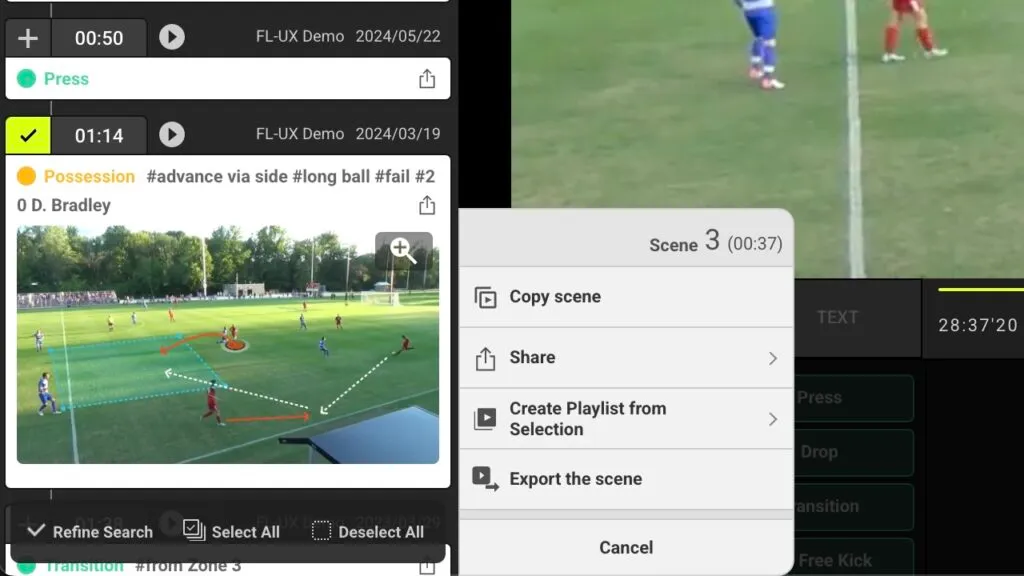
Click on the “+” at the top left corner of each video clip to select which ones to export
Click on Export the Scene
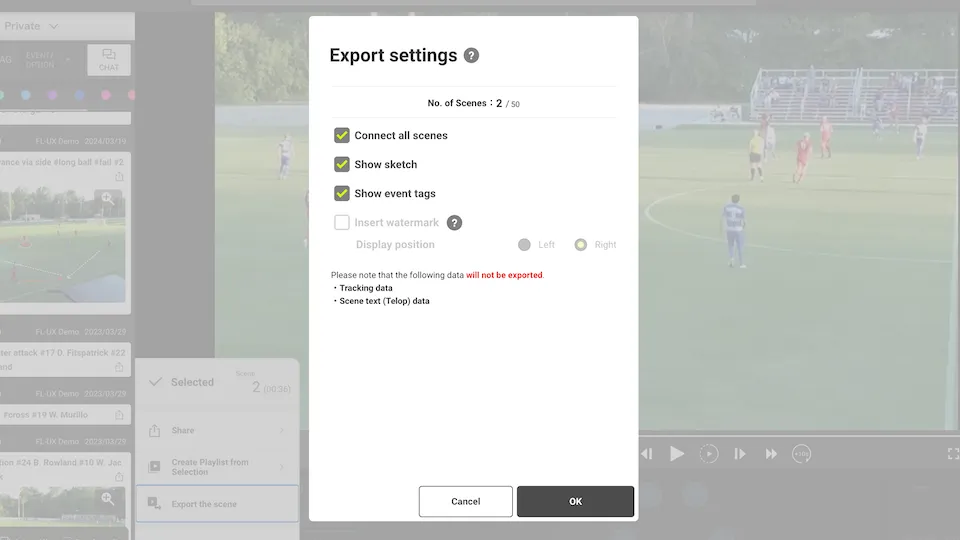
You have a few export settings to choose from at this stage
Export scenes as a single file (if not, each video clip will be exported as an individual file)
Show titles
Show sketches
Show event tags
Click on open list to see the export status of the video clips
Wait for the files to be processed
When the button becomes clickable, click DL as mp4 to save the exported MP4 file on your computer.
Export Tagging Data
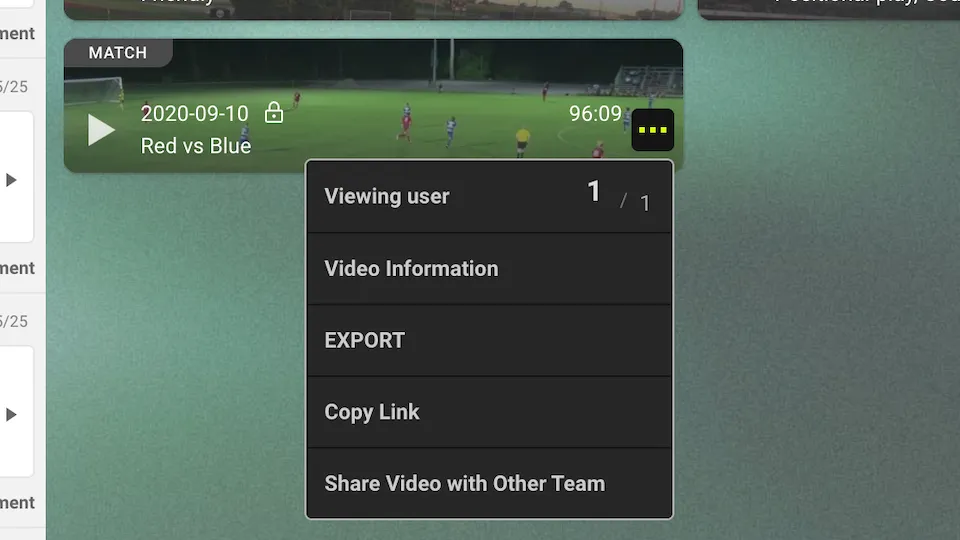
Click on “…” of the match you want to export the tagging data
Click on EXPORT
This option is only available on the web app
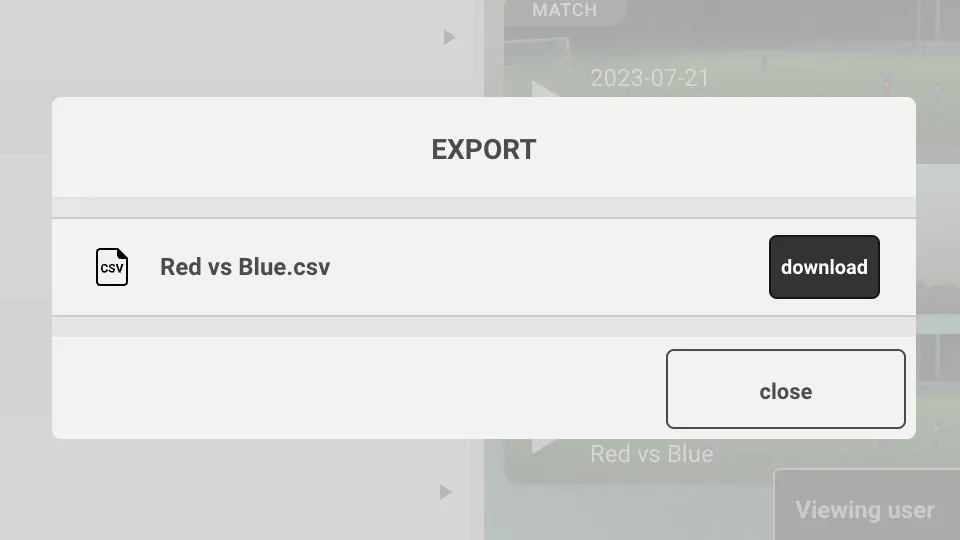
Click download to export the tagging data as a CSV file. A CSV file is a simple spreadsheet file that you can open in Excel, Numbers or Google Sheets.