Browse all guides
Account Settings and Profile
Follow the numbered steps. Click any picture to see it bigger.
Edit Profile
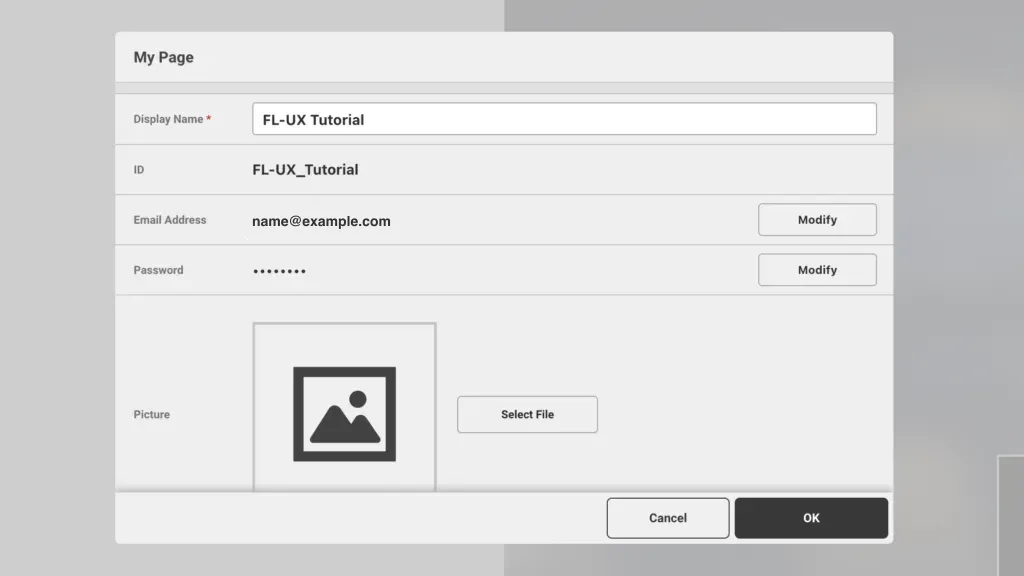
Click on the menu, the “…” on the top right corner of the page. Then click on the profile which is the first item on the menu
You can modify your display name, email address, and password, and set a profile picture from this window. Click OK to save the change before exiting
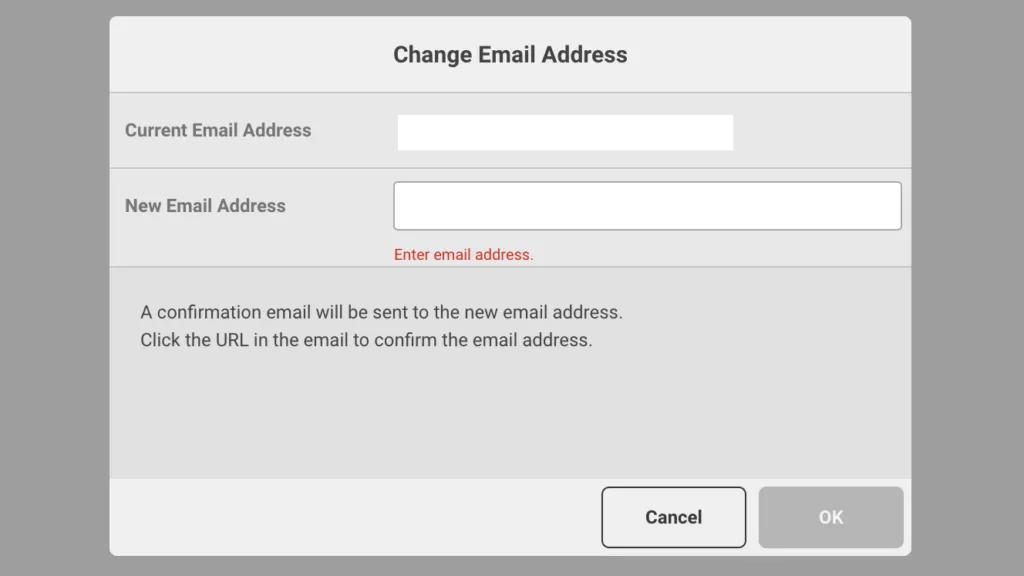
Change Email Address
When changing email, please keep in mind that you have 1 hour after clicking ok to verify the email address. After 1 hour, the link will expire.
In this case, you must re-send the verification email from your FL-UX account following the above steps.
Change Logged In Team
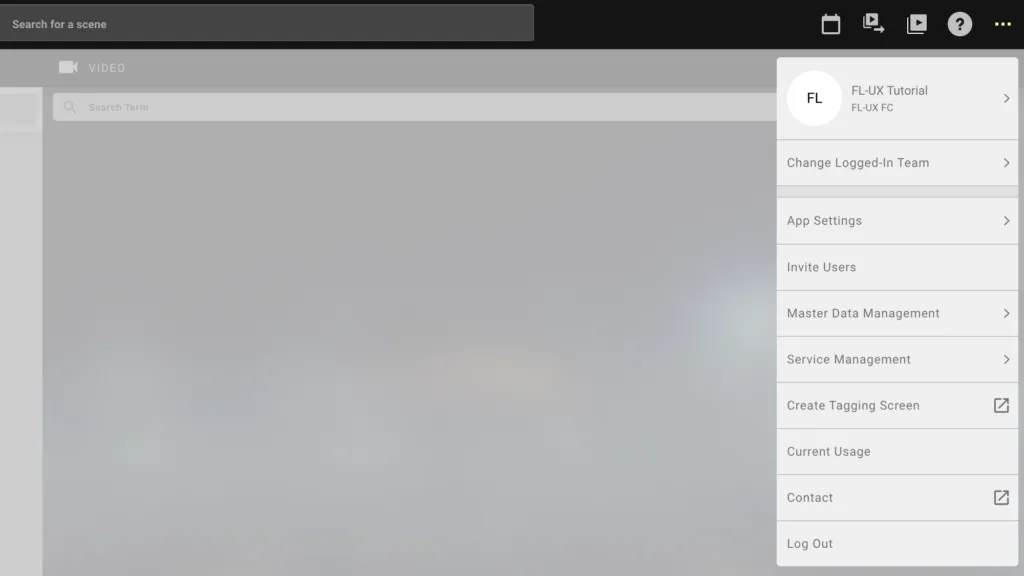
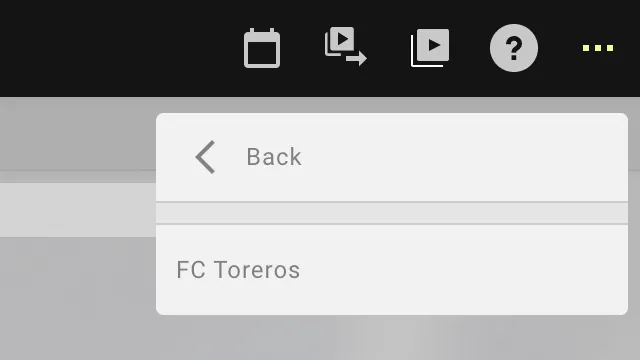
Click on the menu, the “…” on the top right corner of the page. Then click on Change Logged in Team
This will display all team accounts you are a part of
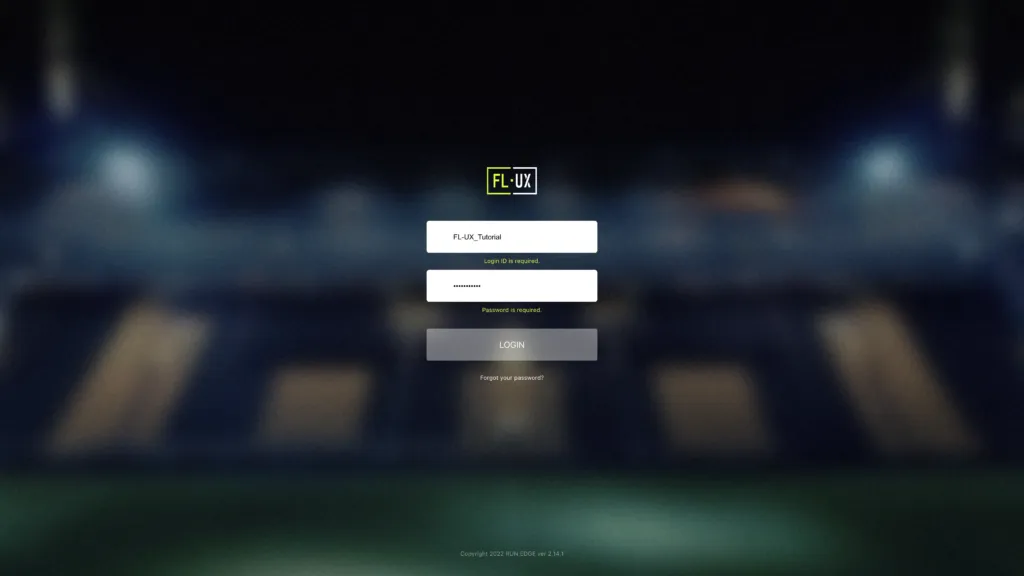
Log in once again with your user ID and password
App Settings
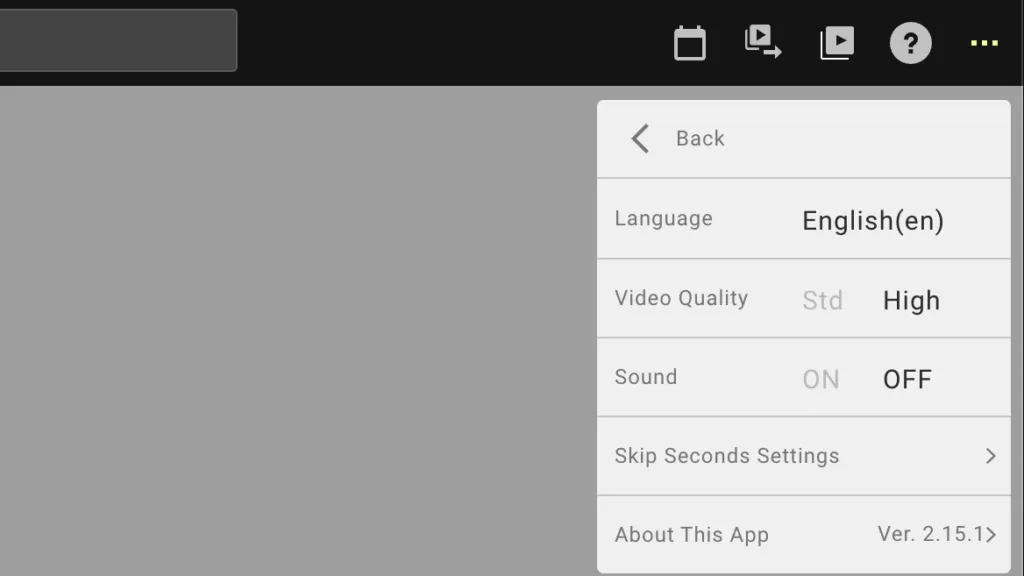
Click on the menu, the “…” on the top right corner of the page. Then click on App Setting
You can change the language, video quality, sound, skip button seconds, and view the app version from this window
Skip Seconds Setting
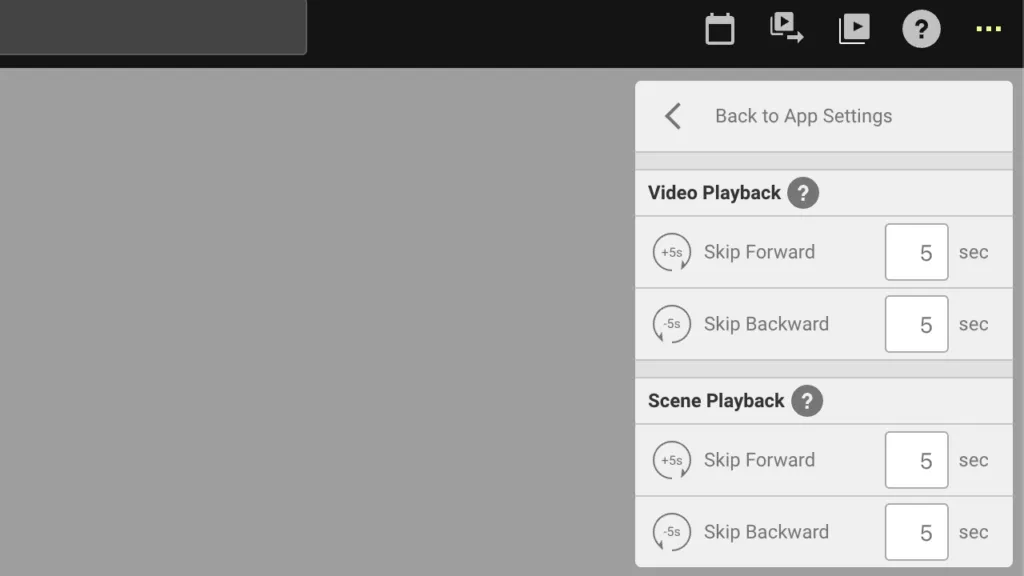
There are two types of skip buttons you can customize. Skip button when you are watching the video, and skip button when you are watching a video clip.
You can adjust how many seconds forward and backward you want to skip when clicking on these buttons
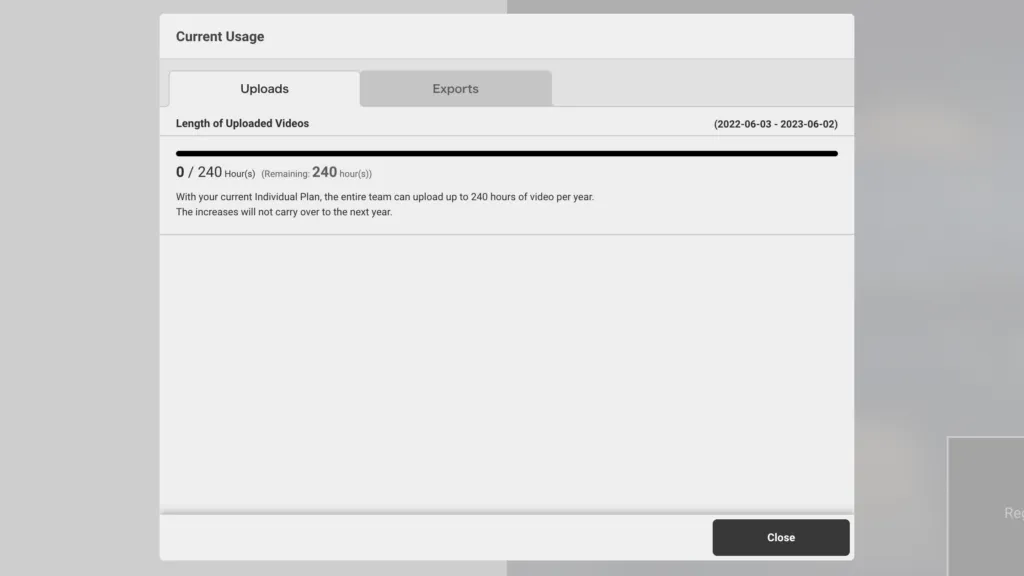
Current Usage
Click on the menu, the “…” on the top right corner of the page. Then click on current usage
You can check how many hours to upload and how many hours to export you have left for the month based on your plan from this window.