Browse all guides
Offline Mode
Follow the numbered steps. Click any picture to see it bigger.
With Offline Mode you can download matches to your device and analyze them without an internet connection, then send your work to the cloud when you’re back online. Offline Mode is part of FL-UX Elite and works in the FL-UX apps for iPad and Mac.
Getting Started
Go to the Download page and install the FL-UX app on your iPad or Mac.
Open the FL-UX app and log in with the same ID (or email) and password you use for your regular FL-UX account. You’ll arrive on the usual FL-UX home screen.
Download Videos for Offline Use
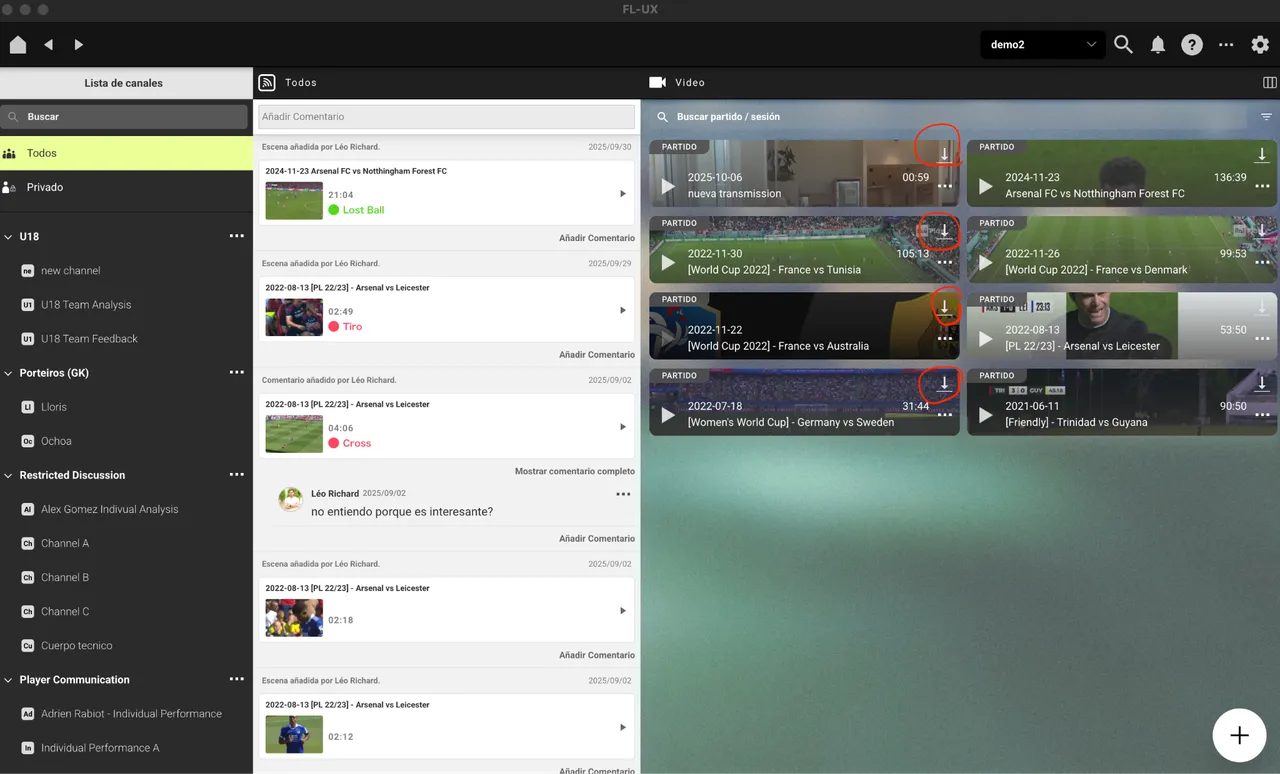
Each match thumbnail has a download icon in its top-right corner.
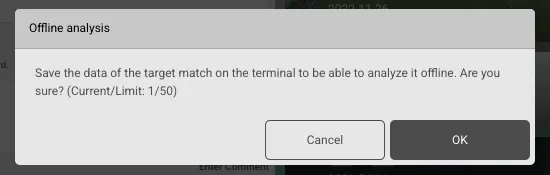
Click the icon on the video you want to save. A confirmation message appears.
Click OK to start downloading. You can keep up to 50 matches on your device for offline use.
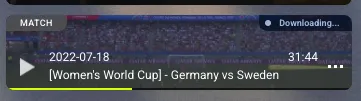
The thumbnail shows the download progress.
When the status changes to Working offline, the match is ready. You can now analyze it exactly as you would online.
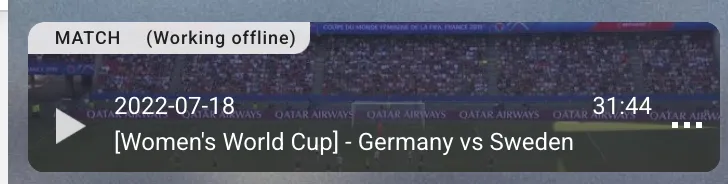
Sync Your Offline Work
When you have an internet connection again, synchronize your offline work so it’s uploaded to the cloud.
When you’ve finished working offline, return to the FL-UX home page.
A match you analyzed offline shows the status Not uploaded and a red dot. This means there are tags or sketches that still need to be uploaded.
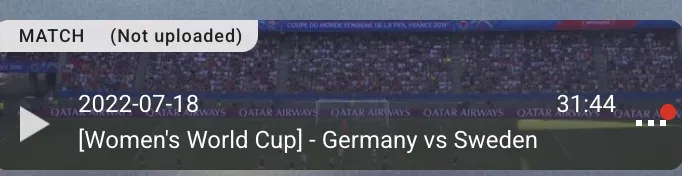
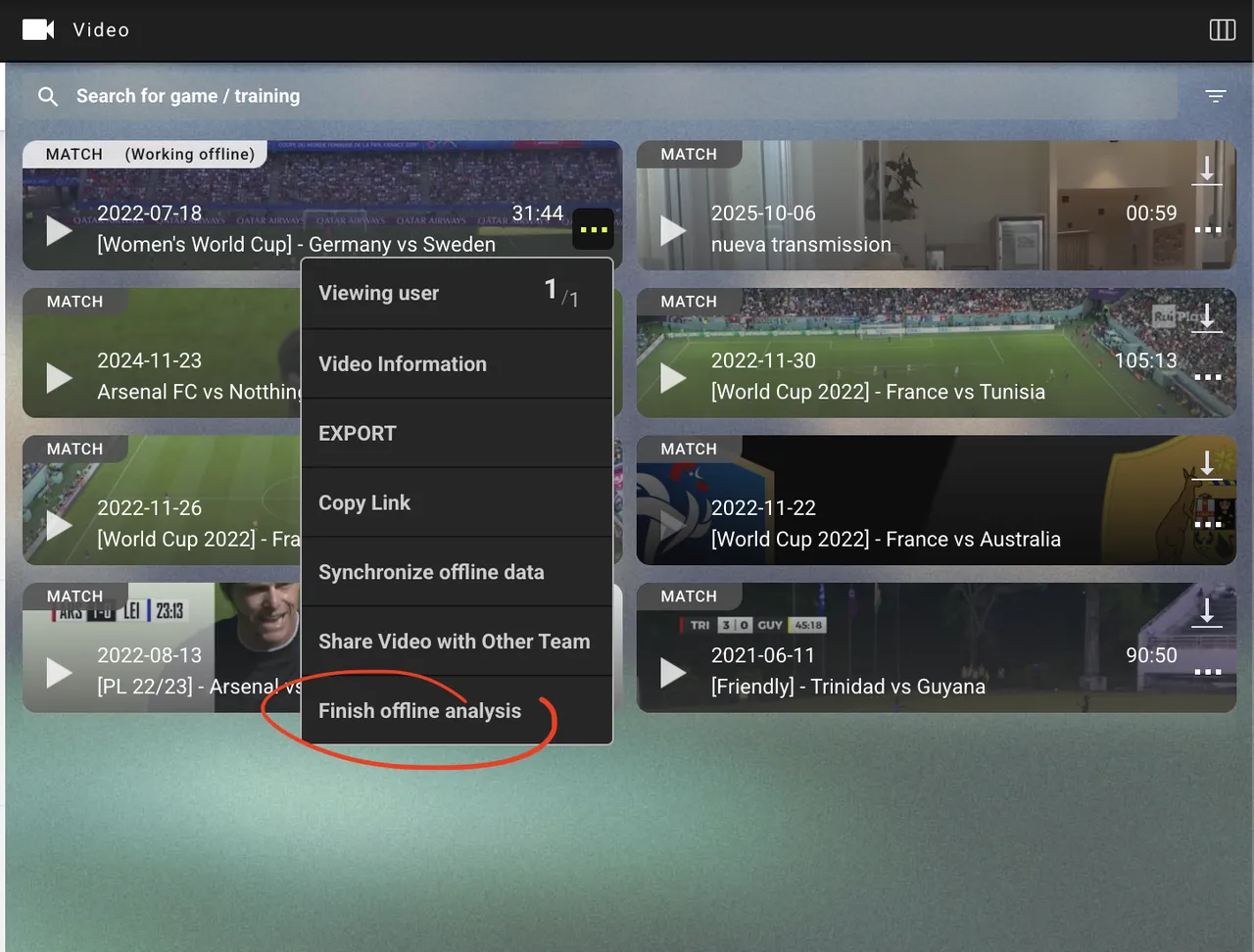
Click the red dot. A menu opens with a Synchronize option, also marked with a red dot.
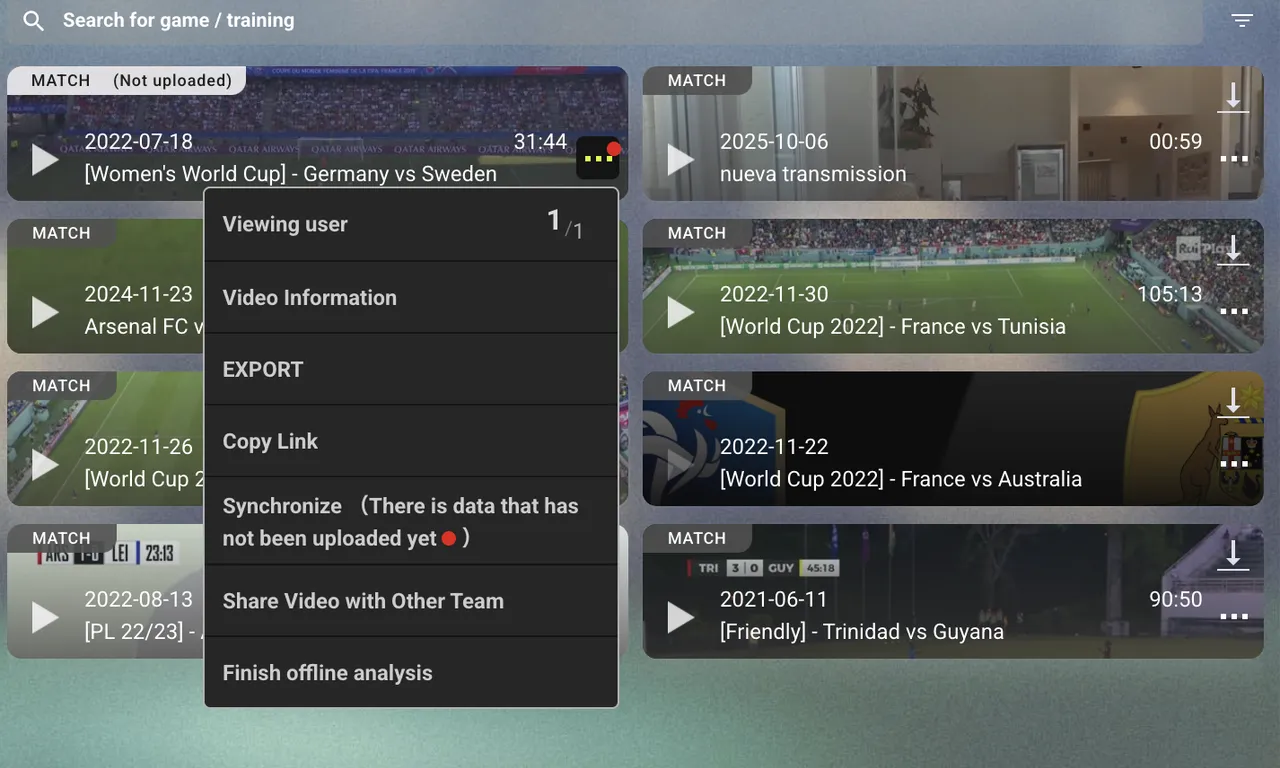
Select Synchronize to start the upload. The status changes to Working offline.
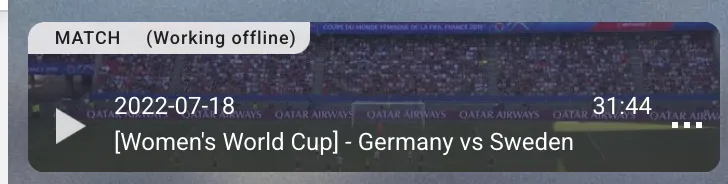
When the red dot is gone, your work is synchronized across all your FL-UX devices.
Free Up Offline Storage
When you no longer need a match offline, remove it to free up one of your 50 offline slots: open the menu on the match thumbnail and select Finish offline analysis.