Browse all guides
Offline Mode
Offline ModeShortcut Keys
Follow the numbered steps. Click any picture to see it bigger.
Prefer watching? There’s a video lesson for this guide
Video Playback Controls
Built-in Keys
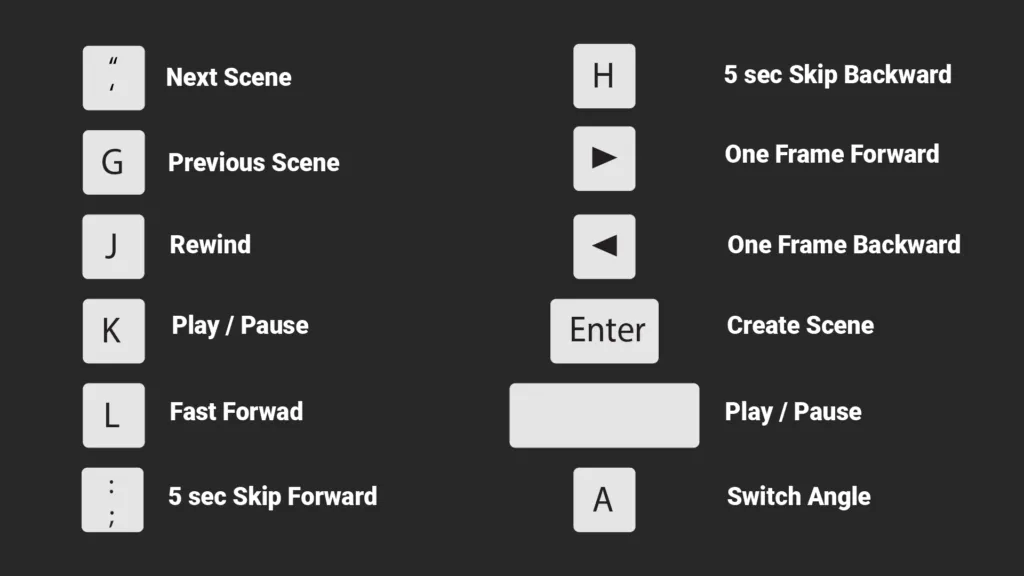
Playback Keys
These are the built-in keys to control video playback
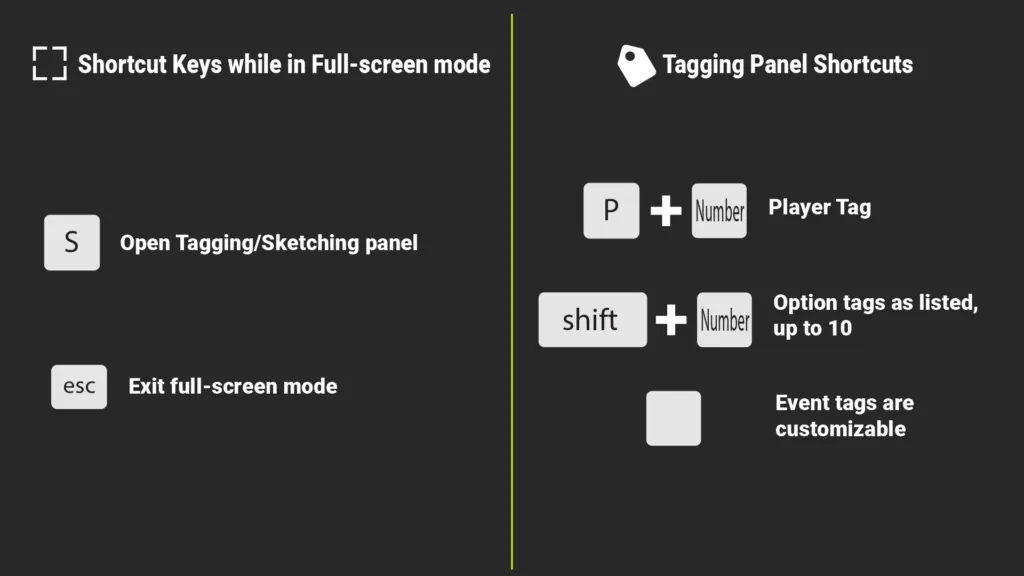
Advanced Keys
These are more advanced keys.
When you are using external monitors, you can separate the video and tagging board.
See the section Custom Layout for more information
Custom Keys
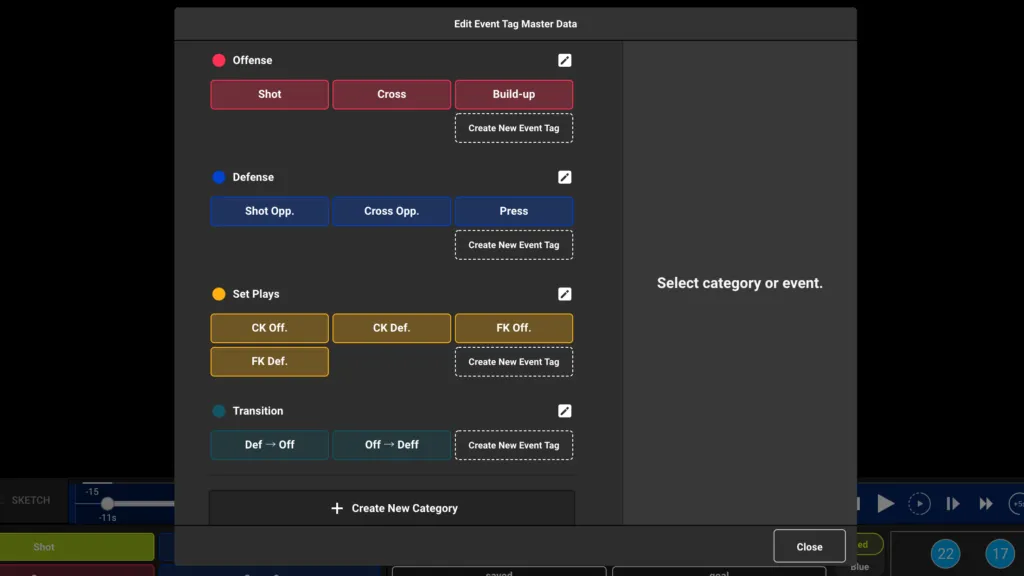
1Open edit event tag page
From the tagging board, open the editing page
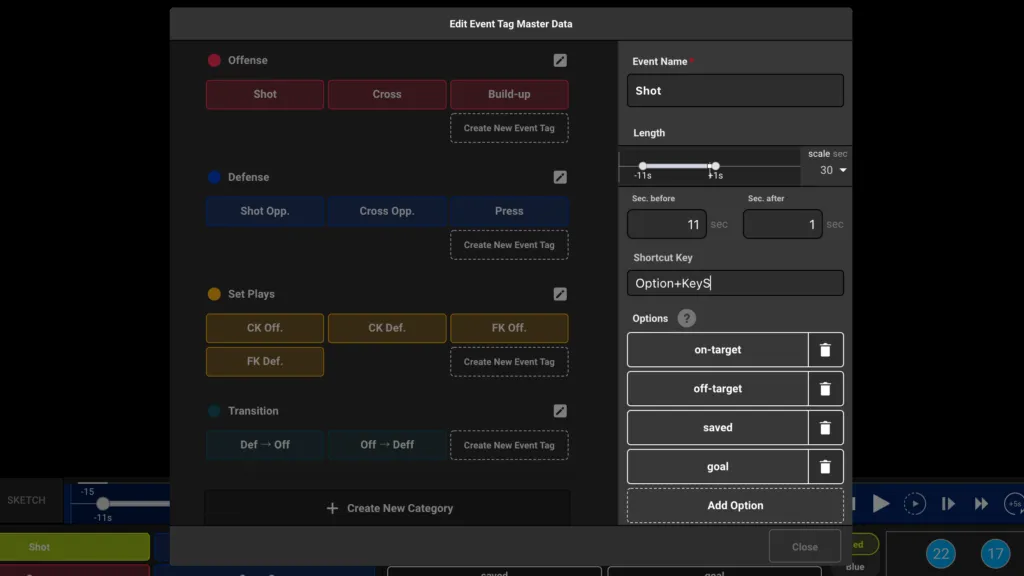
2Set keys
Select an existing event tag
Enter the shortcut keys
Click on register at the bottom to finish
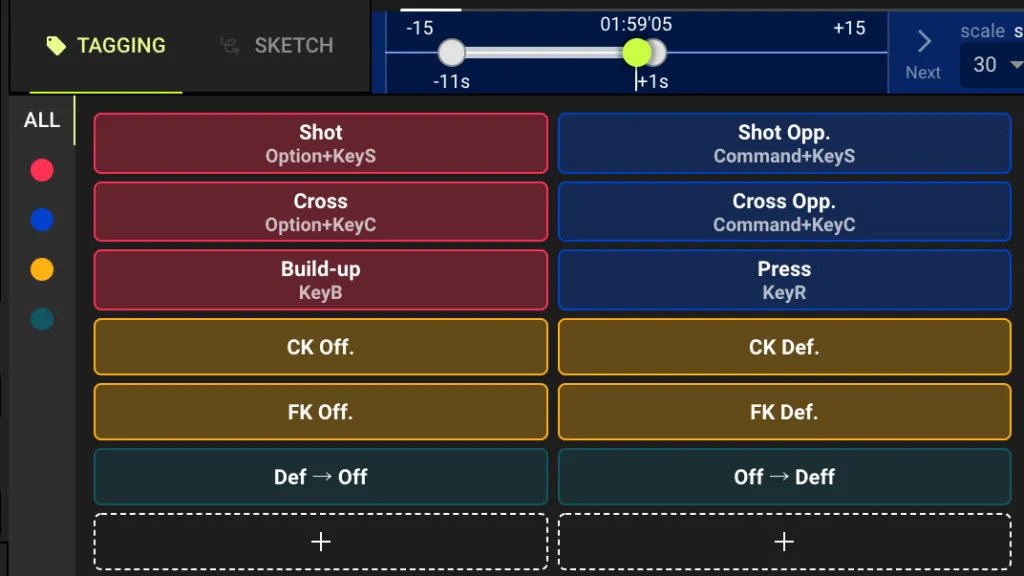
3Verify custom keys
When the custom keys are set properly, they will be displayed in small text underneath each tag
Still stuck? Check the FAQ or send us a message, and we’ll help you.