Browse all guides
Tagging Board
Follow the numbered steps. Click any picture to see it bigger.
Prefer watching? There’s a video lesson for this guide
Custom Tagging Boards
Import Tags
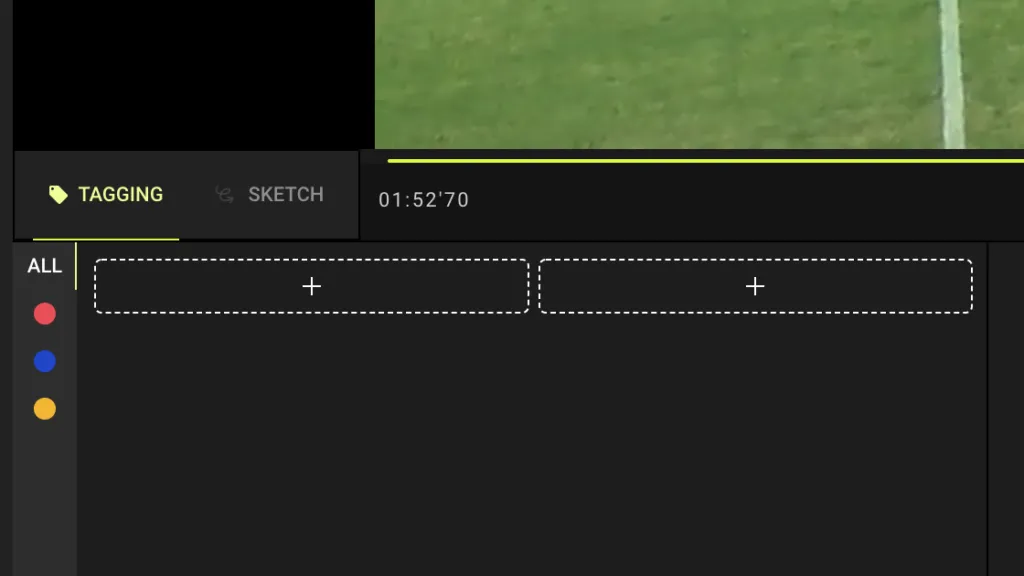
Click on “+” surrounded by a dashed line to open the tag master window. You may see some default tags already there
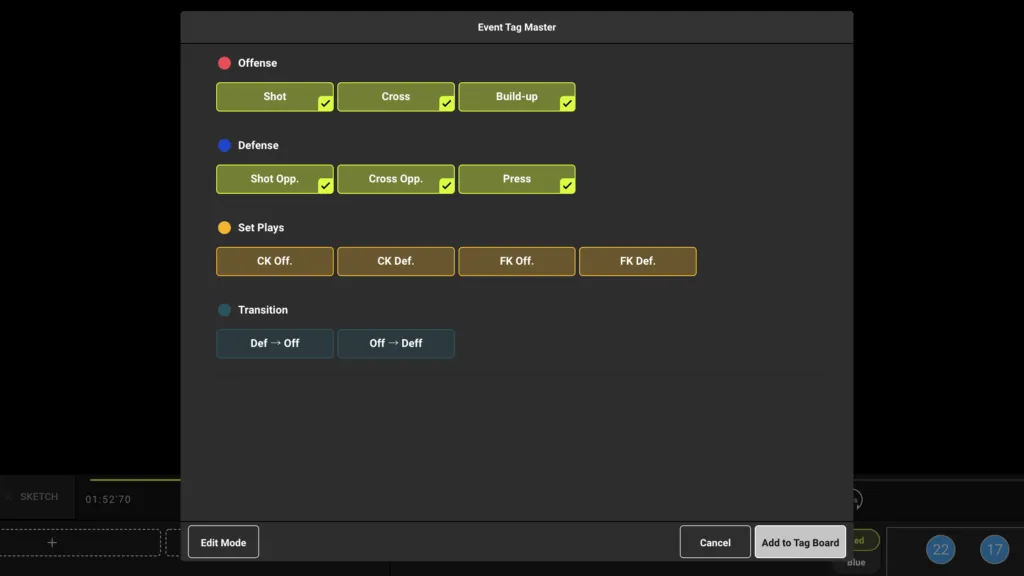
Select all the tags to be added to the board, then click on add to tag board
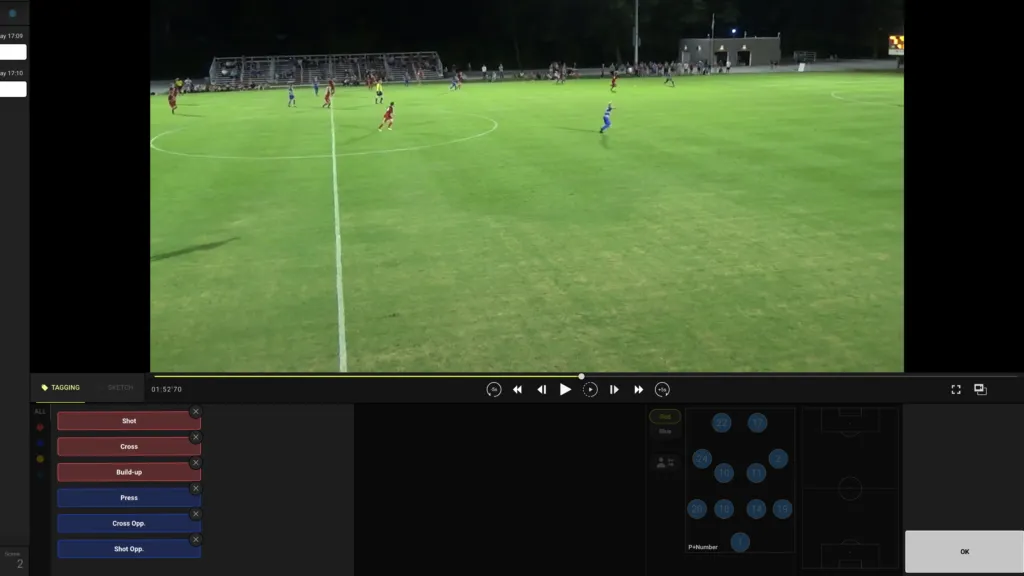
Click and hold an event tag until it starts to shake. Rearrange the tag by dragging them into place. Click ok to finish
Switch Tagging Boards
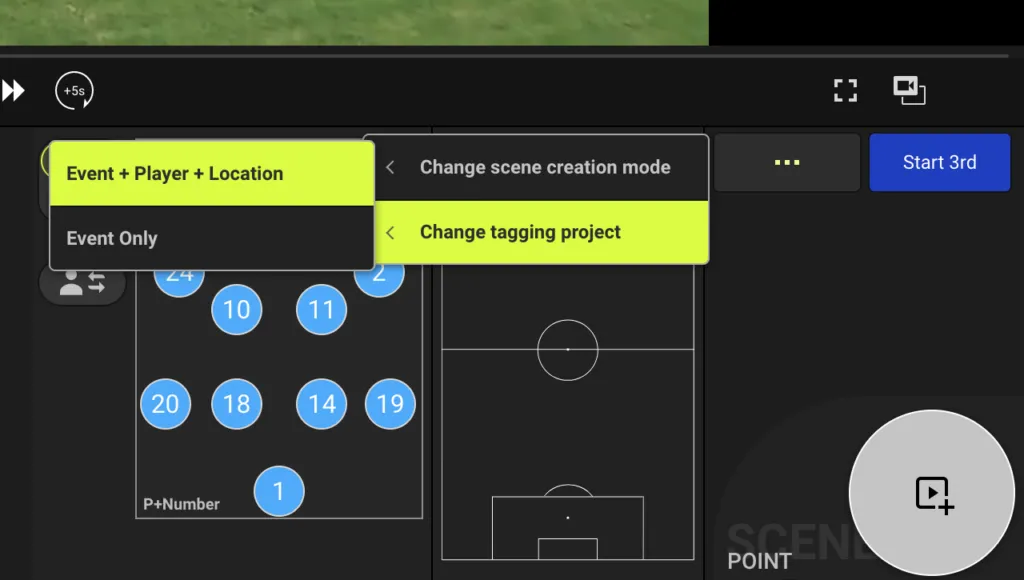
Switch boards
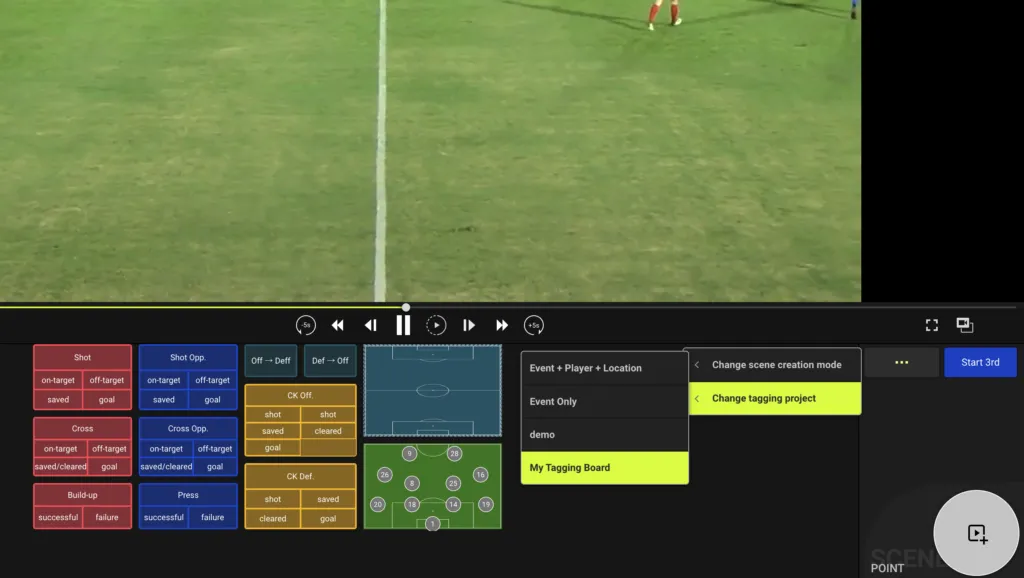
Click on “…” > change tagging project and choose from the available tagging boards. A tagging project is simply a saved tagging board layout.
By default, there are Event + Player + Location and Event Only boards
Event Only
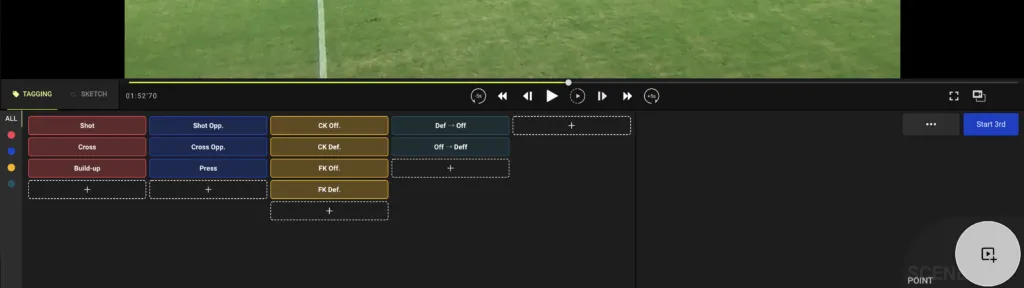
Event + Player + Location
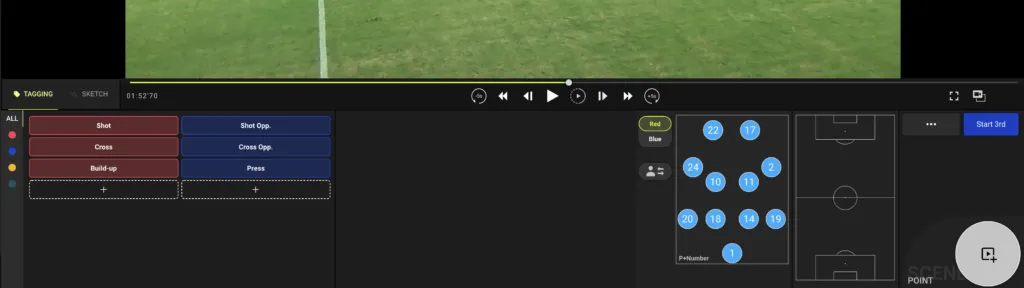
Custom Tagging Board
The custom tagging board is part of FL-UX Elite.
Click on “…” and go to create tagging screen
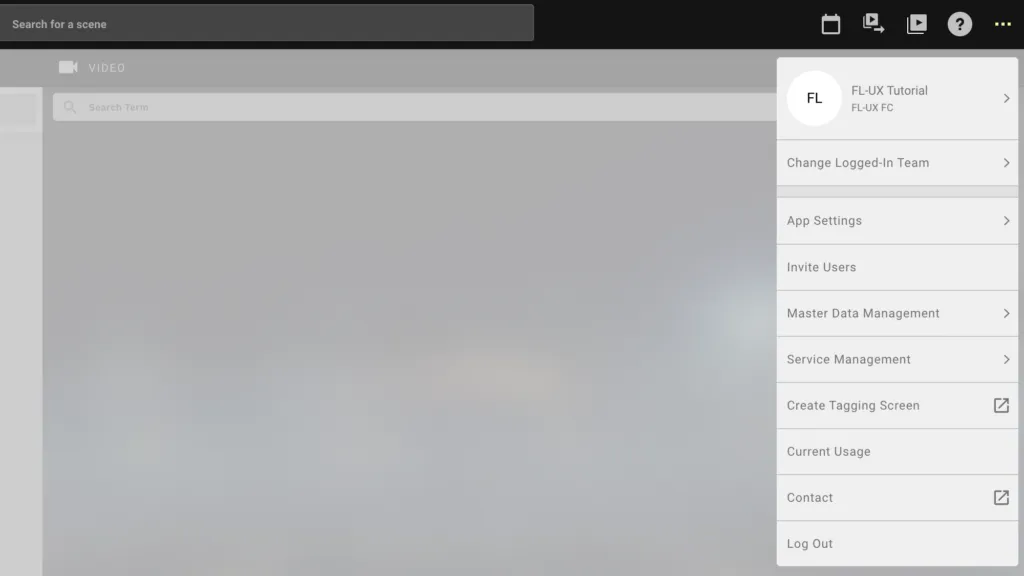
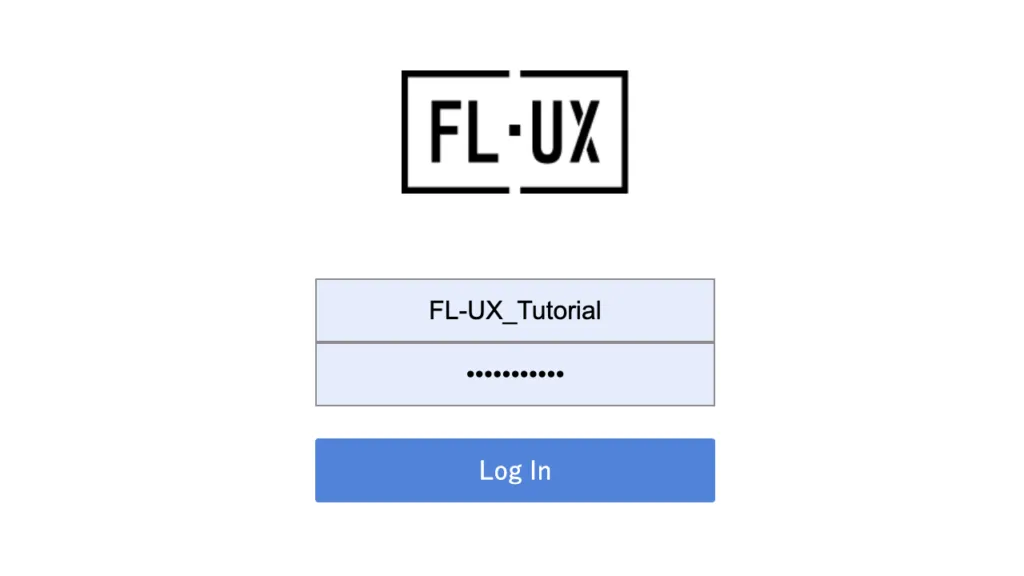
Use your usual FL-UX login details to log in to this site.
If you are a part of multiple accounts, you will be prompted to select a team to create a custom tagging board.
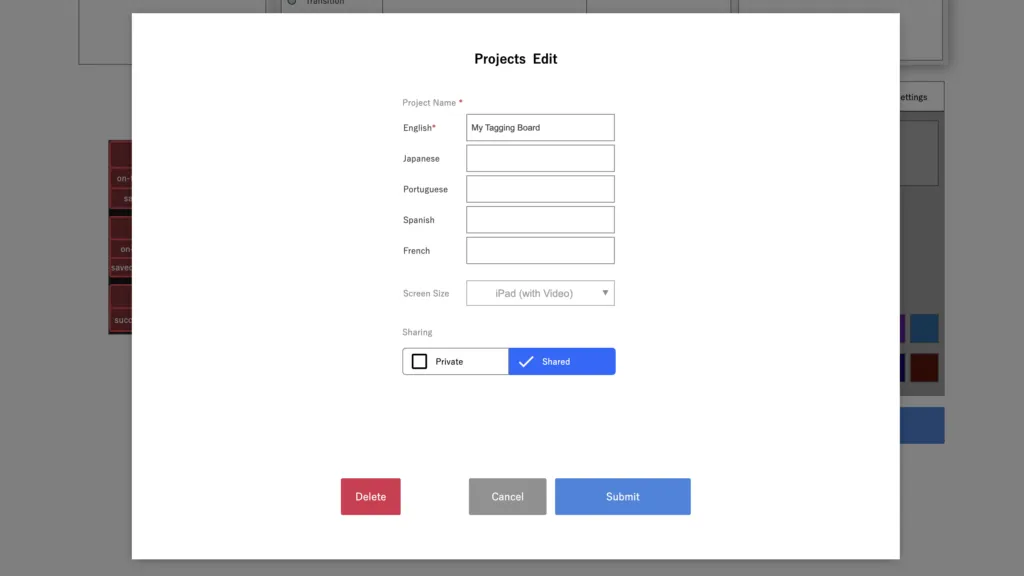
From the top left of the page, click on “+” to create a new project.
You can name the project in different languages. This is so that when the language setting is changed, it will change accordingly.
Choose between iPad (Full Screen), iPad (with Video), or Smartphone for the screen size.
Set the access level to private or shared.
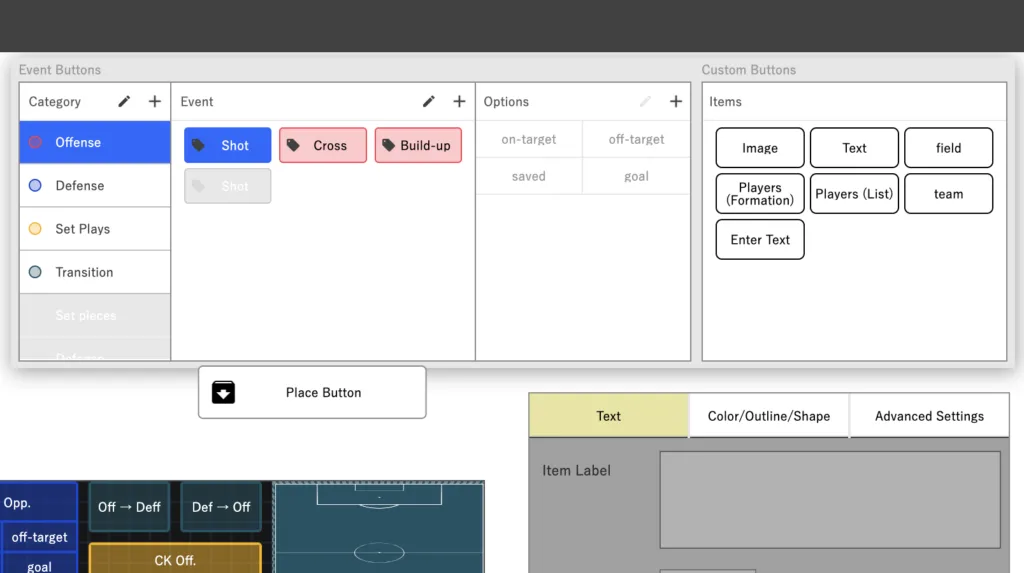
From the top of the page, choose a button to add to the board and click on place button
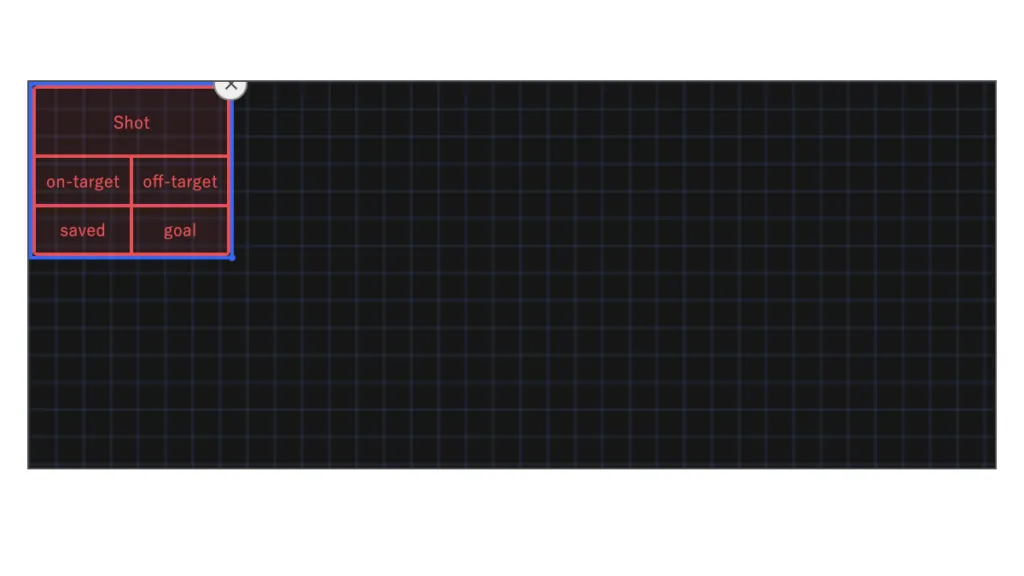
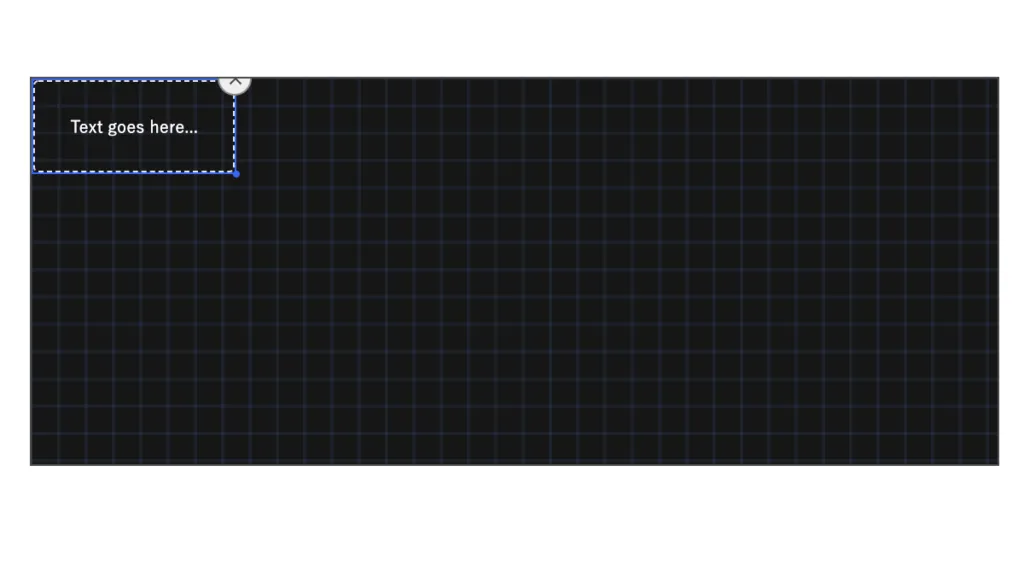
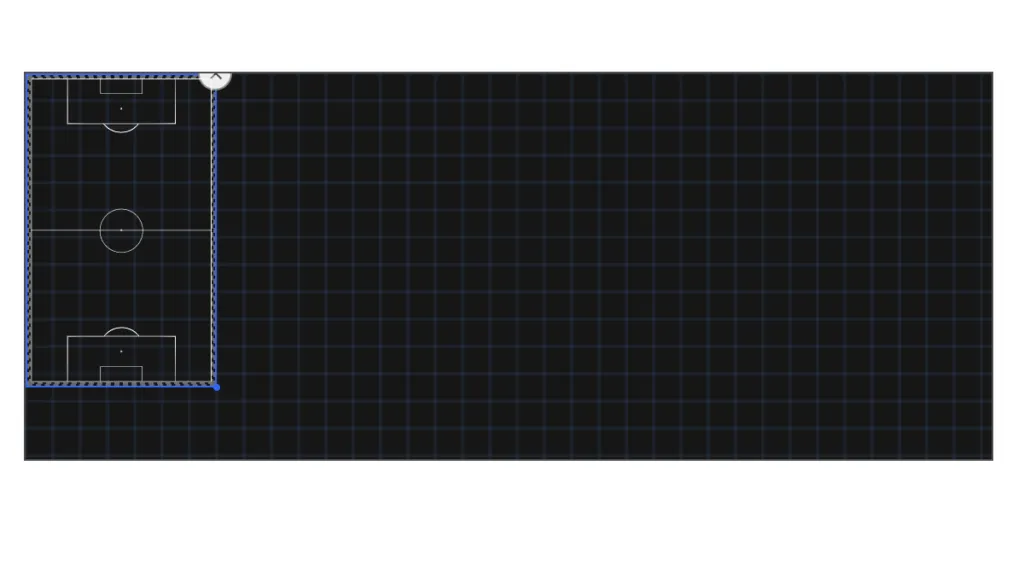
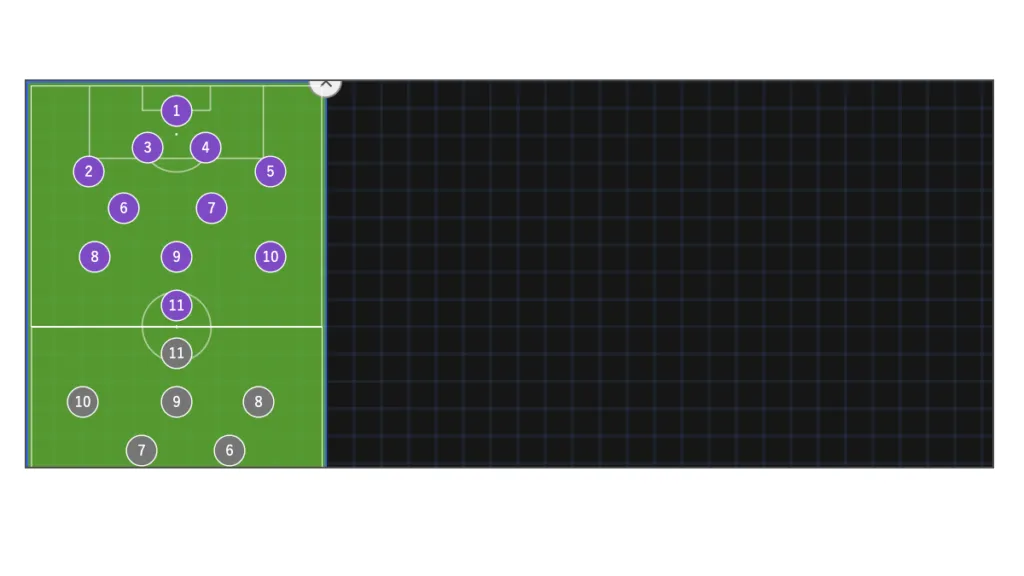
Below are examples of what each button looks like
Event
Image
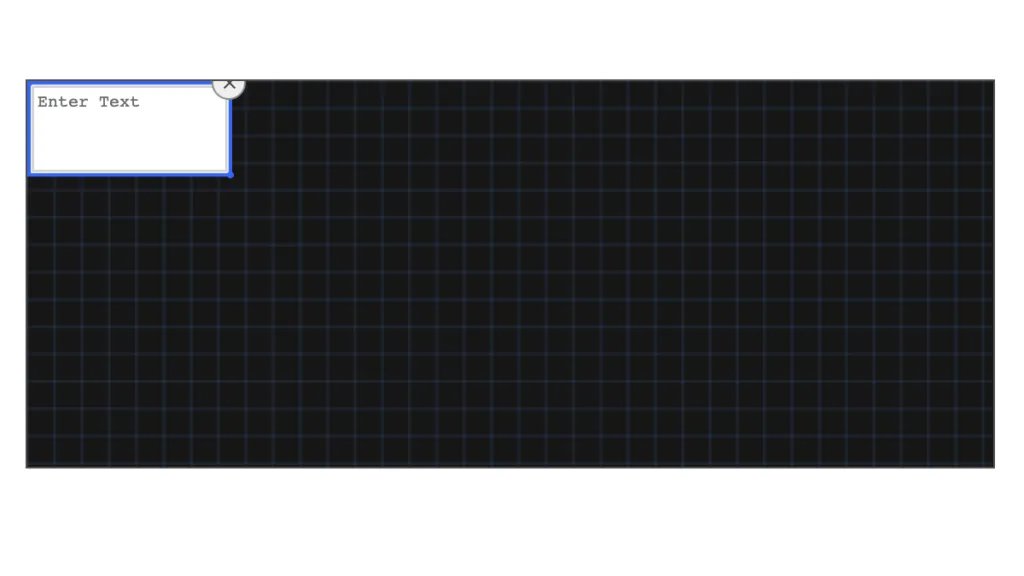
Text
Field
Players (Formation)
Players (List)
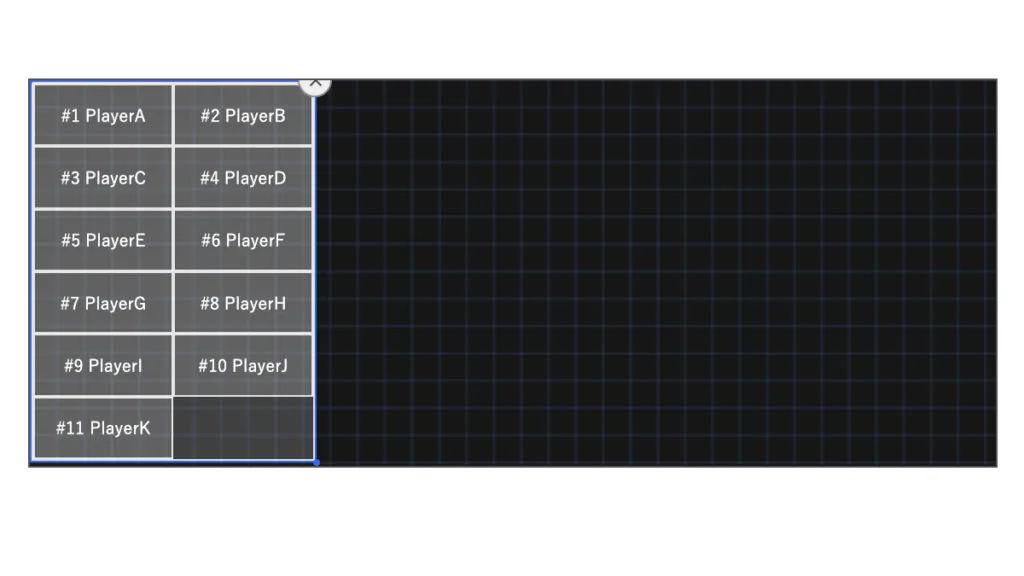
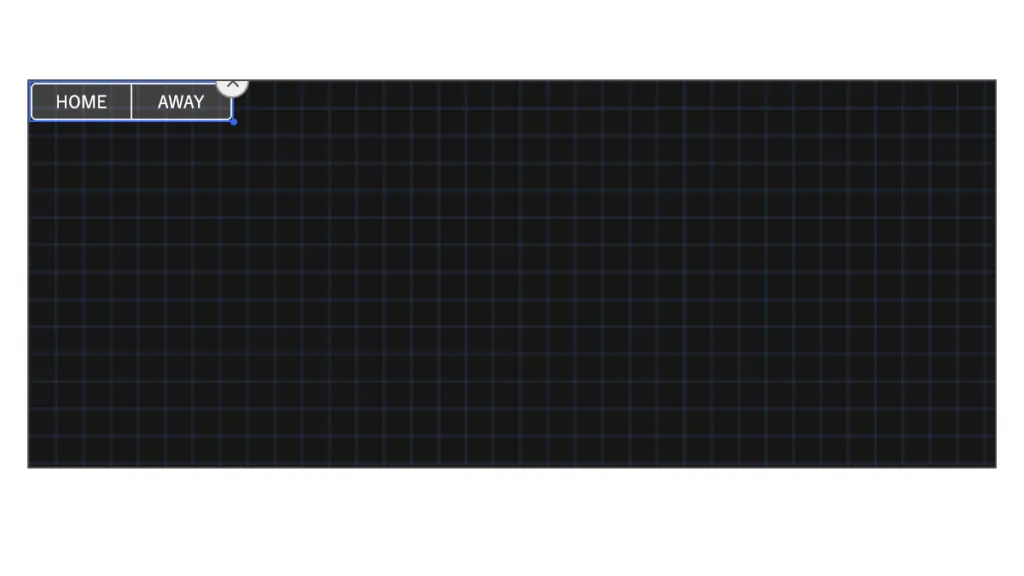
Team
Enter Text
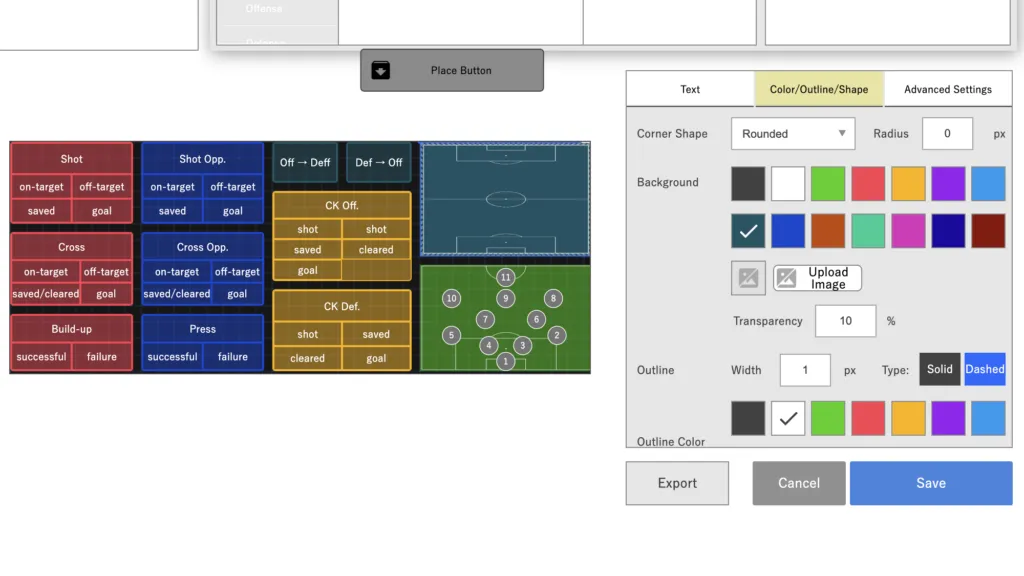
Rearrange buttons by resizing, recoloring, and organizing to design your own tagging board. Once done click to save the project
Go back to the FL-UX app, log out and log back in to refresh the data
The newly made custom tagging board will be one of the options to switch to when analyzing games