Browse all guides
FL-UX Management
Follow the numbered steps. Click any picture to see it bigger.
Create an Account / Subscribe
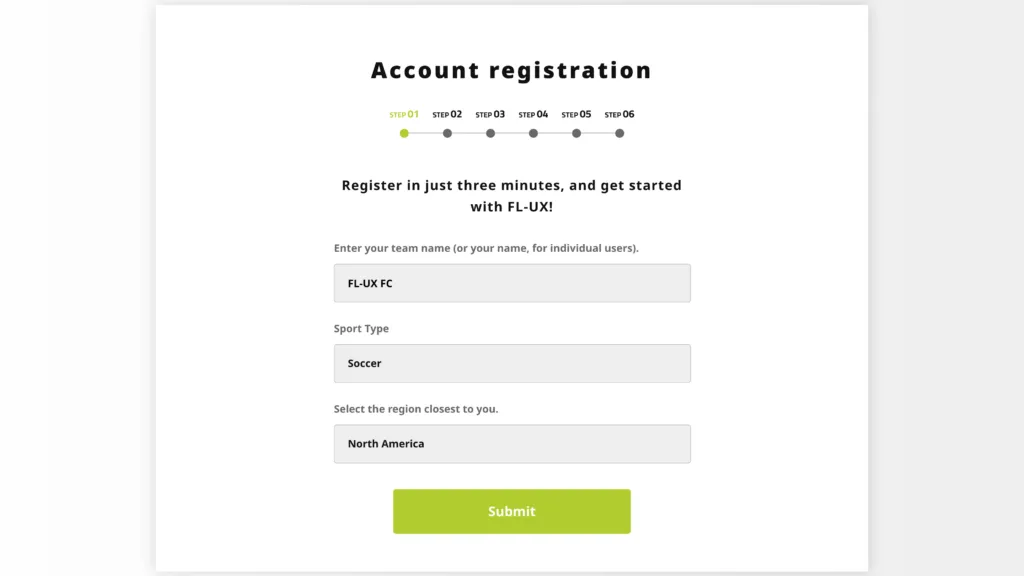
If you do not have an account yet, you can start a 30-day free trial. No credit card is needed. If you have questions, our team is happy to help on the contact page.
If you have an FL-UX account already, move on to step 2.
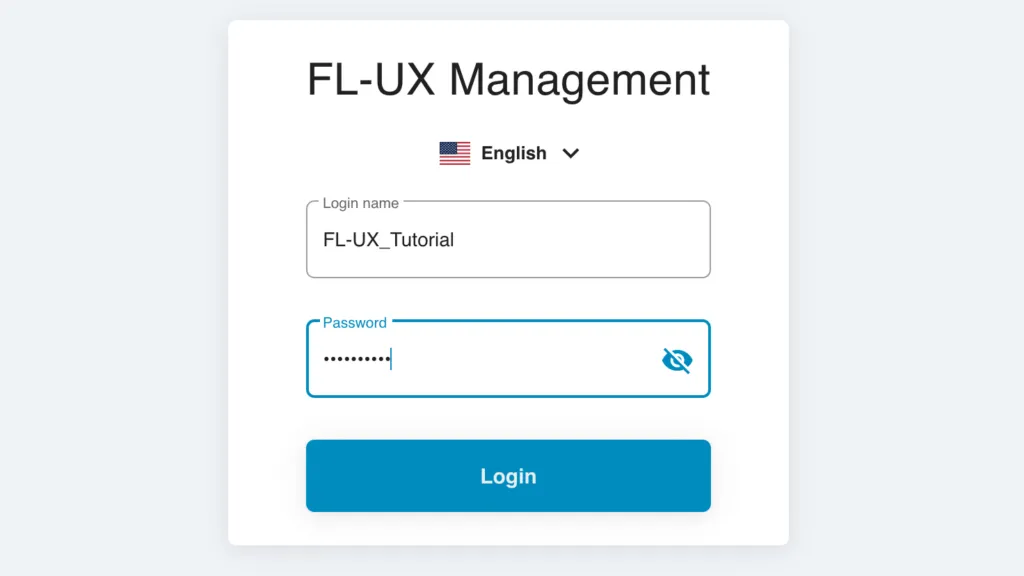
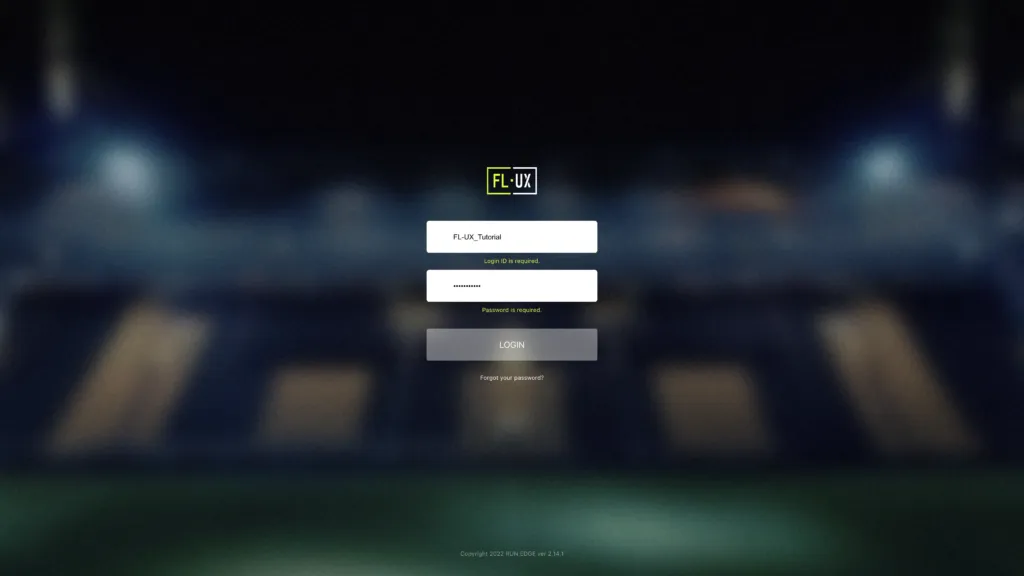
Go to the following site to log into FL-UX Management, where you can manage your FL-UX account and billing information.
https://eu.cdn.fl-ux.com/app/billing/index.html#/login
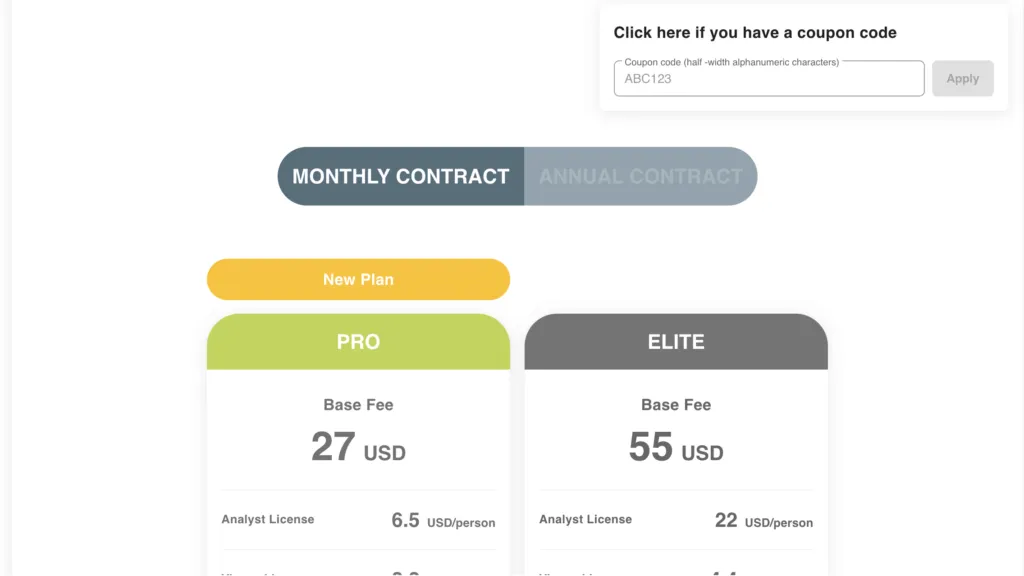
After you sign in, you’ll be shown plans to choose from. Select a plan and scroll down.
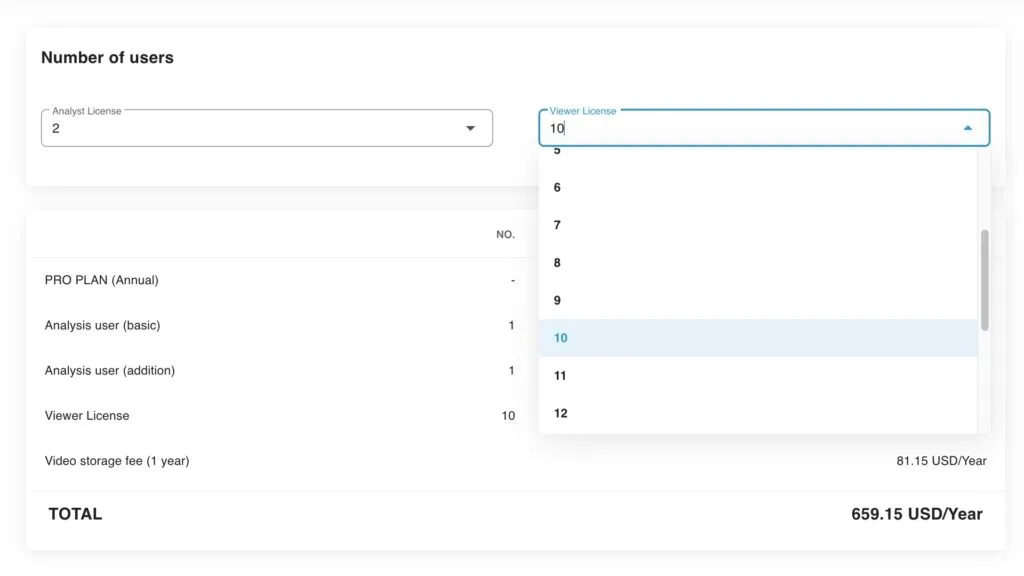
Add-ons are optional extras you can buy on top of your plan. After you have chosen your plan, you can buy additional licenses (extra user seats) so more people can use your account.
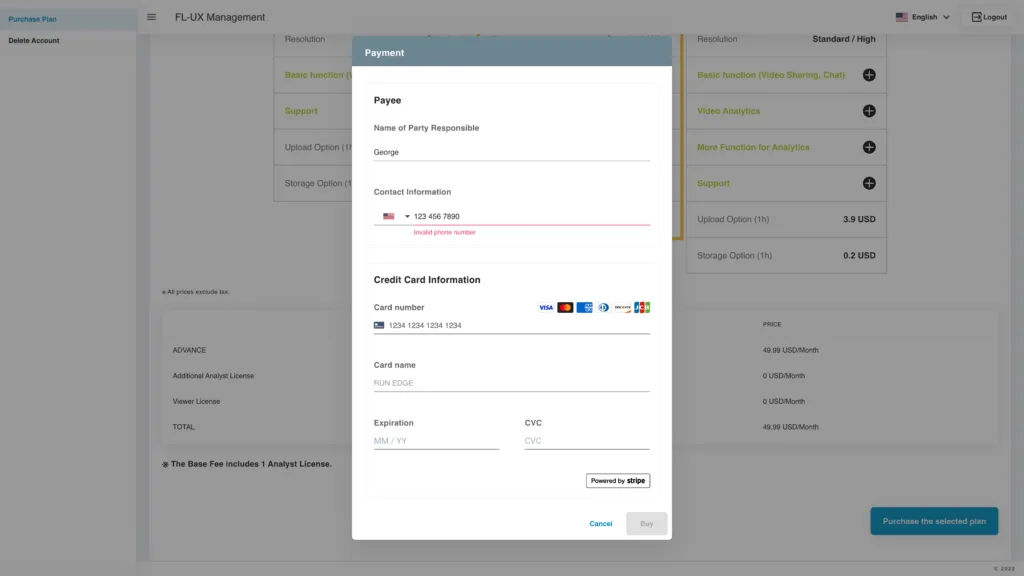
You will see the total price at the bottom before you continue to the payment.
Fill out the form with your billing information to complete the purchase.
Open the web app or the mobile apps to start using FL-UX.
Web app: log in to FL-UX


Choose / Change Plan
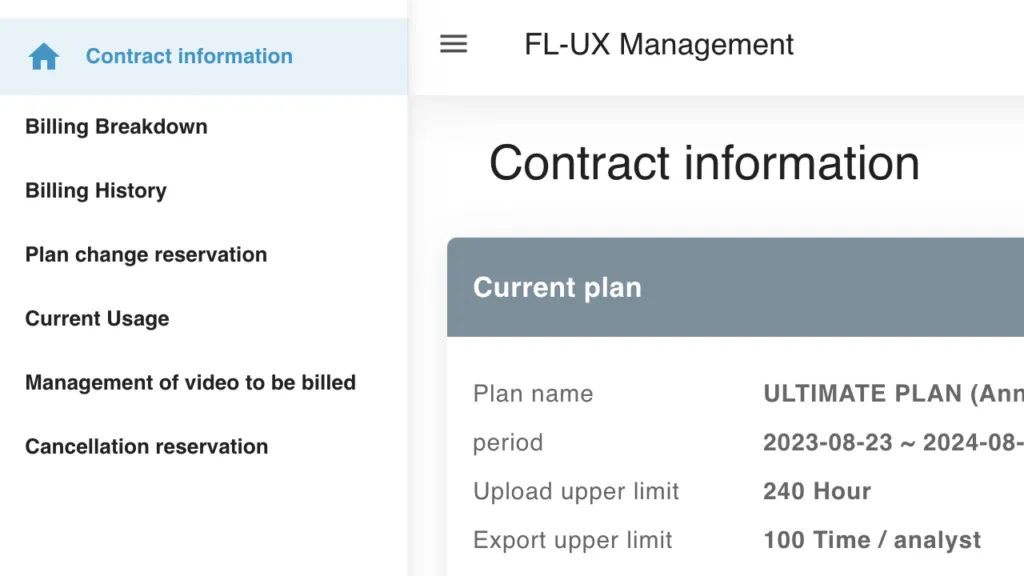
From the menu on the left-hand side, go to Plan Change Reservation.
Select a plan by clicking on it.
Your current plan is highlighted in gray.
The new plan you select is highlighted in orange.
Scroll down and change the number of users if needed.
Attention: If you want to lower the number of users, you must first remove those users from your account.
Check Current Usage
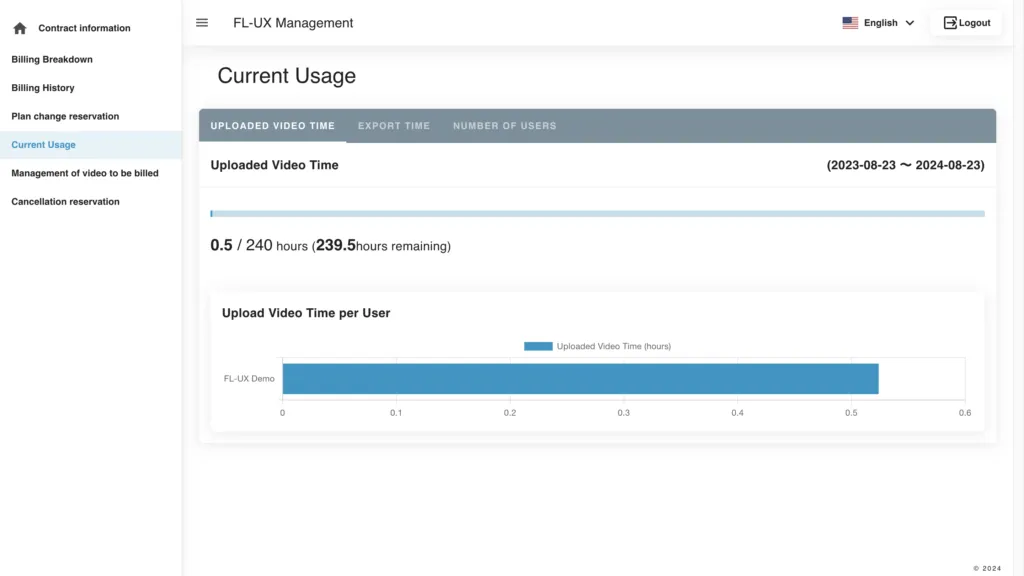
From the menu on the left-hand side, go to Current Usage.
Video add-on
On this page you can check how many hours of video have been uploaded and exported, and how many users are active on your account.