Browse all guides
Playlist
Follow the numbered steps. Click any picture to see it bigger.
Create Playlist
Click on “+” at the top left corner of each scene to select
Click on create a playlist from the selection, then choose new list.
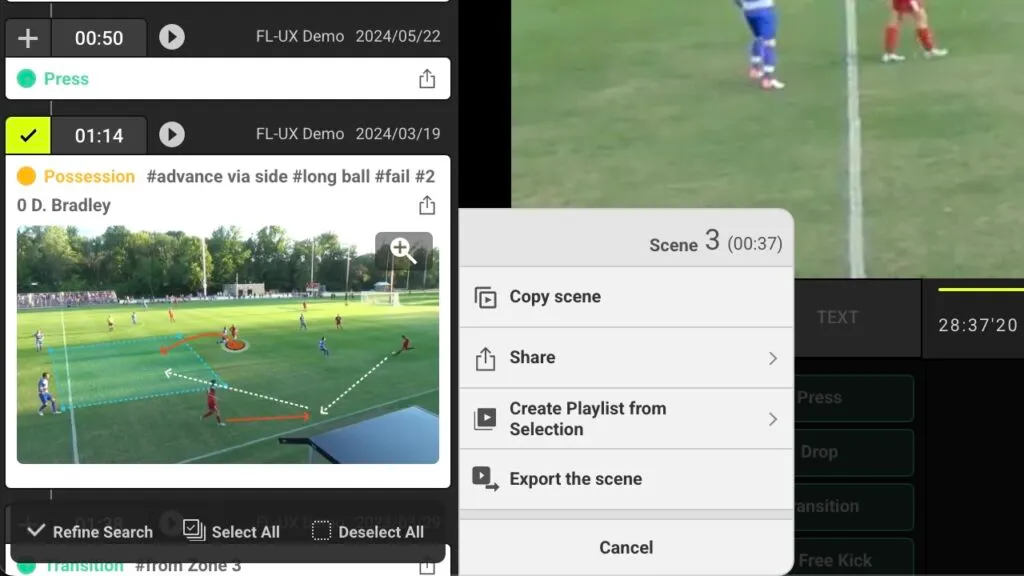
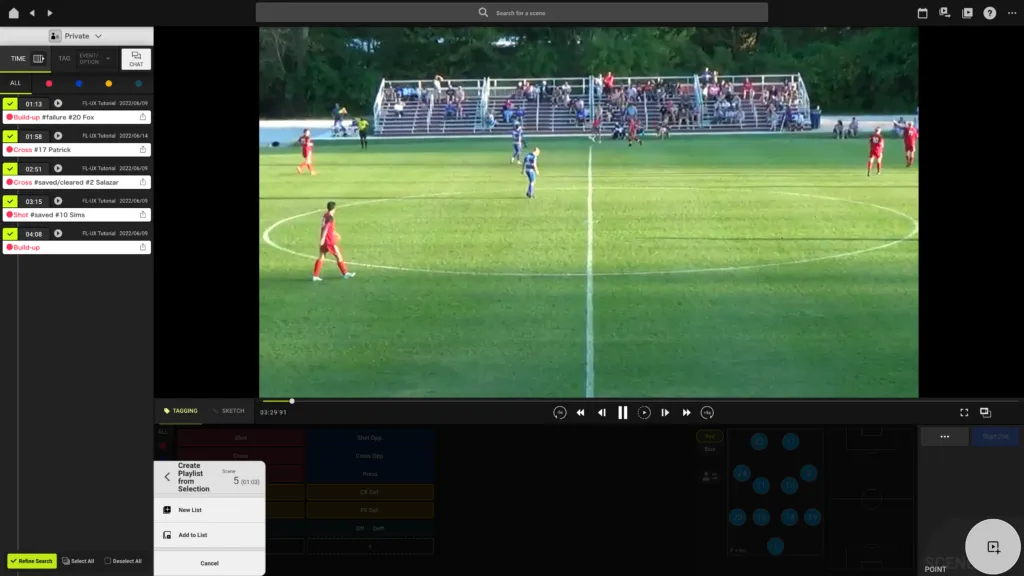
Refine search, Select all, Deselect all
At the bottom left, you will see an option to refine search, select all, or deselect all
Click on refine search to only show the list of currently selected scenes
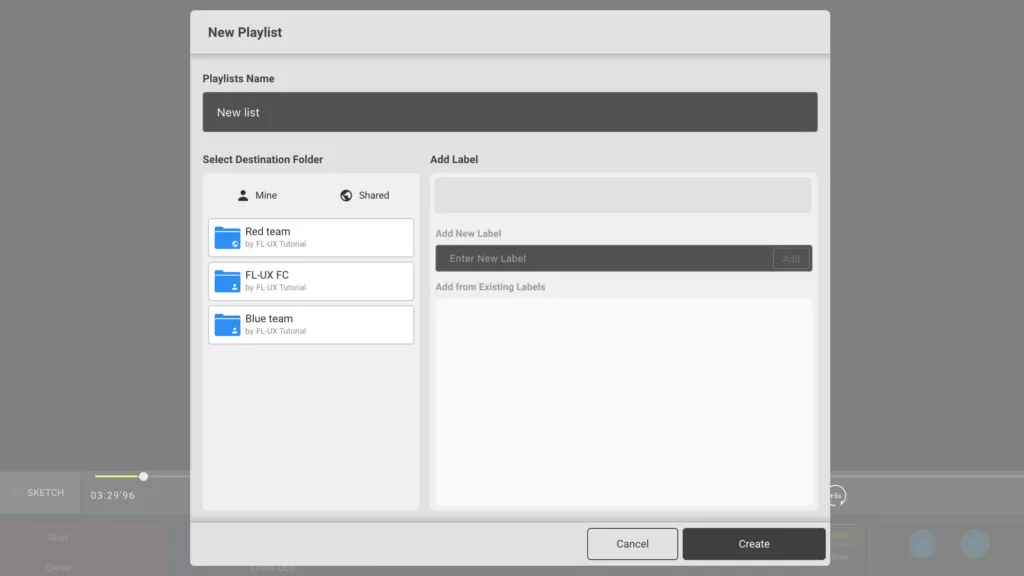
Name the playlist and add labels if need be
Click on create
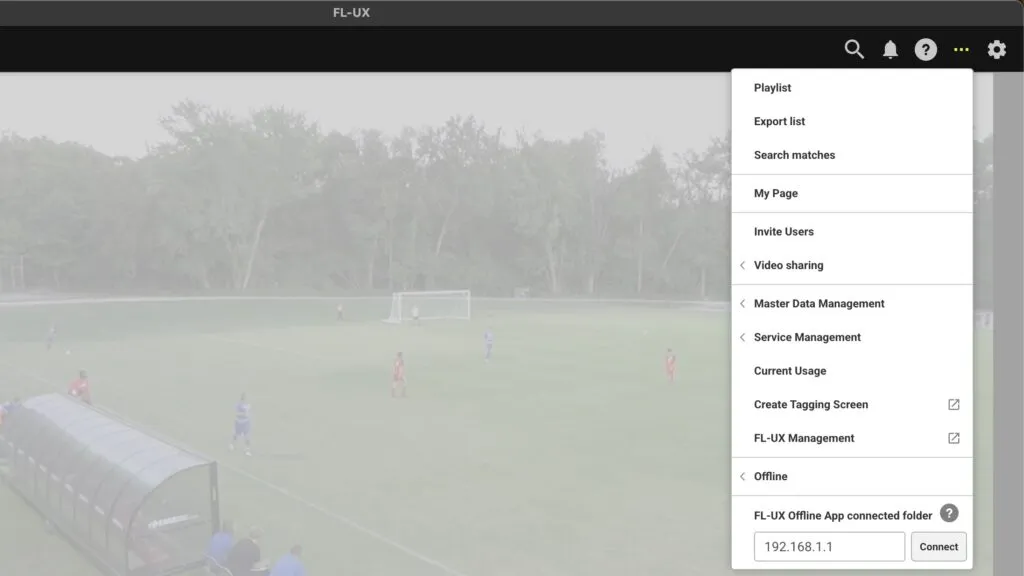
Click on menu then playlist to open the playlist page
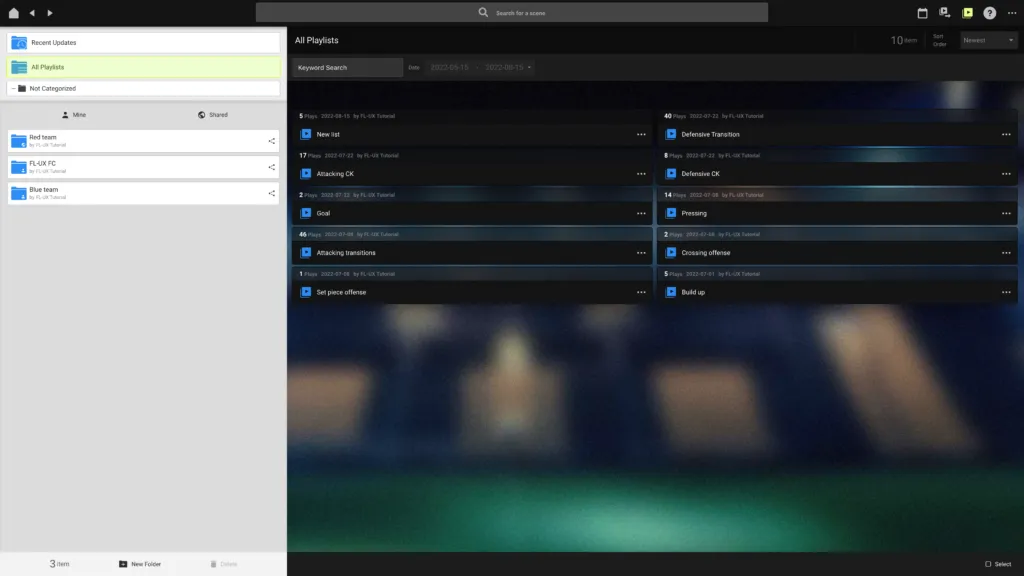
Select the playlist from this page to watch
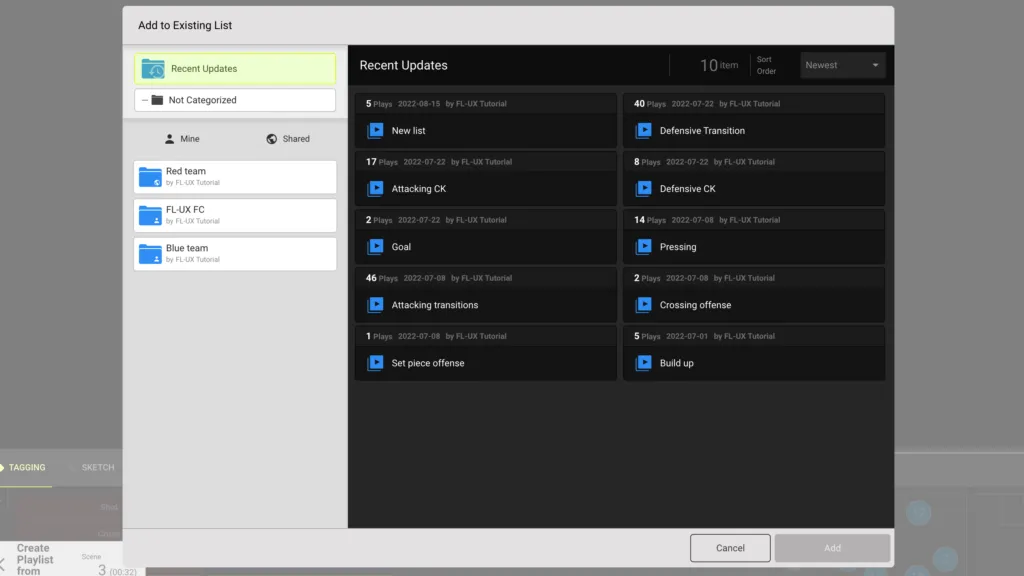
Add to Playlist
Click on “+” at the top left corner of each scene to select
Click on create playlist from selection and add to list
Select the playlist to add the scenes
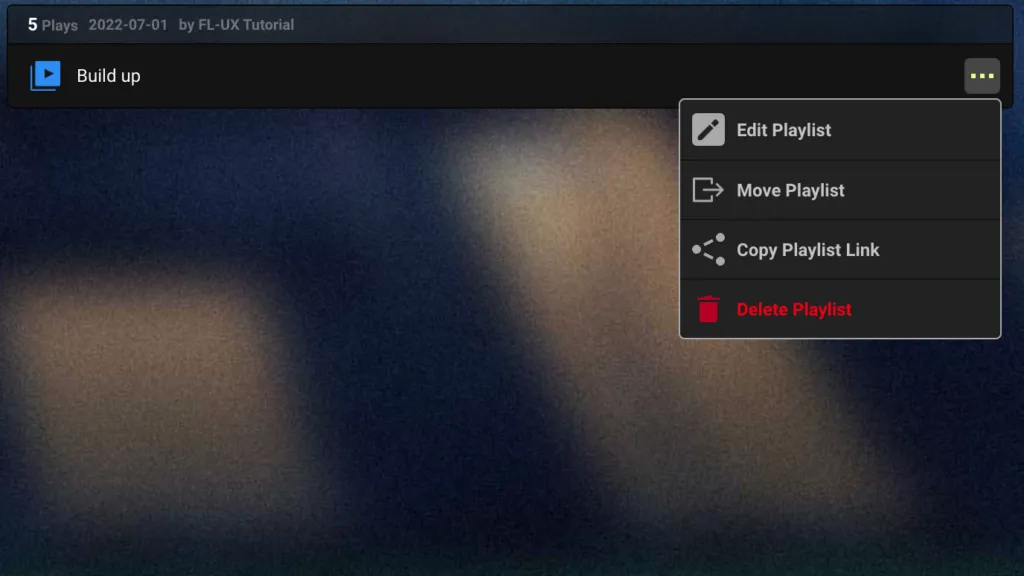
Edit Playlist Info
Click on “…” on the playlist and select edit playlist
You can change the display name and add/remove labels
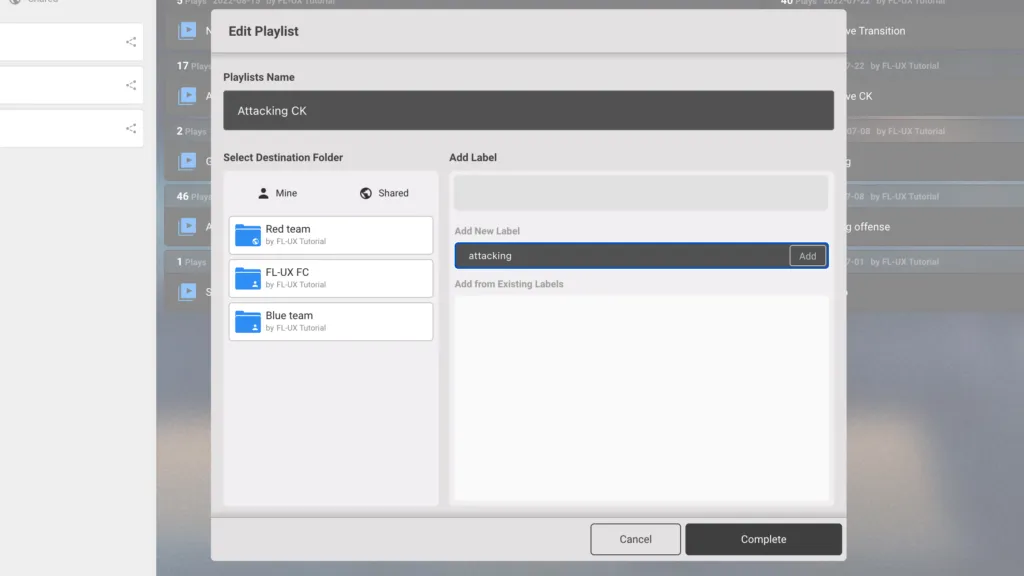
Type or select existing labels from this window to add labels to the playlist
These labels can be used to search through playlists later on
Click on complete to finish
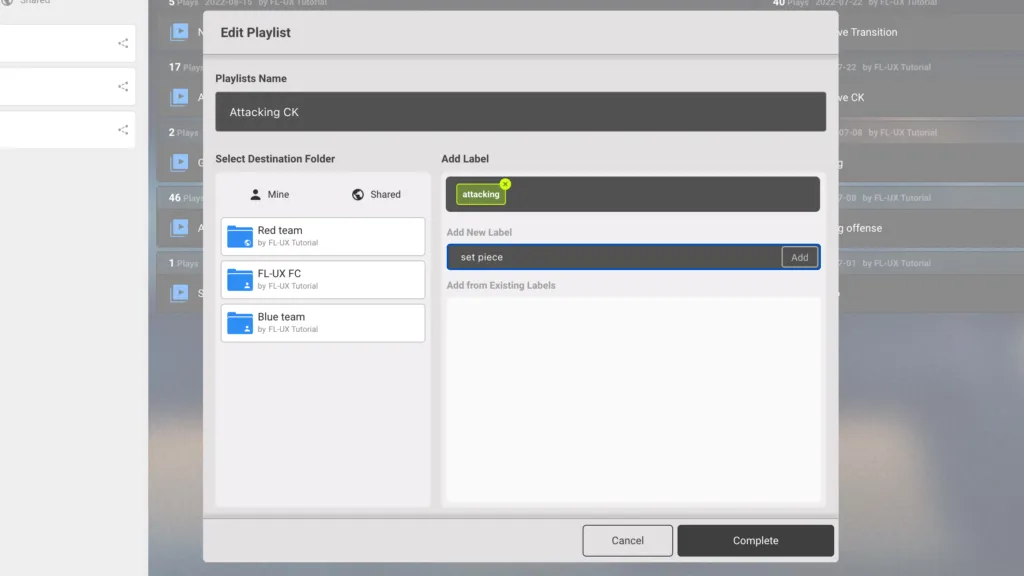
Edit Playlist
Click on the playlist to view what is inside
Click on the edit button that is on the bottom left corner of the page
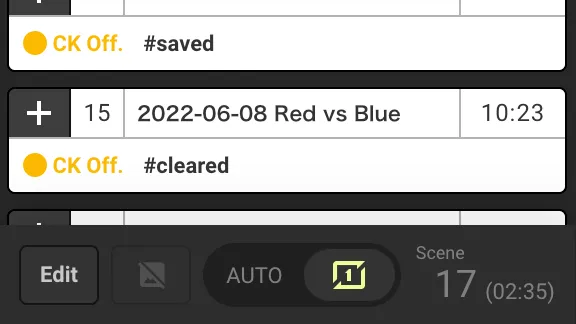
Use either the arrow or the drop-down menu by the number to move the position of the clip within the playlist
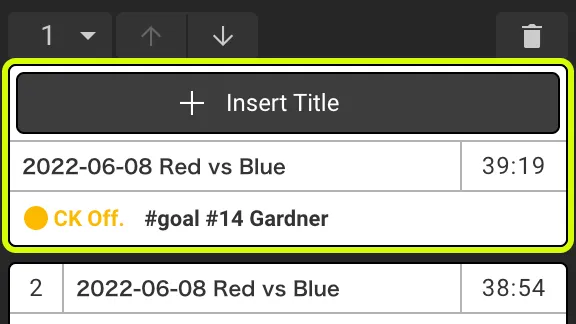
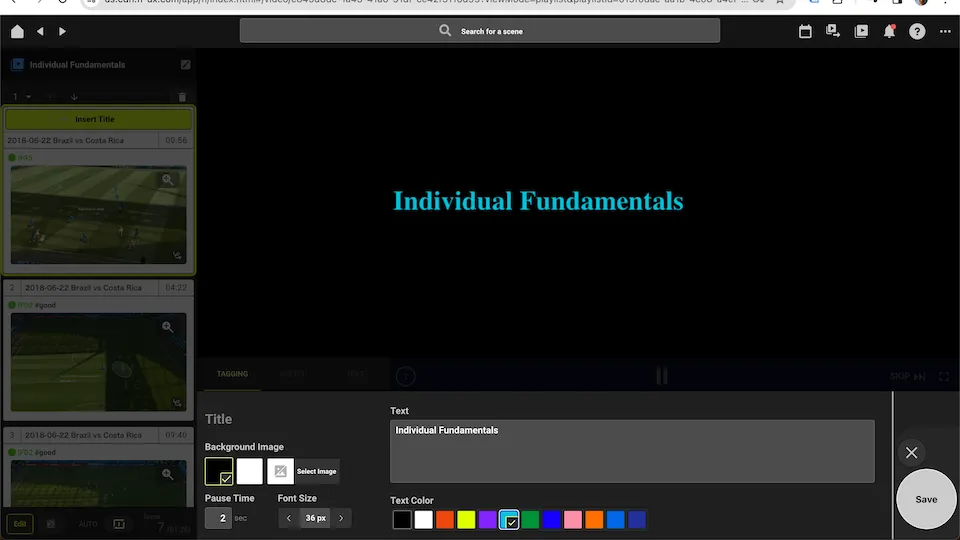
Insert Title
From the previous step, click on insert title
Type your text in the text area and set the display duration, font size, and font color from the drop-down menu on the left. It is also possible to insert an image instead of just text.
Click on save
Playback Mode
You can toggle between auto play and loop
Auto – plays video clips in consecutive order
Loop – plays the same video clip in loop
Share Playlist
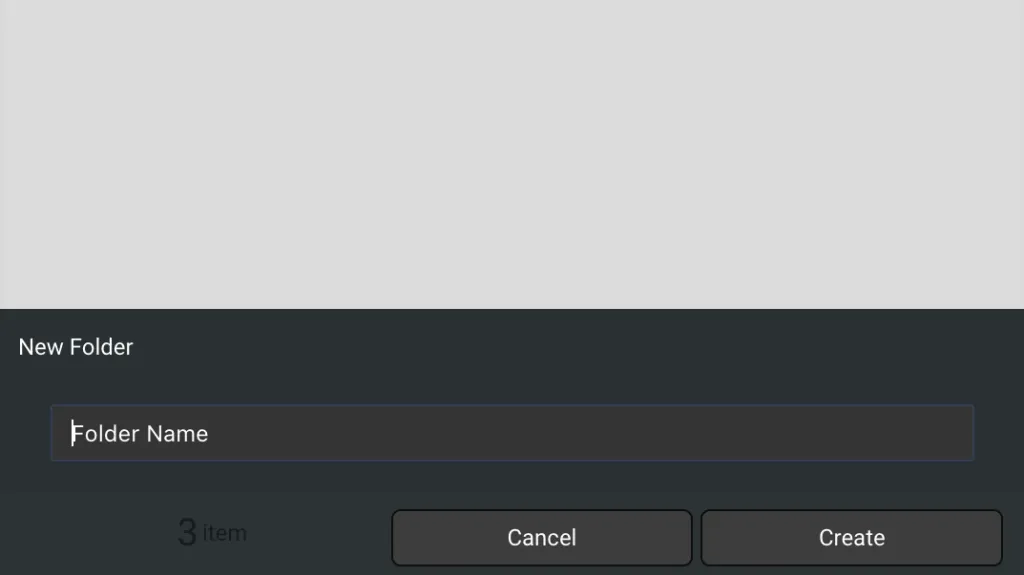
Click on new folder from the bottom left of the page
Name the folder and click on create
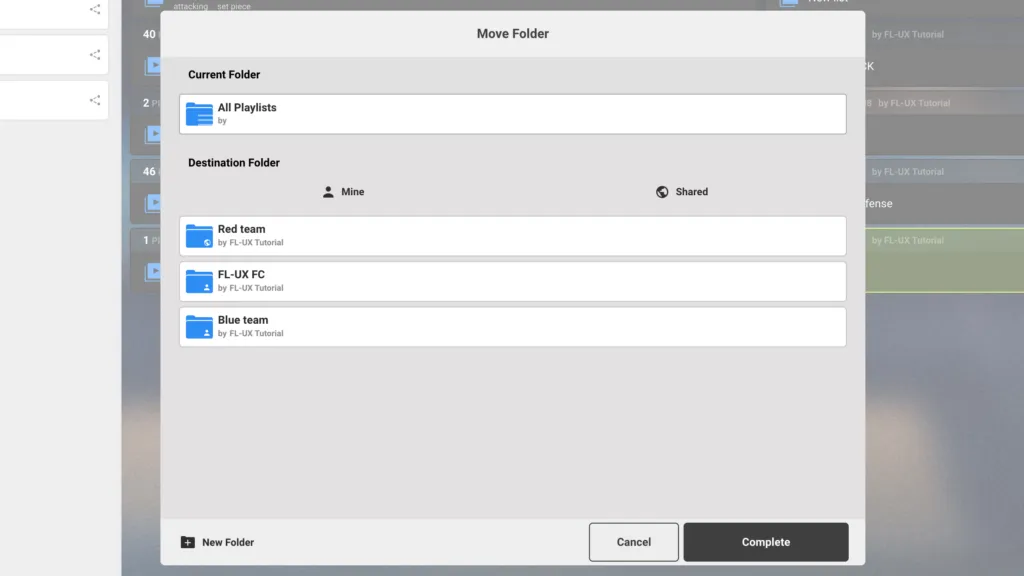
Click on “…” and select move playlist
Select the folder to move the playlist from this window and click on complete
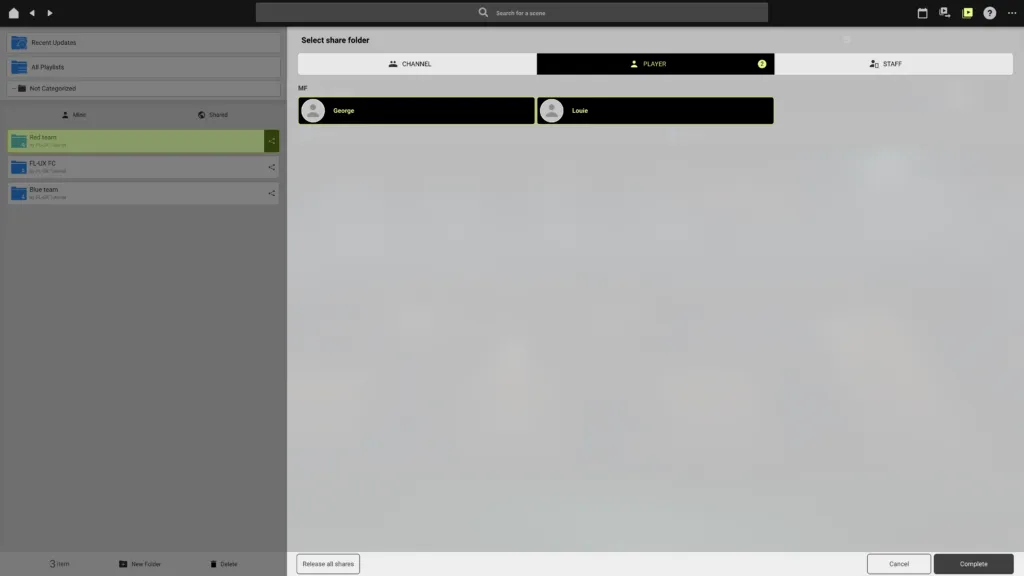
Click on the share icon at the far right of the folder
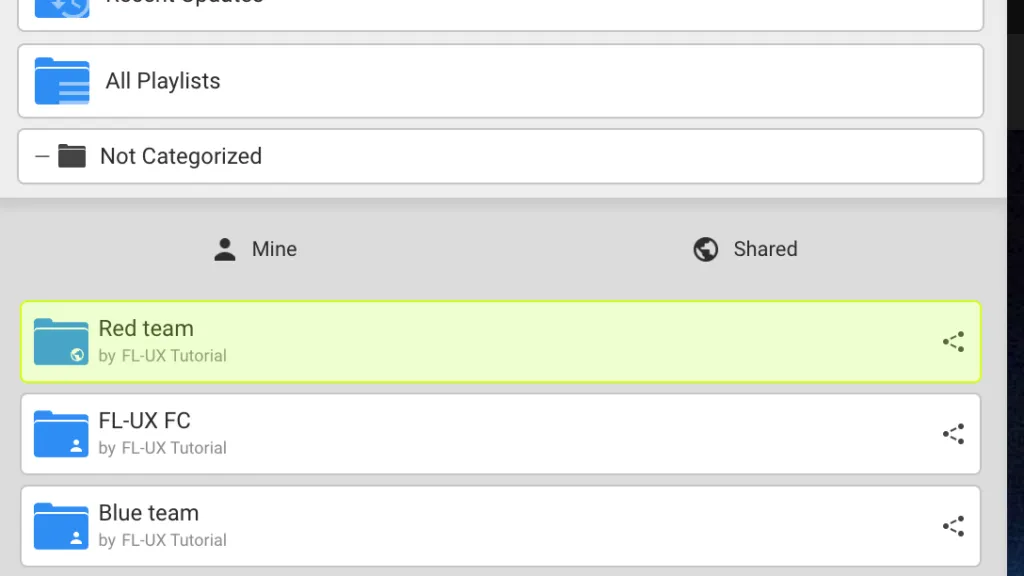
Select the people to share this folder either by channels, players, or staff
Click on complete to share the folder. By sharing a playlist this way, you can keep certain lists private from some users. It is ideal to reach a small portion of your team.
If you want to share the playlist with everyone, just keep it in the all-playlist folder, which is the default folder.